
Attendance
Recording attendance captures who actually showed up, not just who RSVP'd. You can then filter and target people who attended specific events, and track participation over time.
To open attendance, click 'Take attendance' at the top right of the event in the dashboard. It needs the 'Manage Events' permission.
For events with multiple sessions, use the dropdown in the top right to select which session you're recording attendance for. All Event Sessions shows everyone who attended any session.
When using the attendance page at a live event, make sure you've selected the correct session before adding attendees.
Live Check-In
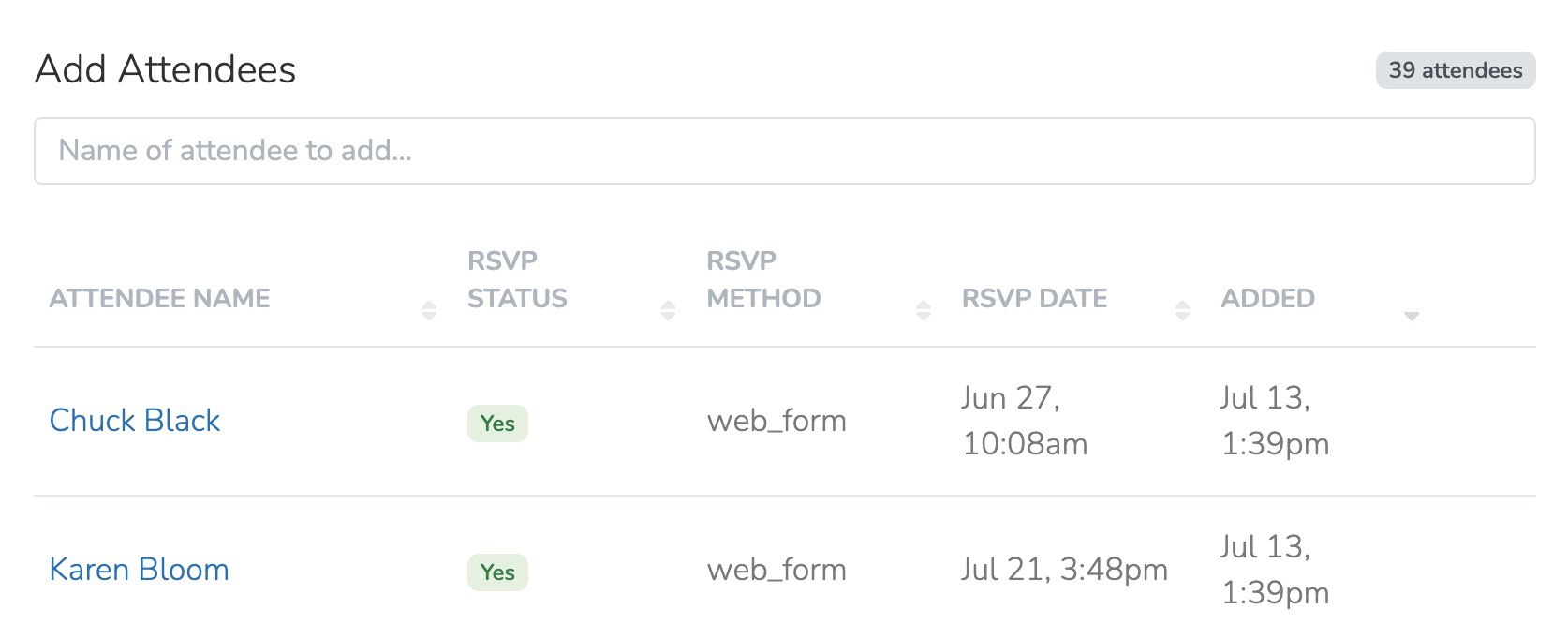
The attendance page works as a check-in station. Search for people by name or phone number as they arrive and mark them attended. People who RSVP'd show their RSVP status next to their name.
When you search a phone number that doesn't match anyone in your system, you see 'Add' with the number, for example 'Add (555) 555-5555'. Click it, fill in their name, and they'll be created as a new Person and marked as attended, all in one step.
To remove someone from the attendance list, select their session, then click Delete on their row. Delete removes only the attendance record. The RSVP stays.
Host Tools and Self Check-in
Host Tools gives each session a shareable link that lets hosts view RSVPs, mark attendance, and contact attendees in any browser, with no login. When Host Tools is enabled, each session also gets a self check-in link and QR code, so attendees can check in from their own phone.
Exporting Attendance
On the event's 'RSVPs' tab, click the 'Export Attendance' download icon in the toolbar, then confirm. The icon shows after the event's last session ends, to Team Members with 'Export People'. The CSV has one row for each attendance record, including walk-ins who never RSVP'd. It follows the session menu on the 'RSVPs' tab: 'All Sessions' exports every session, and one session exports that session only.
Zoom Attendance
For events with Zoom connected, attendance is synced automatically after the meeting ends. It works best when people join with their personalized join link.
Manual CSV Upload
You can also upload a Zoom CSV to mark attendance, for example for events not using the Zoom integration or for historical events. The upload shows only when the event has a virtual session and the selected session does not use the Zoom integration.
Exporting from Zoom (Meetings):
- Sign in to the Zoom web portal
- Click your profile picture. Click Admin Center. In the side menu, click Reports. Click Usage reports. If you are a host and not an admin, click My account instead of Admin Center. Click Reports. Click Meetings & Webinars.
- Click Meeting and webinar history
- In the From and To fields, select a time range of one month or less. Find your meeting.
- Under the Participants column, click the participant number
- In the Participants window, click Export. Zoom downloads the list as a CSV file.
Exporting from Zoom (Webinars):
Export the attendee report from your webinar's reporting page.
Uploading the CSV:
On the Event Attendance page, select the session. The info box then has the link 'upload a Zoom attendance CSV'. Click it and select your file.
After processing, the Found tab lists the matched people. Deselect anyone you want to leave out, then click Add Attendance. The Not Found tab lists participants that matched no one, so you can look them up or add them by hand.
Using Attendance Data
Attendance data is available in Filters, to segment people who attended (or didn't attend) specific events, and in Automations, to trigger follow-up for attendees. Automations are on the Standard, Professional, and Enterprise plans.
Updated 18 days ago