
Settings & Notifications
The "Settings" screen can be accessed by tapping the cog icon in the top right of the "Workflows" tab

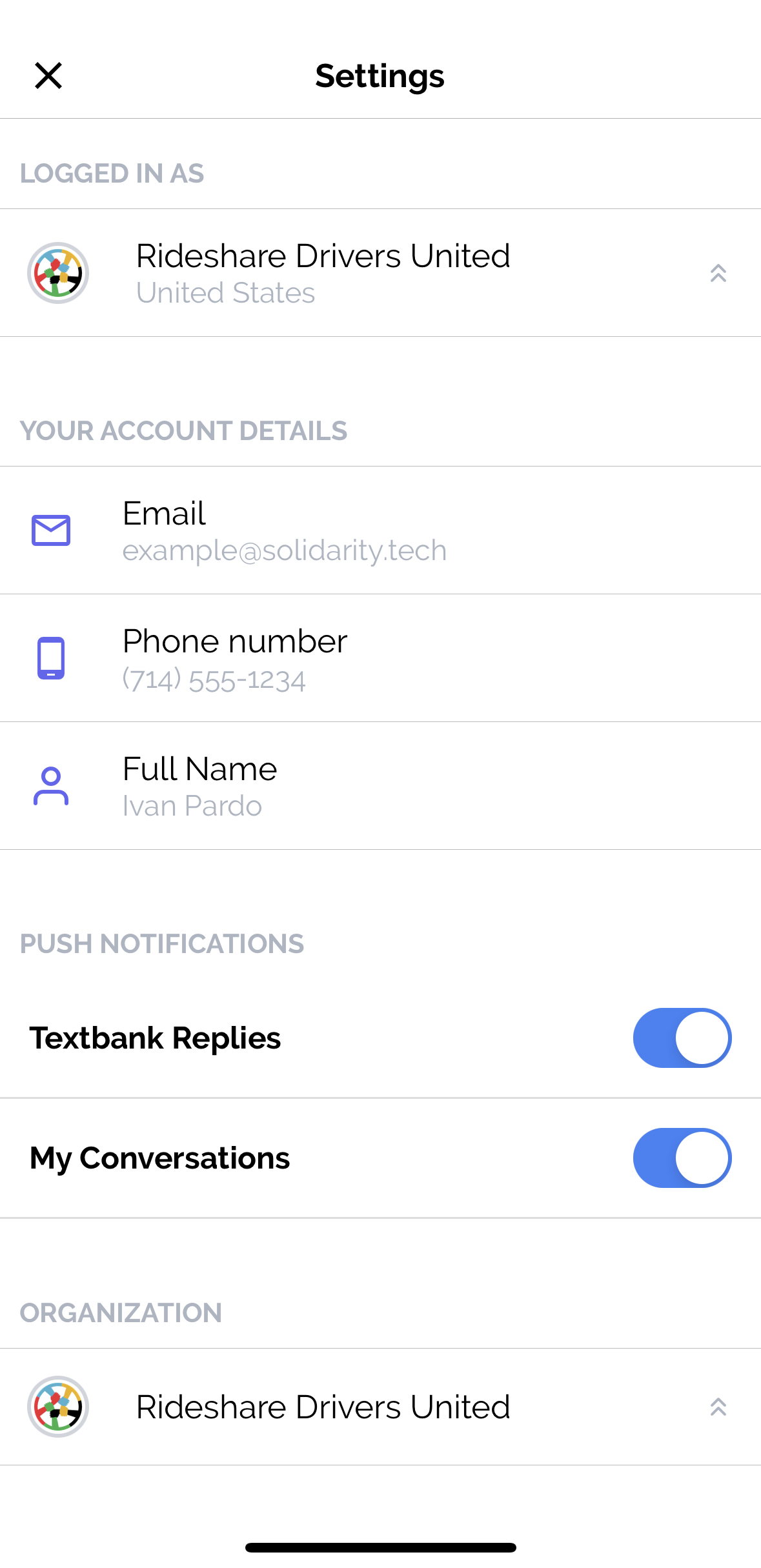
From this screen, you can switch your Scope within an Organization, switch your Organization entirely, manage notifications, and log out of your account. The "APP" section has "Language" and "Appearance". Note that account details (email, phone, and name) are read-only in the app. To change your name or email, open "My Account" in the dashboard and go to the "Solidarity Tech" tab.
Notifications
After you allow push notifications, you get a push for a text or a missed call from a Person whose Assigned Agent you are. You also get a push for replies to your textbank texts while the textbank is running, unless you turn off "Textbank Replies". Turn off "My Conversations" to stop pushes for texts from your assigned People.
Logged in as
If you have access to more than one "Scope" within your Organization, you will be able to tap the row under "LOGGED IN AS" and switch your Scope. After switching your Scope and returning to the app, the context for all your Conversations and Workflows will be for the newly updated scope.
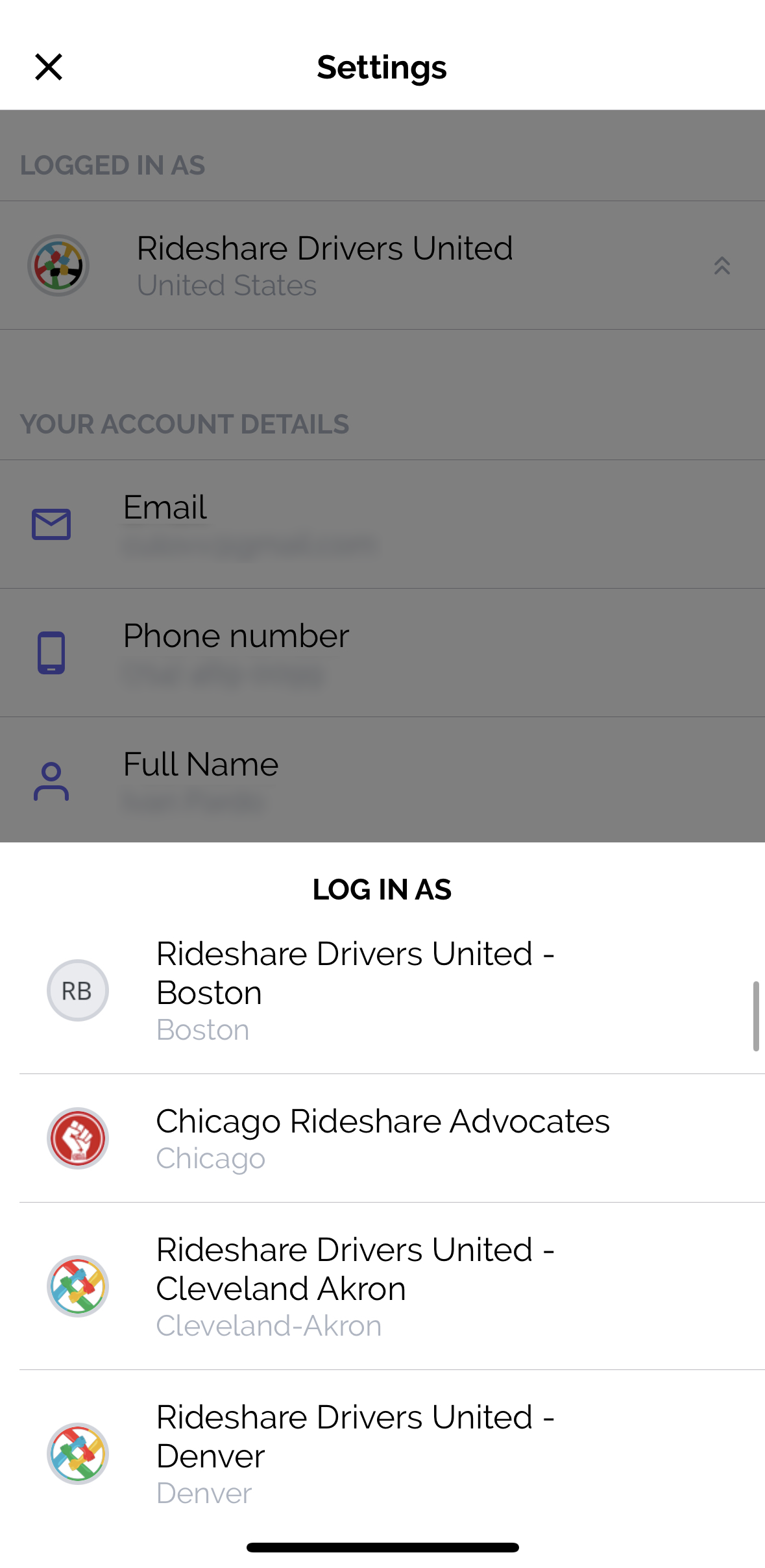
The same applies for switching your Organization. If you have access to more than one Organization through your Solidarity Tech account, you will be able to switch by tapping the row under "ORGANIZATION" at the bottom.
Lastly, you can log out from the app and return to the login screen by tapping the logout button at the bottom of the screen.
Updated 4 days ago