
Automations
Automations Overview
Solidarity Tech's Automations feature lets organizers build multi-step workflows that run when supporters take an action. Automations include actions, decisions, and delays. Use them for welcome emails, follow-ups, reminders, and tasks for your team. Messages can go out in each supporter's preferred language, and each step shows its own analytics. Automations are on the Standard, Professional, and Enterprise plans.
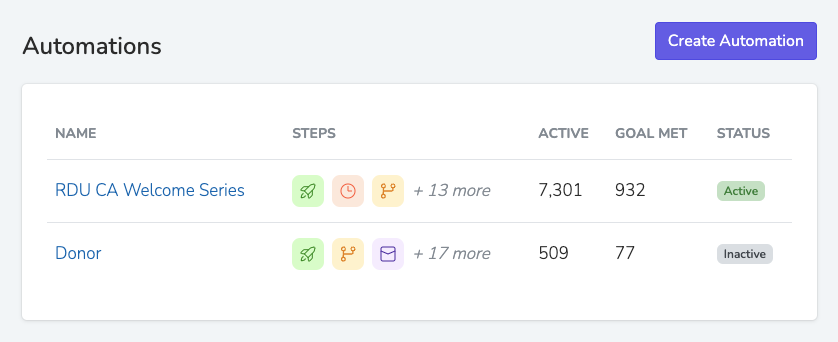
An automation enrolls people only while it is on. On the automations list, an automation that is off shows an Inactive badge. Turn it on with Turn on.
Triggers
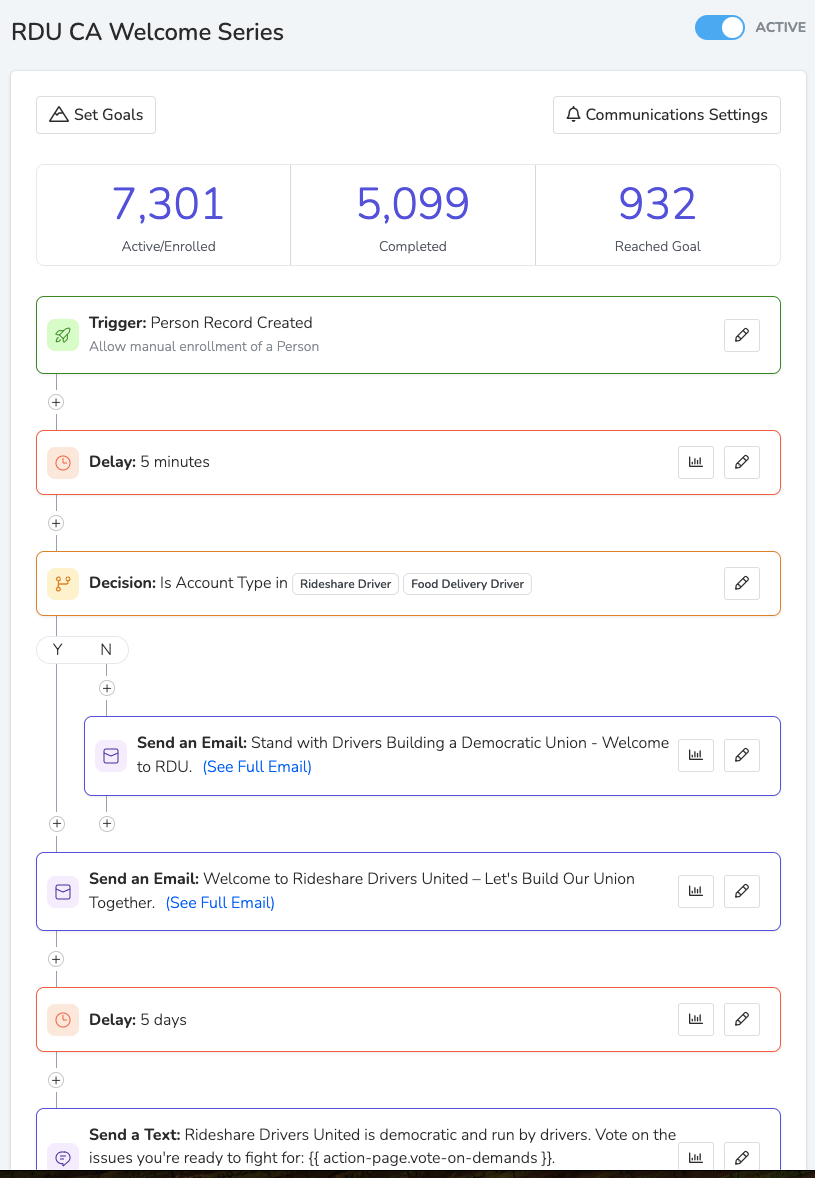
Triggers determine when someone enters an automation. You can combine multiple triggers in a single workflow.
Common Triggers
| Trigger | When It Fires |
|---|---|
| Form Submission | Someone submits any form or a specific form |
| Event RSVP | Someone RSVPs to any event, a specified event, or events with tags |
| Event Attendance | Someone is marked as attended at any event, a specified event, or events with tags |
| Person Record Creation | A new person is added to your database |
| Incoming Text Received | Someone texts your number. It can filter by the message content. |
| Answered Call | A call ends |
| Tag Addition | Any tag, or a specified tag, is added to someone's profile |
| Assessment Change | Someone's assessment level changes |
| Successful Donation | Someone makes a donation (any donation page or a specific one) |
| Takes Any Action | A form submission, a Yes RSVP, an answered or incoming call, an incoming text, or a successful donation |
Additional triggers are available in the product.
For the Event RSVP and Event Session RSVP triggers, only "Yes" RSVPs trigger enrollment by default. You can also select "No" and "Maybe".
For automations triggered by incoming texts, the Triggering Message Content filter offers two options:
- contains: Finds the text anywhere in the message. It does not accept a regular expression.
- is: Matches only when the whole message equals the text. This match is case sensitive.
Important: Automations Run Once Per Person
Automations only run once per person. After someone completes or exits an automation, they won't re-enter it even if they trigger it again. Email Opt-Out and On a Date automations can enroll a person again.
To let someone enter again, open their person profile and go to the Automations section. If you have the 'Add Automation Enrollments' permission, click the ⋮ menu on the automation and select "Delete Enrollment".
To test an automation, turn it on and take the trigger action with your own record. To test again, use Delete Enrollment on your profile.
Actions
Actions are what happens after a trigger fires. See Automation Actions for the full list, including:
- Send email
- Send text
- Add follow-up task
- Assign agent
- RSVP to event
- Update tags
- Update custom property
- Webhook
Decision Router
The Decision Router sends supporters down different paths based on filter conditions. Each condition has a name, a filter, and its own set of actions and delays. Choose one of two modes:
- First match only: Runs the actions of the first condition that matches. The router checks the conditions in card order, from left to right.
- All matches: Runs each matching condition, unless "After Router Completes" is "Stop automation".
Goals
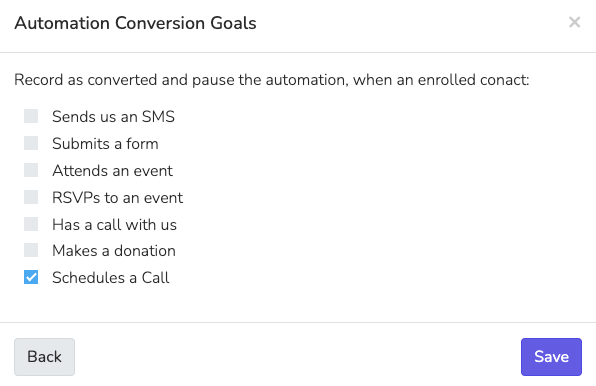
Goals define when an automation should stop for a person. Once the goal is achieved, that person exits the workflow. A goal counts only when the person takes the goal action while they are in the automation.
Available goals include:
- Sends us an SMS
- Submits a form
- Attends an event
- RSVPs to an event (Yes RSVPs only)
- Has a call with us
- Makes a donation (successful charges only)
- Schedules a Call
Communication Settings
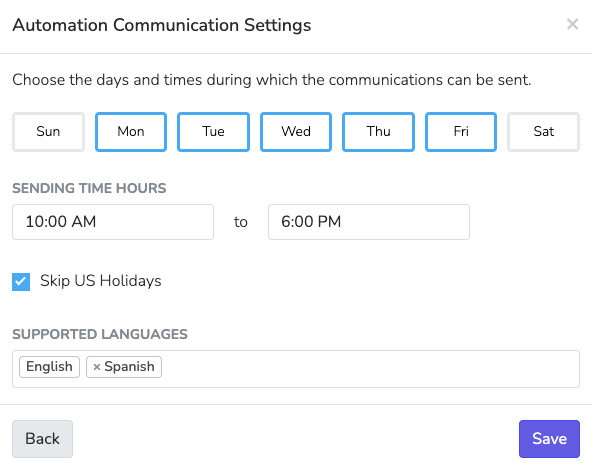
Click 'Communications Settings' on the automation to open 'Automation Communication Settings'. There you set:
- The days of the week and the hours when messages can go out. By default, automations can send at any time.
- Skip US Holidays, to hold messages on national holidays.
- The supported languages for the workflow.
- The Scope. A chapter scope limits enrollment to contacts of one chapter. An organization scope allows contacts from across the organization.
The day and hour limits apply only to the Send email, Send text, and Send admin notification email steps. A message triggered outside the allowed window is queued and goes out at the start of the next valid window, in the recipient's timezone. The window never drops messages. A person without permission or contact details for that channel skips the message step.
Updated 18 days ago