
Email Legislator
Email Your Legislator Pages
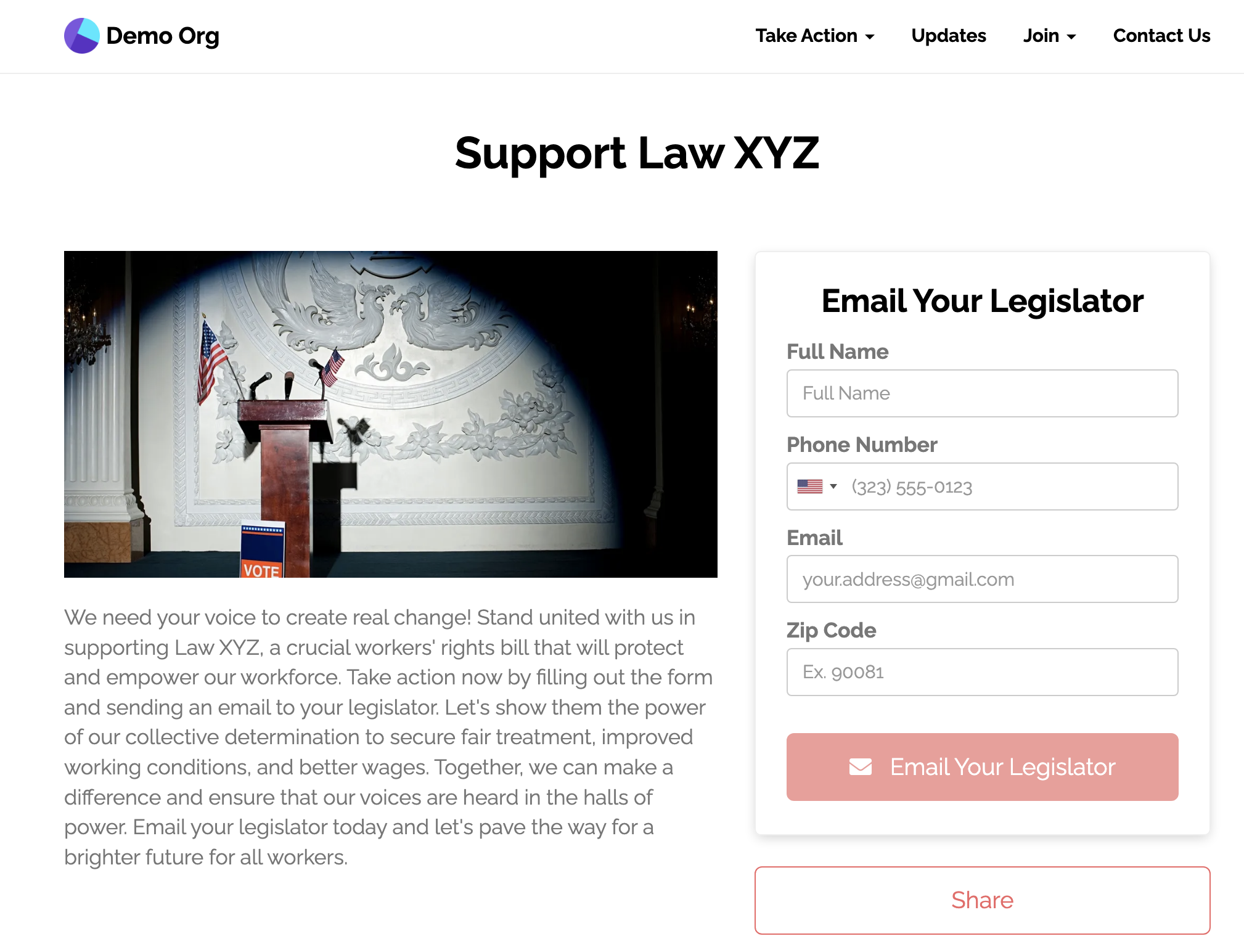
Email Your Legislator Pages let your supporters email a pre-drafted, customizable message to their local legislator.
At the moment, we support emailing legislators for:
- Federal: US House of Representatives and US Senate (full coverage)
- State: 49 state legislatures and Puerto Rico, but not Nebraska. Some chambers do not accept email: Idaho House, Maryland House of Delegates, Minnesota House, New Hampshire House, Vermont House, New Mexico, and Puerto Rico.
- Local: the city councils of Chicago, Dallas, LA, Providence, and San Antonio, the Milwaukee Common Council, and the LA County Board of Supervisors. Organizations in Canada see only the Ottawa City Council.
Our support team does not add new legislatures on request. To target a legislature that is not listed, you can add your own with Custom Legislative Districts on the Professional and Enterprise plans.
An Email Legislator page requires email, full name, and full address. When you target the US House or the US Senate, it also requires phone number and prefix.
Choose legislature

Choose up to 3 legislatures, in any mix of federal, state, county, or city. The message goes to the legislators whose districts contain the supporter's address. A custom legislative district set appears in this list once its Allow emailing these representatives toggle is on.
Legislator Lookup Blocks
The form can show which legislators will get the message before the supporter submits. In the form editor, open Add New Form Field and pick Add Text, Images, Headers, & Links... in the Text & Formatting group. Put one or more legislator merge tags in that HTML block. In the block editor, open Merge Tags, then Legislator.
| Tag | What it shows |
|---|---|
{{ legislator.full-name }} | The first matched legislator's full name |
{{ legislator.title }} | Their title (e.g. "Senator", "Representative") |
{{ legislator.district }} | Their district identifier |
{{ legislators-list }} | A plain-text sentence listing all matched legislators (e.g. "Senator Jane Doe and Representative Chi Ossé") |
Example HTML block:
<p>Your message will go to {{ legislators-list }}.</p>The block fills in after the supporter picks an address, and stays hidden when no legislators match. New Email Legislator pages include a block like this by default. You can edit, move, or delete it. You can also use {{ legislator.full-name }}, {{ legislator.title }}, and {{ legislator.district }} in your email message to address each legislator by name. Liquid filters and comparisons do not work on legislator tags in the block.
How Message Delivery Works
Messages to the US House and the US Senate go through each office's official contact channels. Federal targets require additional organization information (see Federal-Specific Requirements).
Messages to state, county, and city legislators go to their email addresses. By default, the supporter's email is in the "Reply To" field, so legislators can reply to them.
Email delivery depends on current, working addresses for each legislator. Test your page with your target legislature before you launch. If you find a missing or outdated address, contact [email protected] with the legislature and legislators affected.
Delivery Methods
Next, select the delivery method. Individual sends each legislator a separate email. None sends no emails to legislators.
Federal-Specific Requirements
When targeting federal legislators (US House or Senate), the page asks for your organization's contact details, a short description of your organization, and relevant policy topics.
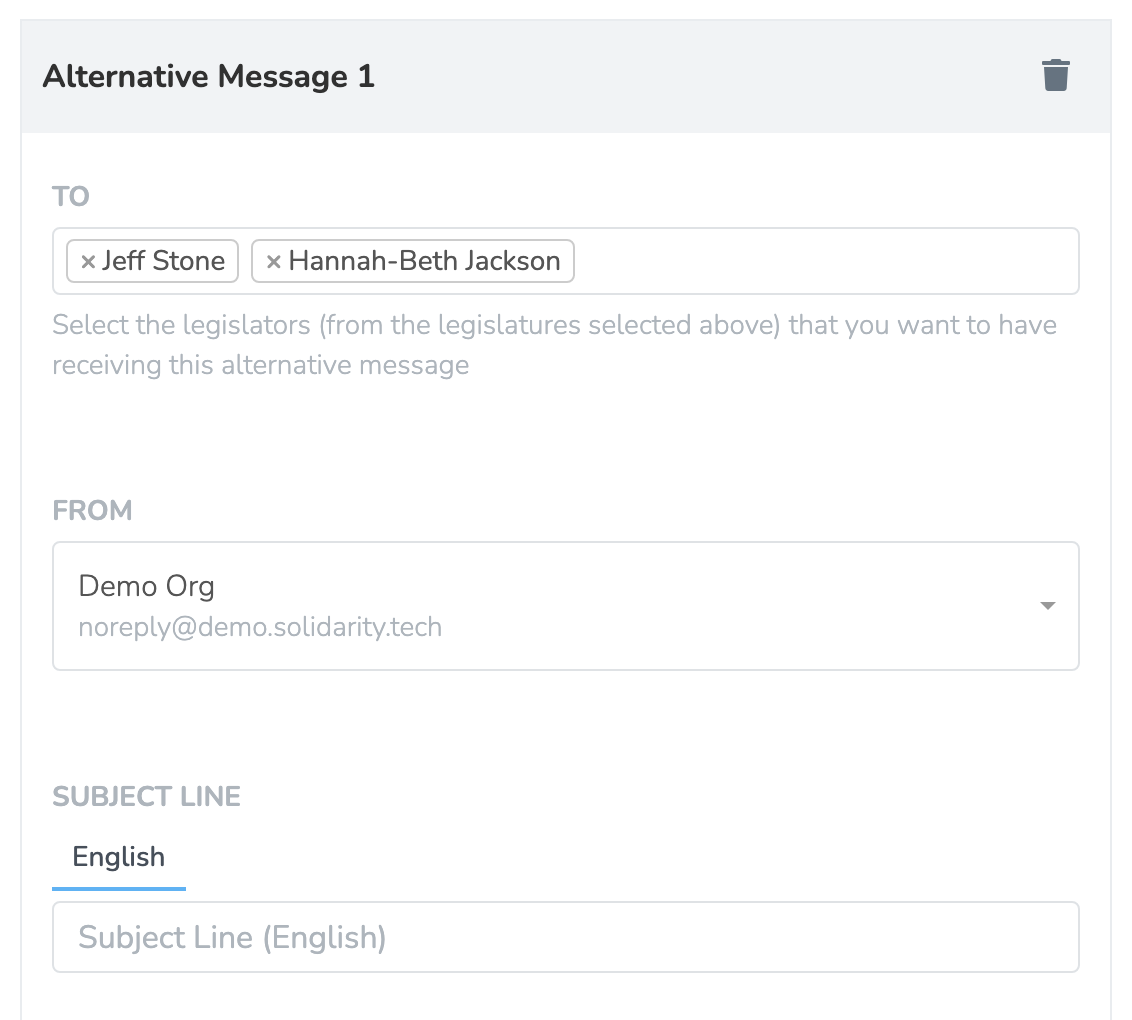
Alternative messages
The default message goes to all legislators. To send a different message to some legislators (for example, to thank the ones who already support a policy), click Add Alternative Email below your messages. In each alternative message, select the legislators who get it instead of the default message.
Allowing Users to Customize Messages
By default, your supporters will send the exact message you draft to legislators. You can let supporters personalize the message before they send it.
Step 1: Add a Multiline Text Field
In the form editor, open Add New Form Field. Pick Multiline Text under Custom Form Fields and Keyboard Entry. Give the field these settings:
- Name / ID: Open Extra options to set it. Choose a descriptive name (e.g.,
user-message). You use this name in the merge tag in Step 2. - Preset Value: Enter your default message text that users can edit. It can include member merge tags such as
{{ user.first-name }}, which fill in for members the form recognizes (see Preset values and merge tags) - Editable: Ensure this is set to
true(enabled) - Label: Something like "Your Message"
Step 2: Use the Field in Your Email Template
In your email message to legislators, insert the field with the name you chose:
Hi {{ legislator.title }} {{ legislator.full-name }},

  {{ user-message | newline_to_br }}

Sincerely,
{{ user.full-name }}
{{ user.zip-code }}
The supporter's text replaces the {{ user-message }} tag. If they change nothing, your preset message is sent. State and local emails lose the supporter's line breaks unless the tag is {{ user-message | newline_to_br }}. You can have several customizable text areas in one form, each with its own field name.
Updated 18 days ago