
Call Inbox
The Call Inbox lets Team Members preview all outgoing and incoming calls, with a variety of filters.
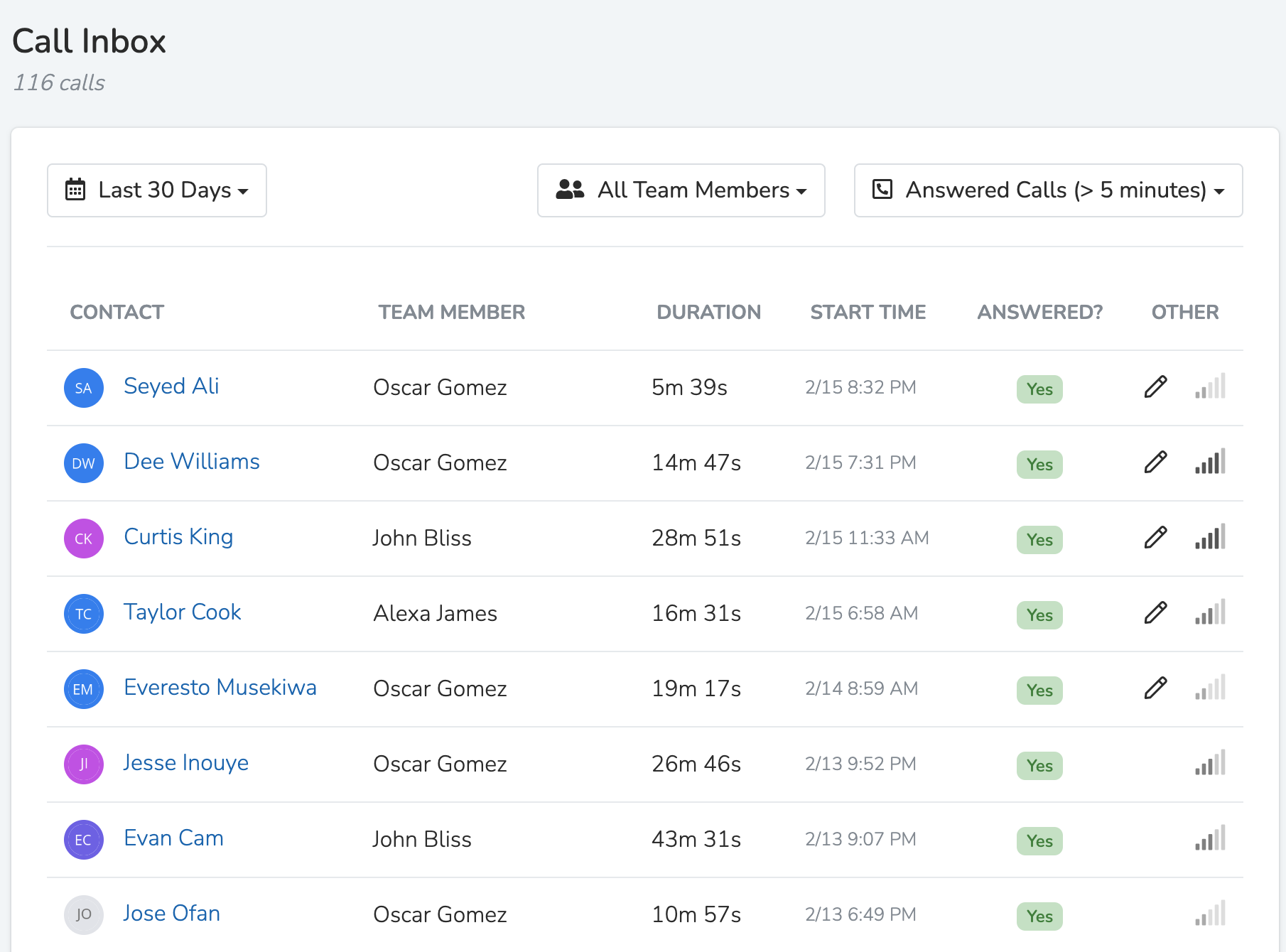
The top of the call inbox has filters for a date range, the call status (such as outgoing, incoming, or answered), and the Team Members whose calls you want to see.
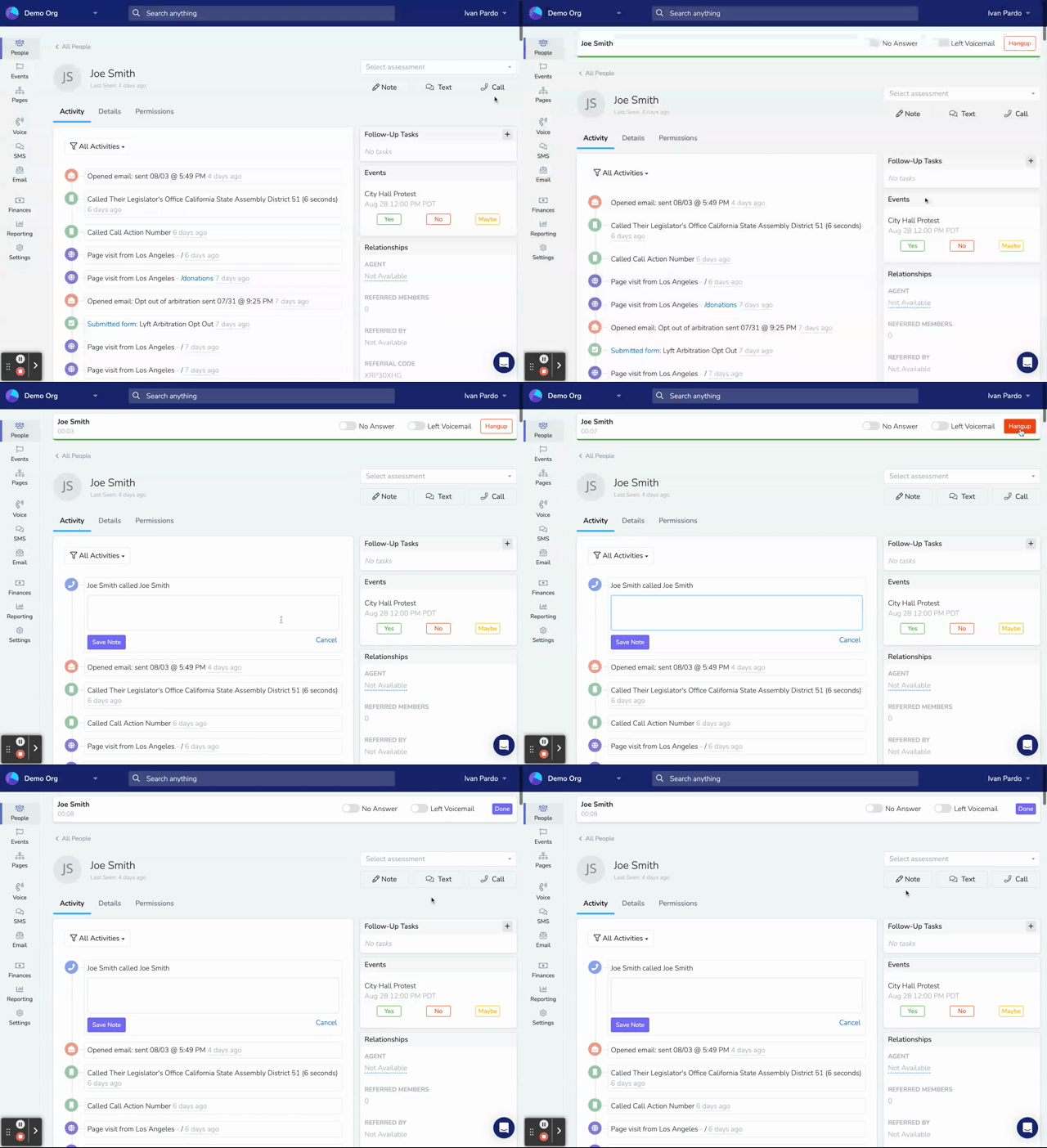
After a manual call, the team member can mark the call No Answer in the app. In the dashboard, the bar after the call has No Answer and Left Message.
Incoming calls
Callers to your Chapter Phone Numbers can leave a voicemail. You can record and upload a custom voicemail greeting to be played when the number is called, from the Chapter Structure section of the dashboard.
Incoming calls appear in your Call Inbox with the default view. You can also select the filter to see only "Incoming Calls".
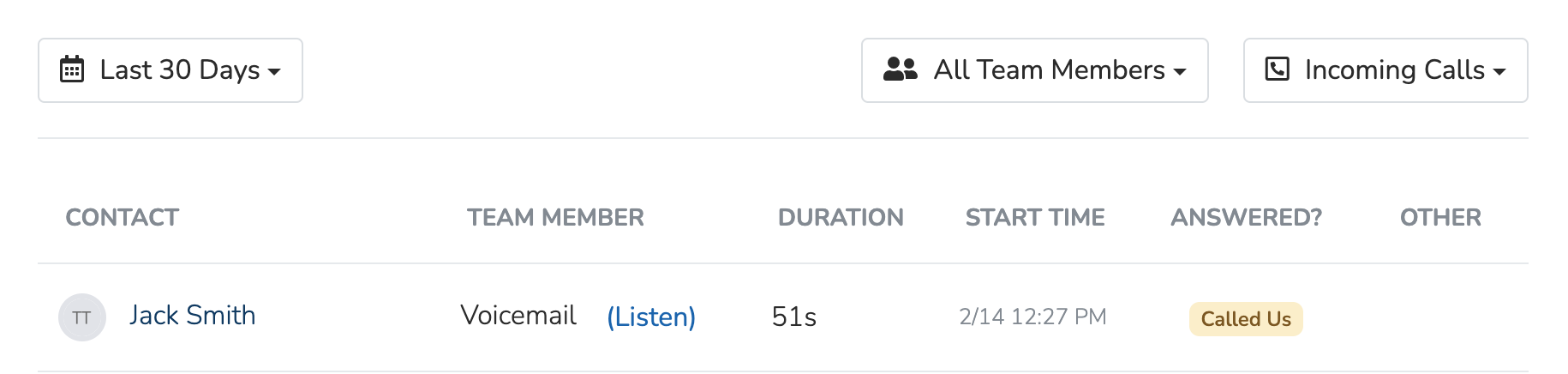
Receive Voicemails
In the Call Inbox, you can listen to each voicemail and read its transcription.
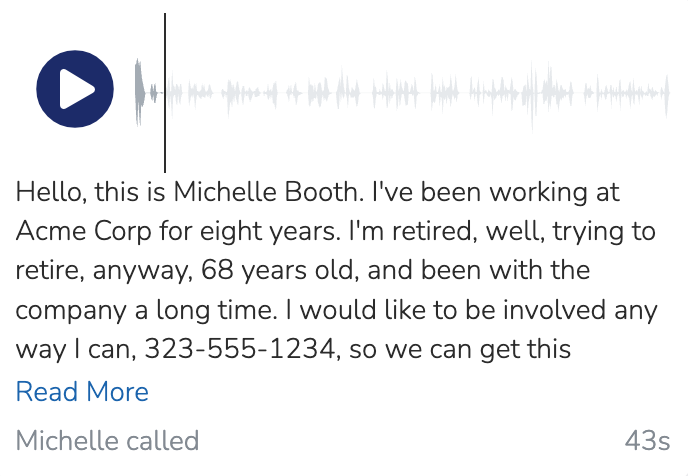
When the caller matches a person in your database, the voicemail also shows in that person's activity timeline and text conversation. A voicemail from an unknown number shows only in the Call Inbox.
"Unread", Missed Calls
Unread missed calls show in the Unread Calls filter. The badge next to Voice in the sidebar counts unread missed calls from people in your database.
Managing New Contacts
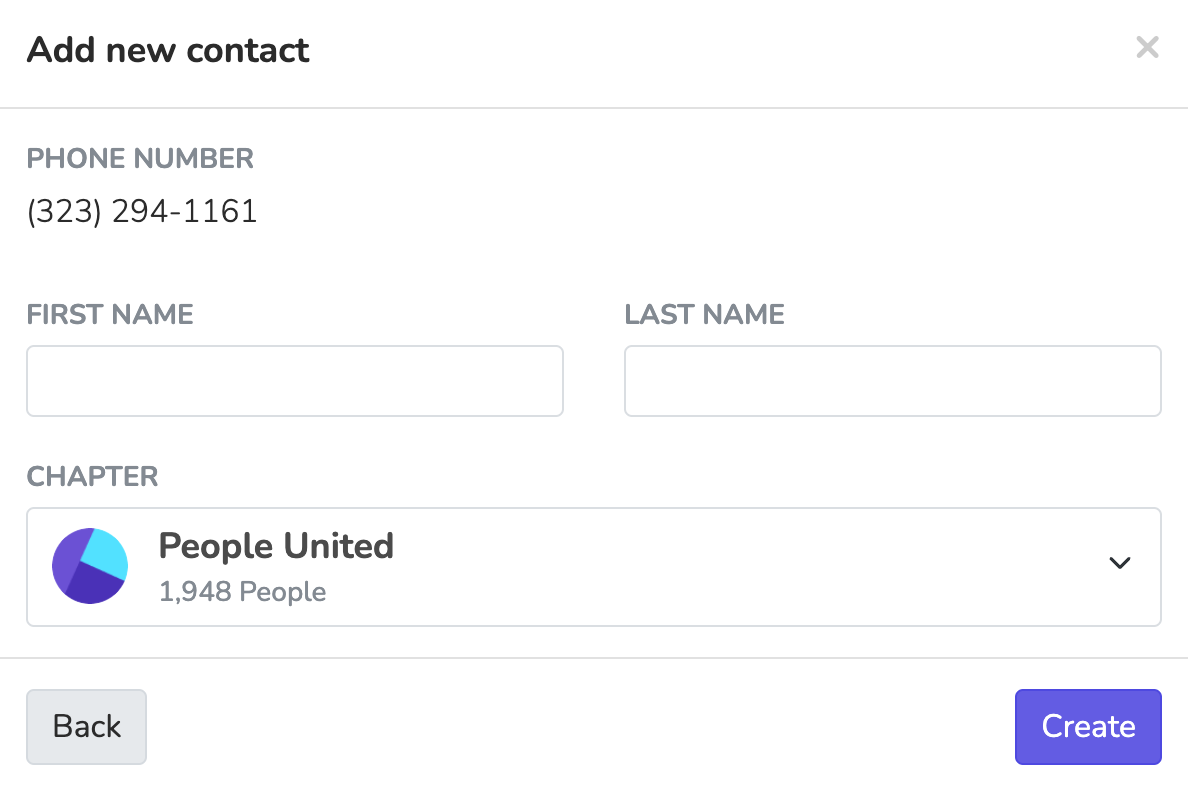
When you receive a call from a phone number not already in your database, the call shows an Add button next to the number. Team members with the Manage Spam Numbers permission also see Mark as Spam when they hover over the row.
- Mark as Spam: After you mark a number as spam, Solidarity Tech hangs up calls from it. Texts from it are dropped, unless the text is a text-to-join keyword.
- To remove a spam mark, go to Settings > Phone Numbers. Open the Phone Numbers Marked as Spam section. Click Delete next to the number, then confirm. Only team members with Manage Spam Numbers see this section.

-
Add User: Click the "Add" button next to the number, then fill in the contact details.
Outgoing calls
Calling from the dashboard
To make outgoing calls from the dashboard, navigate to a Person's profile and then click the "Call" button. The Call button checks the person's call permission. Without it, the button stays visible but is disabled.
Calling from the app
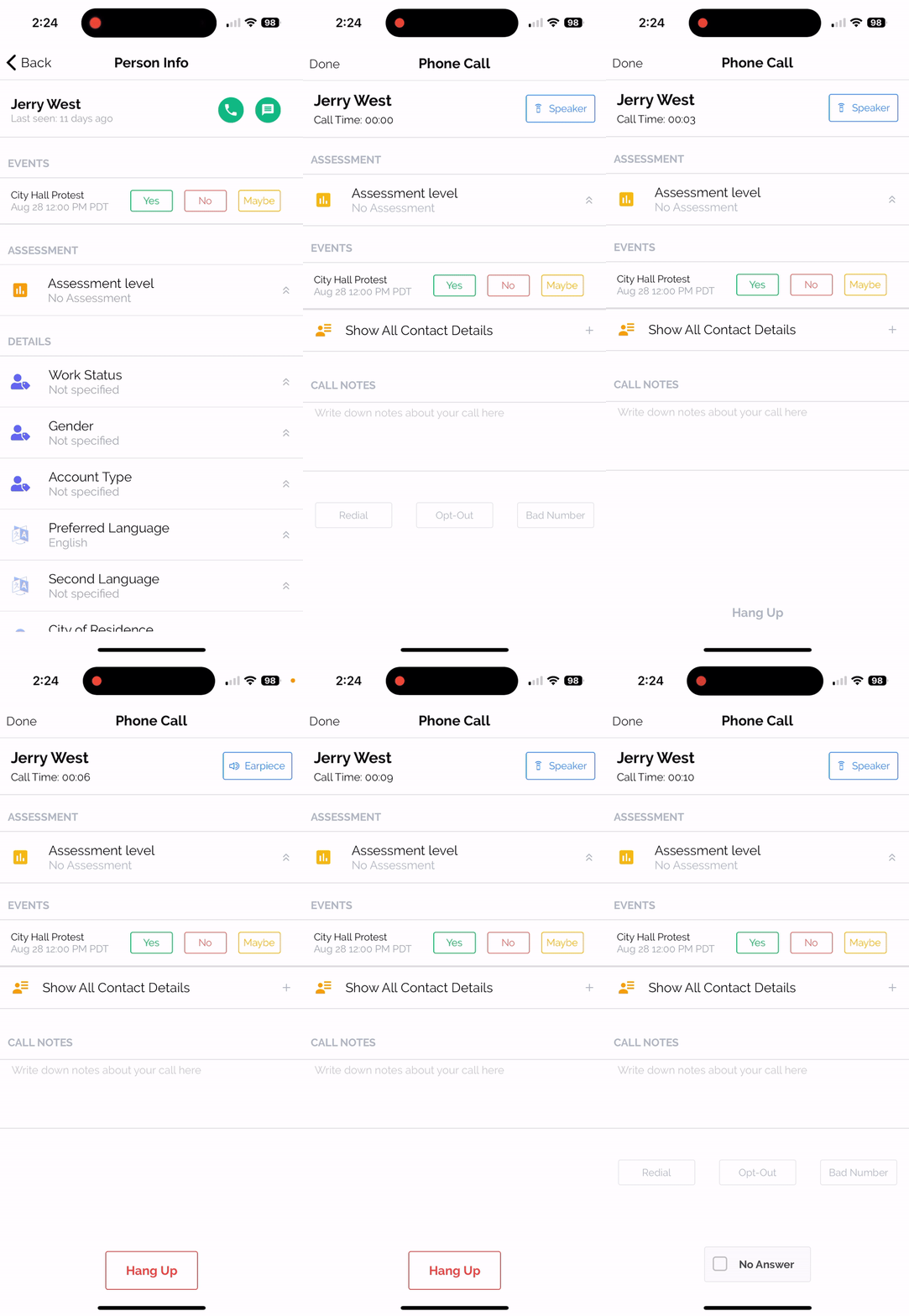
In the Solidarity app, open a Person's profile and tap the call button. You can make any updates to a Person's profile directly from the call screen.
Updated 16 days ago