
Chapters & Organizations
A Chapter is a logical grouping of People used for access control. An Organization is a collection of Chapters. By default, when you create your Solidarity account you will start with 1 Chapter and 1 Organization.
If you are on the Standard Billing Plan or above, you will be able to create additional Chapters and Organizations. Once you do so, it is important to always be aware of the Scope under which you are currently logged in. This is always visible in the top left corner of the Admin Dashboard:

All the resources visible to you in the dashboard, will only be these accessible from the Scope under which you're logged in.
Changing scope in dashboard and app
If your role assignments cover more than one Chapter or Organization, the top left section of the dashboard becomes a dropdown. Click it to change the Scope you are logged in to. Similarly, those with access to multiple Scopes will be able to change their Scope in the app from the settings screen.
Chapter details
Every Person in your database must belong to at least one primary Chapter, and can optionally belong to multiple secondary Chapters (requires Standard plan or higher).
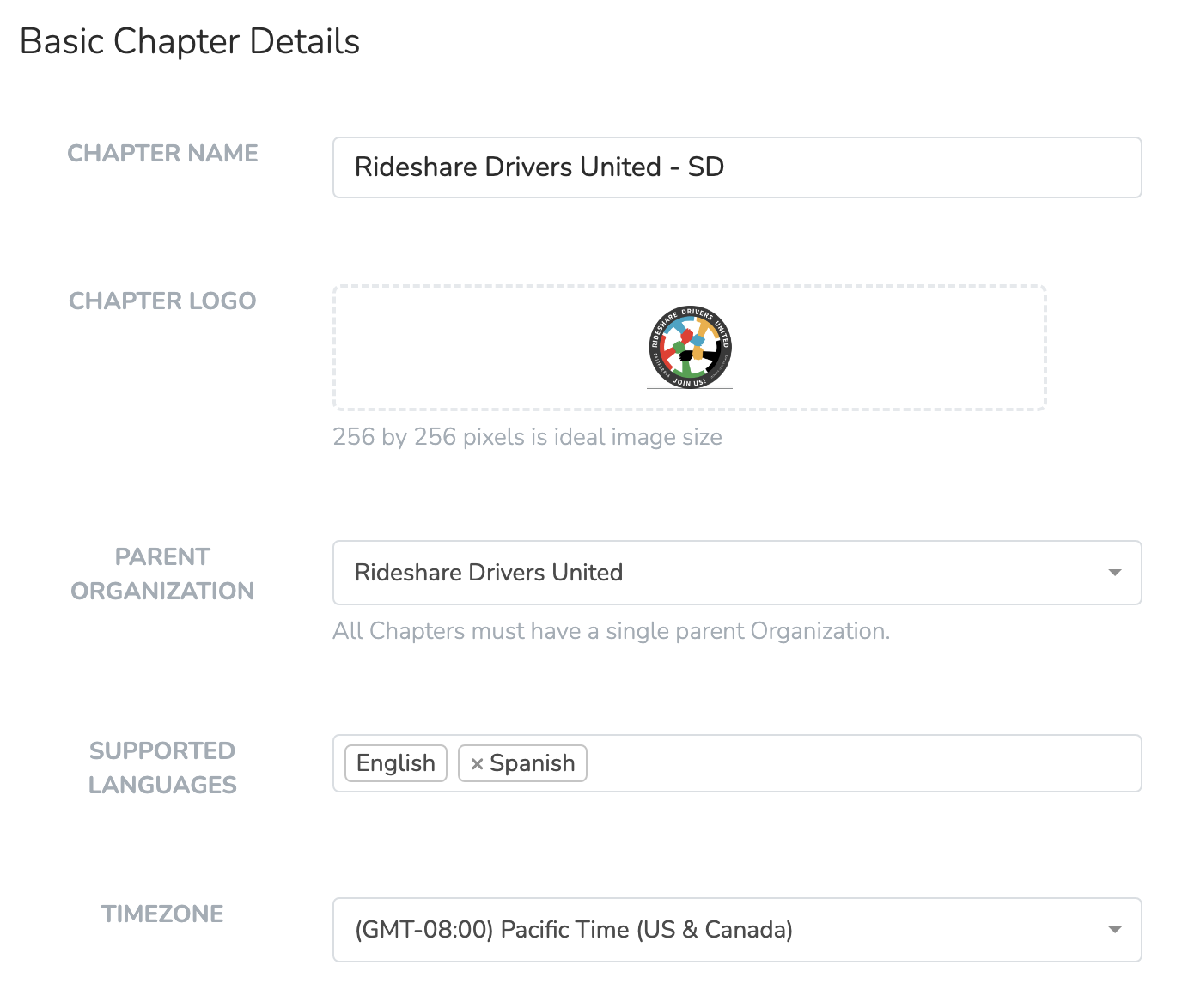
Each chapter has a name, a logo, a parent organization, supported languages, a default timezone, and social media accounts (inherited from the parent organization or custom).
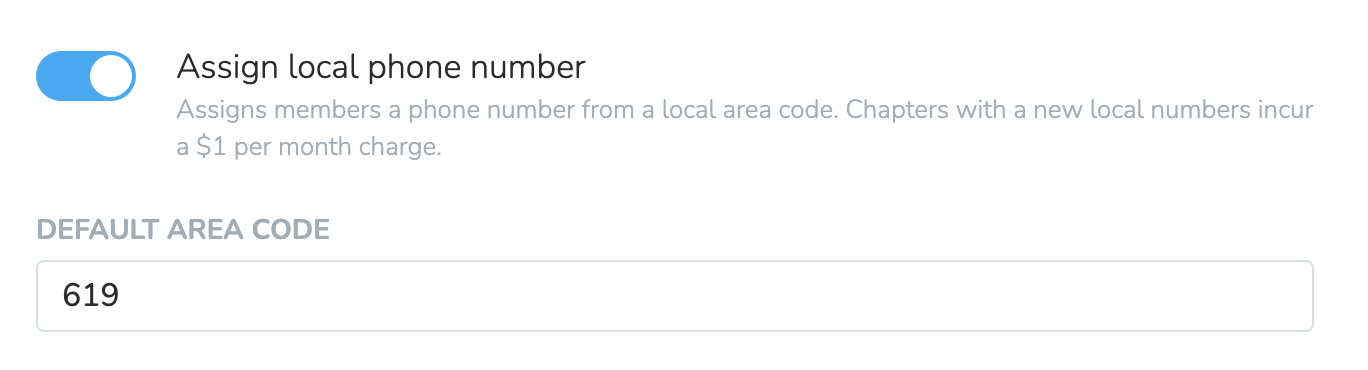
Every Chapter can have a local phone number from a supported area code for all voice and text communications with People who belong to that Chapter. The Default Area Code field in the Chapter settings does not change the chapter's current number. It sets the area code for the next number swap (US/Canada only).
Incoming calls
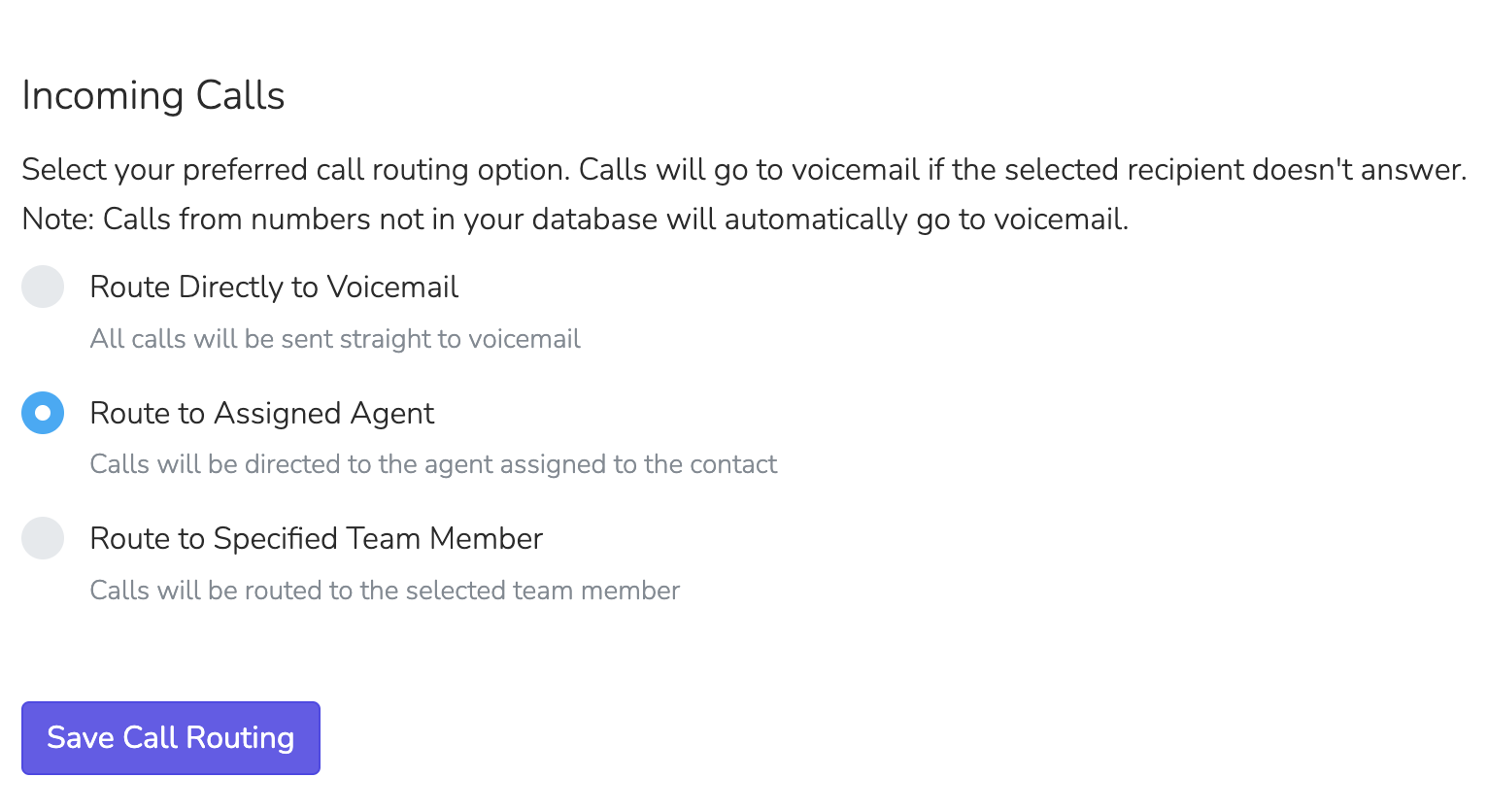
You can choose how calls to the chapter's number are routed. The options are in the Incoming Calls section of the chapter page in Settings > Chapter Structure. Click Save Call Routing to save them.
- Route Directly to Voicemail: All incoming calls go straight to voicemail.
- Route to Assigned Agent: Calls go to the Agent assigned to the contact. If no agent is assigned, calls go to voicemail, unless you enable Fall Back to Specified Team Member to send them to a chosen team member.
- Route to Specified Team Member: Calls go to one team member that you select.
- Route to Team Members: Calls ring all selected team members at the same time, up to 10. The first person to answer gets the call.
Routed calls ring in the Solidarity app. Each team member who gets calls needs a dashboard login. They must also have the app installed and be signed in on their phone. Otherwise the call goes to voicemail.
Callback Routing Override
For all routing options except "Route Directly to Voicemail," you can check Enable Callback Routing Override. It sends a contact's return call within one hour to the team member who last called them. This keeps the conversation with the same person.
Chapter voicemail
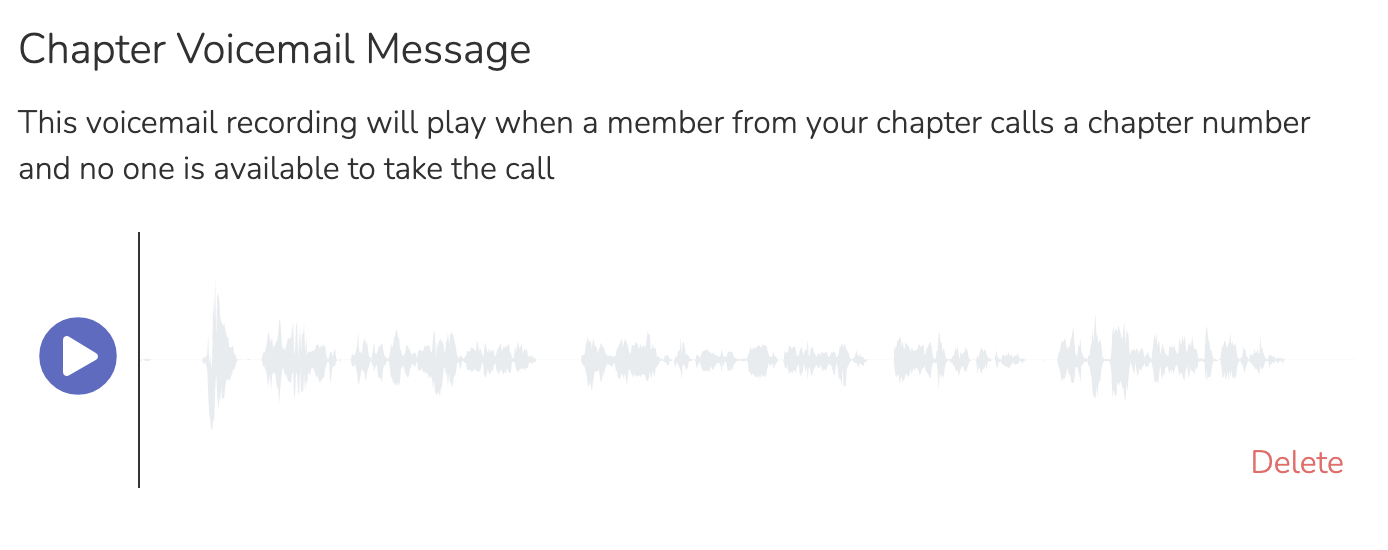
You can upload a recording in the Chapter Voicemail Message section of the chapter page. It plays when a call goes to voicemail. Every voicemail shows in the Call Inbox.
Waiting room music
If your plan includes the predictive dialer, the chapter and organization pages in Settings > Chapter Structure have a Waiting Room Music section. Agents hear this music in the predictive dialer waiting room. A chapter or sub organization can inherit the parent's music, use custom songs, or use standard hold music.
Calendar Subscription
From the Chapter or Organization settings page, click Generate Calendar Link to create a calendar subscription URL for upcoming events. Chapter officers can subscribe to it in Google Calendar, Apple Calendar, Outlook, or any calendar app that supports iCal feeds. Regenerating the URL invalidates the previous link.
The feed includes events whose event page has Show in Web Event Calendars on and is not Unpublished.
Organization details
When you create your account, you get a root Organization at the top of your organizational structure. Under it, you can create child Chapters and Organizations. A child Organization can group Chapters that belong together, for example the Chapters of one state. You can then grant statewide access to certain Team Members and run statewide Events or Phonebanks.
On a sub organization page, the Contacts Stored Here setting has two choices: People and Organizations. Choose Organizations when every contact in the sub organization and its chapters is an organization.
An Organization can also have its own geographic Branches (Professional or Enterprise plan).
Root Organization Settings
Your root (top-level) Organization has additional settings that apply across your entire account. Navigate to Settings > Chapter Structure and click your root organization.
Mailing Address
Your organization's mailing address is required for email compliance. The address shows in the footer of your email wrappers. A wrapper can hide it when you turn off its Organization Info footer section.
Texting Hours
Texting hours apply to text blasts, in each recipient's timezone. A text blast skips each recipient whose local time is past the end time, unless you check Continue delivering messages after texting hours end. Automations use their own Automation Communication Settings instead.
Other settings
- Social Media: Accounts that your landing pages can show and that child organizations and chapters can inherit.
- Enable referral email notifications: On by default. A person gets an email when someone submits a form through their referral link.
- Form Chapter Assignment: When enabled, existing users who submit a form are added to that form's default chapter.
- App "Add Person" Form: Pick a page with a form to replace the built in Add Person form in the Solidarity app.
Protected Core Fields
Organization admins can restrict visibility of sensitive contact information. When a core field is protected, team members without the View Protected Properties permission cannot see or edit that field on any person's profile.
The following fields can be protected:
| Field | What Gets Hidden |
|---|---|
| Full Address | Address line 1 and address line 2 are hidden. City, state, and postal code remain visible as read only. |
| Phone Number | The entire phone numbers section is hidden. |
| Email Address | The entire email addresses section is hidden. |
To configure, navigate to Settings > Chapter Structure, click your root organization, and check the fields you want to restrict under Protected Core Fields.
Team members with the View Protected Properties permission still see and edit all fields.
Account Owner
Every Solidarity Tech account has a single account owner, with control over billing and plan management. Only the current account owner can transfer ownership to another team member, from the dashboard. The new owner must have the built in Admin User role at the root organization and a Solidarity Tech login.
Transferring account ownership is irreversible. Once transferred, only the new account owner can transfer it back.
Email Unsubscribe Page
Configure how people can unsubscribe from your organization's emails:
| Setting | Description |
|---|---|
| Show all chapter subscriptions on unsubscribe page | When enabled, unless unsubscribes are organization-wide, the unsubscribe page lists all chapters the person belongs to. The person can opt out of some chapters and stay in others |
| Allow users to unsubscribe from all chapters at once | When enabled, unless unsubscribes are organization-wide, the unsubscribe page shows an "Unsubscribe from all emails" button. The button opts the person out of all email from your organization |
For more details on how permissions work, see Communication Permissions.
Updated 5 days ago