Follow-Up Tasks

Follow-up tasks in Solidarity Tech make it easy for team members to continue developing personal relationships with supporters at scale. Tasks can be added from the dashboard or app and assigned to a team member with a due date. At 8 AM the morning that a task is due, team members with upcoming due tasks will receive a round-up email outlining all their tasks due that day. From within the app and dashboard, you can see all tasks for today, alongside tabs for future tasks and completed tasks.

How to Add Follow-Up Tasks

Assigning from dashboard

  1. Open the person's profile from People.
  2. Scroll to the Follow-Up Tasks section.
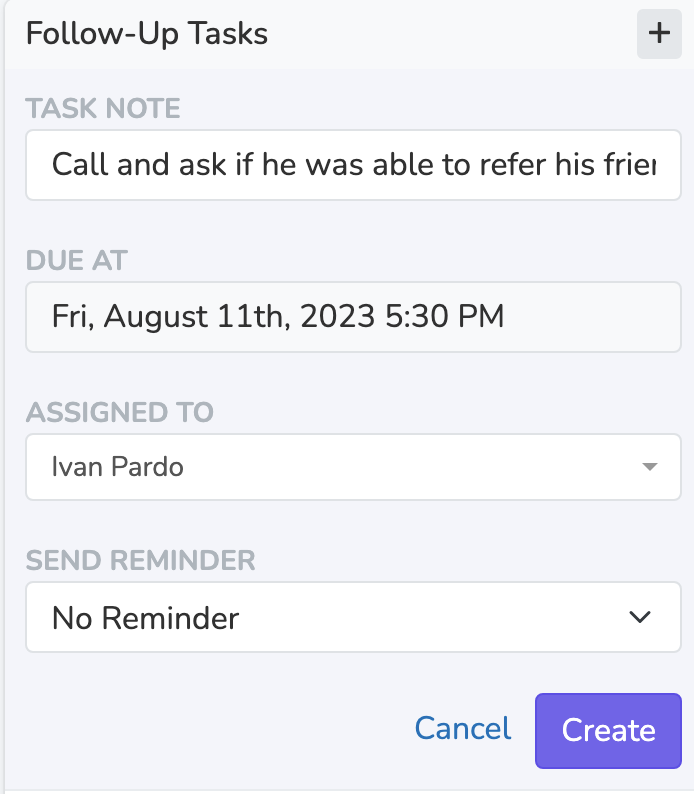
  3. In the 'Follow-Up Tasks' box, click the '+' button. Its tooltip says 'Create new task'.
  4. Fill out the task details, including assigning the task to yourself or another team member, setting the due date, and providing any notes for the follow-up.
  5. You can optionally add tags to the task to categorize it with colored labels. Tags appear as colored badges on the task row.
  6. You can optionally create a reminder that will be sent via app push notification before the due date of the Follow-Up Task.
  7. Click Create.

Assigning from the Solidarity app

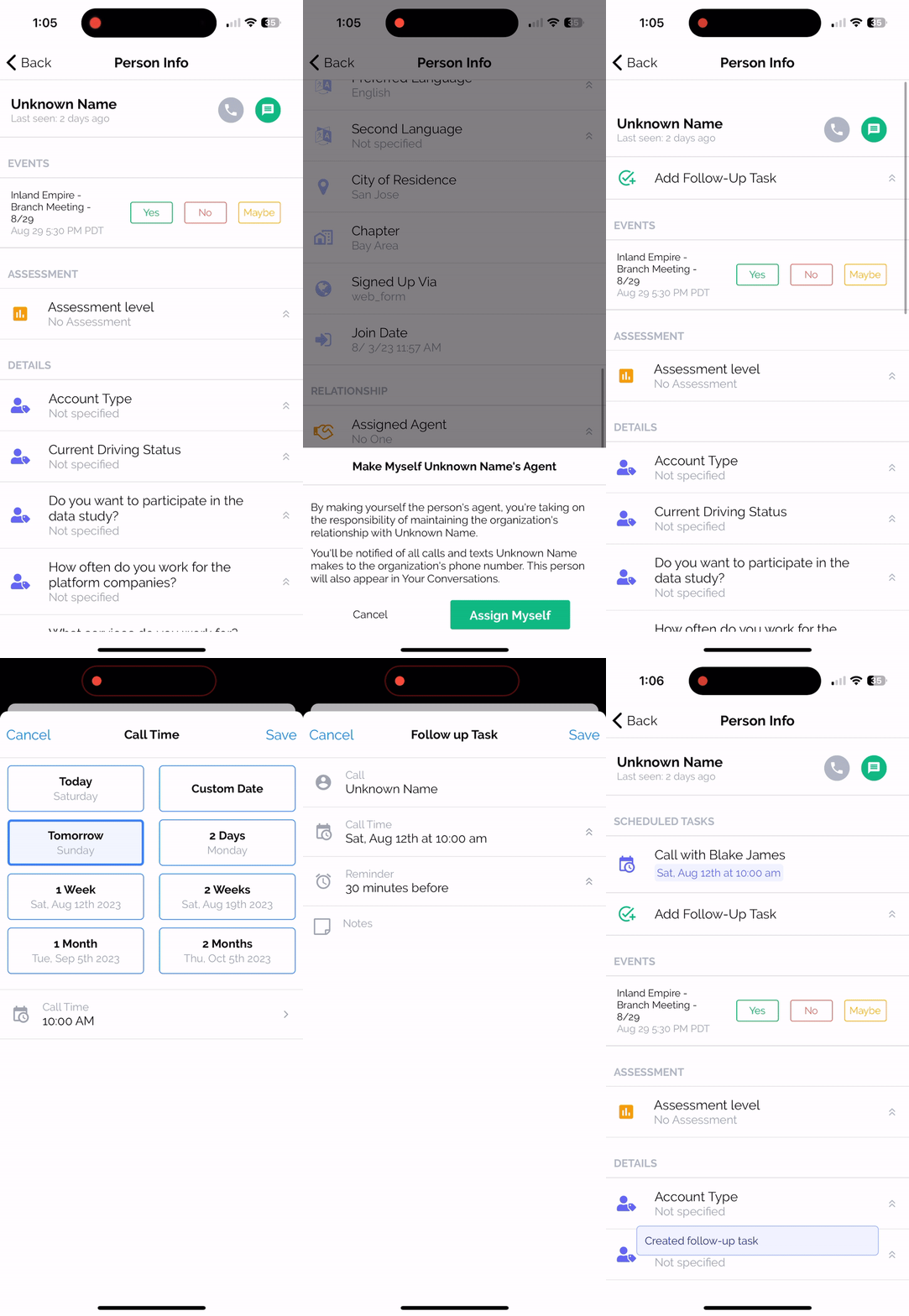
With the app, you can only create follow up tasks that are assigned to yourself. Without 'View, Text, and Call All People', you need a link to the person to create a task. For a person in one of your chapters, that link can be an active agent assignment, a scheduled call, or an open task with them. Then you can

  1. Open the person's profile in the Solidarity app.
  2. Tap Add Follow-Up Task on the person's profile or on the call screen. The list of tasks on the profile is titled SCHEDULED TASKS.
  3. Enter the Call Time, the Reminder, and the Notes. The app has no team member field, because the task is always assigned to you.
  4. Tap Save to add the task.

Task Tags

Tags let you categorize follow-up tasks with colored labels. When creating or editing a task, you can pick from existing tags or type a new one if you have permission to create tags. Tags appear as colored badges on each task row, making it easy to scan your task list at a glance.

💡

Tip: Tags are shared across your organization, so standardizing a set of tag names helps your whole team stay consistent.

Who Created a Task

When you open a task to edit it, a line under the tags shows who created it. It reads "Created by you" if you made the task. It reads "Created by" followed by a team member's name if that person made it. It reads "Created by the" followed by the automation name and "automation" if an automation made it. It reads "Created automatically" if no creator is recorded.


Task Management and Notifications

Team members can manage their tasks through the Scheduled Tasks screen, where all tasks for the day, future tasks, and completed tasks are grouped for easy access. Additionally, reminders via push notifications can be set up when creating the task to alert team members before the task's due date.

Tasks I've Assigned

The "Tasks I've assigned" button on 'My Tasks' shows the tasks you assigned to other team members, grouped by assignee. The button shows only when you assigned at least one task to another team member for a person in your current scope. Each group shows a task count and how many are overdue, and you can expand or collapse each group. The page mirrors the My Tasks layout with the same Today, Future, and Completed tabs, so you can follow up on delegated work without asking around.

At 8 AM in their own time zone, team members get a round-up email of the tasks due that day.


Task Visibility and Reporting

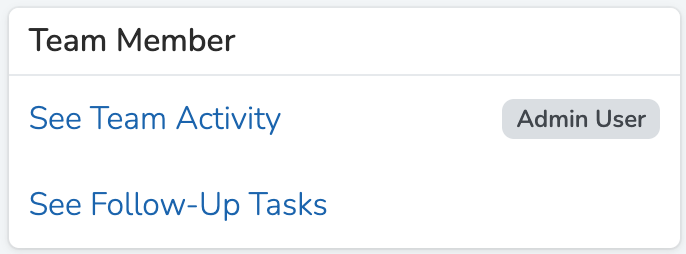
The 'Follow-up Tasks' page opens from the 'Follow-up task calendar' button on Reporting > Team Activity. It needs the 'View Team Activity' permission. The Follow-Up Tasks page offers two layout options:

  • The 'Calendar' layout shows open and completed tasks as dots, with one color per team member.
  • The 'List' layout shows only open tasks due between 1 month ago and 6 months from now, sorted furthest future first. Each row shows the person, assigned team member, due date, notes, and any tags.

This gives managers and team leads full visibility into how tasks are progressing and being managed.

Follow-up task statuses can also be included in queries throughout the dashboard, allowing teams to keep track of task completion and progress with flexibility.


Conclusion

Follow-up tasks are an essential tool for scaling supporter engagement. Whether manually created or automatically generated through Automations or the API, they help teams stay on top of important outreach and interactions. The 'Add follow-up task' automation step creates tasks. The API is on the Professional and Enterprise plans. By integrating reminders, emails, tags, and a simple task management interface, Solidarity Tech makes sure your team can build lasting relationships with supporters at scale.


Did this page help you?