Branches
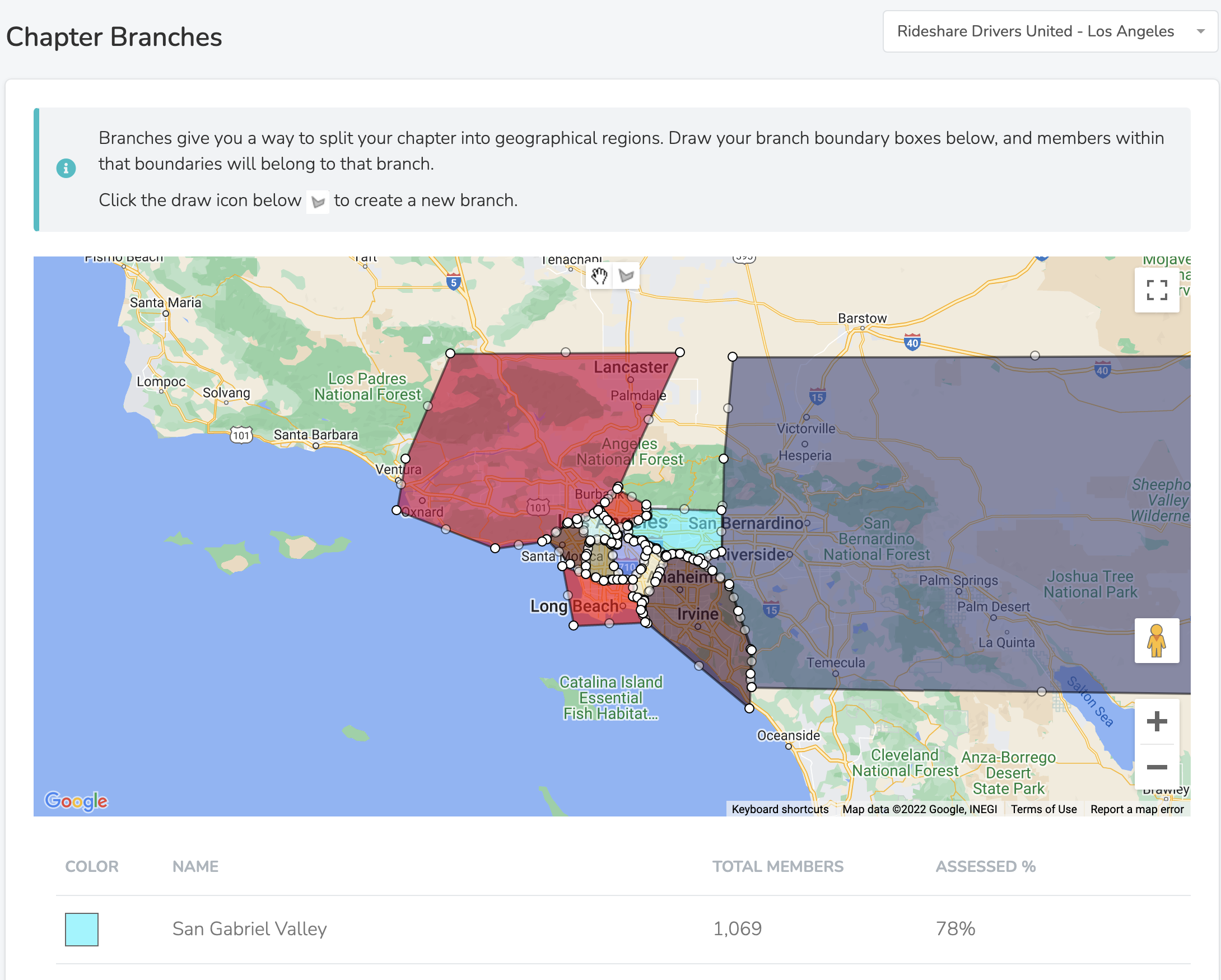
Branches allow you to segment People along geographic boundaries using custom-drawn shapes on a map. For example, "Rideshare Drivers United - Los Angeles" may contain several branches representing different parts of the city (Central LA, East LA, South LA, Orange County, etc.).
Branches can be created at two levels:
- Chapter-level branches - Segment people within a specific Chapter
- Organization-level branches - Segment people across your entire Organization
When a Person's location is set, they are automatically assigned to the appropriate Branch based on their postal code or address.
Multiple Branch Memberships
A Person can belong to multiple branches simultaneously—one branch per scope (Chapter or Organization) they belong to. For example, if someone belongs to both "LA Chapter" and the root Organization, they could be assigned to:
- "East LA" branch (from the LA Chapter)
- "Southern California Region" branch (from the Organization)
This allows for flexible geographic segmentation at different organizational levels.
Drawing Boundaries
Team Members with permission can create and modify branch boundaries from Settings > Branches. Use the scope selector at the top to choose which Chapter or Organization you're managing branches for.
To create a new Branch:
- Click the draw icon at the top of the map
- Draw a shape representing your Branch on the map
- When completed, a row appears in the table with the Branch's name and color
- Modify the name and click Save
To update an existing Branch, drag the points on the shape and click Save. After saving, all People in that scope will have their branch assignments recalculated.
Bulk Upload via GeoJSON
For organizations with many branches, uploading a GeoJSON file is faster than drawing each boundary manually.
- Prepare your file - Create a GeoJSON file with
PolygonorMultiPolygonfeatures. Each feature becomes a branch. - Click the Bulk Upload button
- Upload your
.geojsonfile - Map the fields - Match properties from your file to branch attributes (name, color)
- Review and confirm the import
Common sources for GeoJSON boundaries:
- Census tract or block group data from census.gov
- City council district maps
- State legislative district shapefiles converted to GeoJSON
- Custom boundaries drawn in tools like geojson.io
Tip: If your source data is in Shapefile format, convert it to GeoJSON using QGIS or an online converter before uploading.
MultiPolygon Support
Branches support both simple Polygon and complex MultiPolygon geometries. This is useful for non-contiguous regions (like island territories or districts with disconnected areas). When uploading a GeoJSON file with MultiPolygon features, each feature is preserved as a single branch rather than being split.
Branch Assignment Logic
When assigning a Person to a branch:
- The system checks each scope (Chapter or Organization) the Person belongs to
- For each scope, it finds branches where the Person's location falls within the boundary
- If the Person is within multiple overlapping branches, they're assigned to the one with the closest geographic center
- If "Require Within Bounds" is disabled, the Person is assigned to the nearest branch even if not within its precise boundary
Branch Details
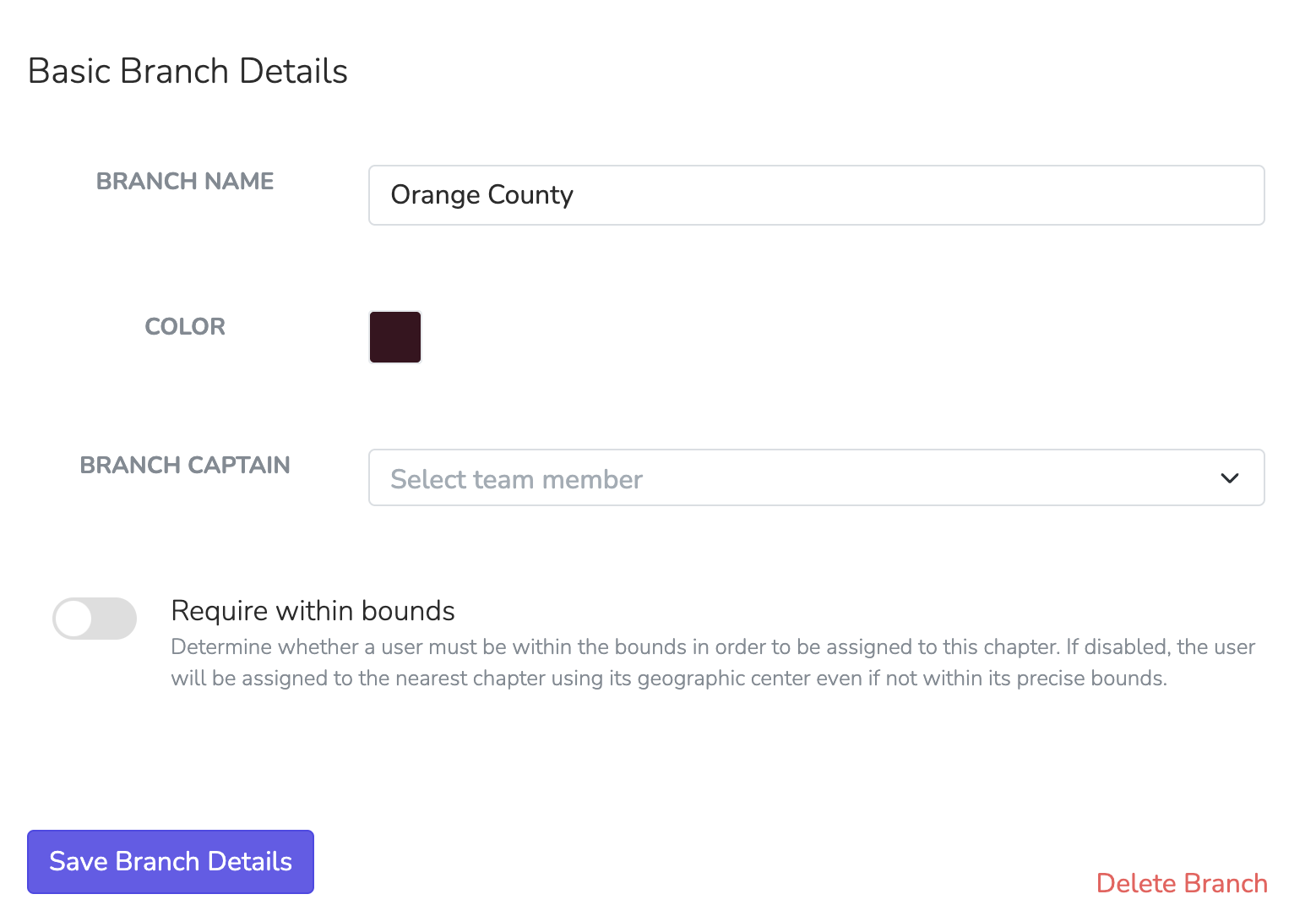
Each branch can be customized with specific details and used in automations to streamline task assignment and coordination.
Editable Branch Details
| Setting | Description |
|---|---|
| Branch Name | The display name for the branch (e.g., "Orange County") |
| Color | A unique color to visually differentiate this branch in reports and on maps |
| Branch Captain | A Team Member who serves as the captain for this branch. Used in automations to route follow-up tasks or manage branch-specific activities |
| Sync to Chapter | When enabled, users assigned to this branch are automatically added to the selected Chapter. Useful for Organization-level branches that should also grant Chapter membership |
| Require Within Bounds | When enabled, users must be within the geographic bounds to be assigned. When disabled, users are assigned to the nearest branch based on geographic center |
Sync to Chapter
The Sync to Chapter feature on Organization-level branches allows automatic Chapter assignment based on geographic location. When a Person is assigned to a branch with this setting enabled:
- They are automatically added to the specified Chapter
- They are then assigned to the appropriate branch within that Chapter (if one exists)
This is powerful for organizations that want geographic boundaries to determine both regional grouping (Organization branch) and local Chapter membership.
Example Use Case:
- Create an Organization-level branch for "Northern California"
- Set "Sync to Chapter" to your "SF Bay Area" Chapter
- When someone in San Francisco joins, they're automatically:
- Assigned to the "Northern California" Organization branch
- Added to the "SF Bay Area" Chapter
- Assigned to a branch within that Chapter (e.g., "Oakland")
Using Branches in Automations
Branches integrate with automations in several ways:
Branch Captain Assignment
Use the Assign to Branch Captain action in automations to route tasks to the appropriate Team Member based on the Person's branch. This is scope-aware—if the automation runs at the Chapter level, it uses the Person's Chapter branch captain.
Filtering by Branch
When building automation conditions or user filters, you can filter People by their branch membership.
Branch Merge Tags
Use these merge tags in emails, texts, and pages:
| Tag | Output |
|---|---|
{{ user.branch }} | The Person's branch name for the current scope |
{{ user.branches }} | Comma-separated list of all branch names the Person belongs to |
Scope-Aware Behavior
{{ user.branch }} is scope-aware and automatically returns the branch relevant to the current context:
- Email Blasts sent from a Chapter → shows the Chapter branch
- Text Blasts sent from an Organization → shows the Organization branch
- Automations → uses the automation's scope
- Events → uses the event's scope
- Pages → uses the page's default chapter scope
This means the same merge tag automatically shows the correct branch based on where the message is being sent from. {{ user.branches }} always shows all branches regardless of scope.
Updated about 1 month ago