
Event Automations
Event automations make it easy to send automated or semi-automated follow-up communications after a Person RSVPs to your event. Automations are configured from the Automations tab within an event.
All automated messages support multiple languages - if you've added supported languages in Event Settings, you can customize each message in those languages. People receive messages in their preferred language.
Where to Find What:
- Event reminders and RSVP text replies → Event → Automations tab
- Post-submission confirmation (sent immediately when they RSVP) → Event Page → Post-Submission tab
If you can't find where a certain text or email is coming from, check both locations.
Automated Communications
These are triggered automatically without any input from a Team Member.
Immediate Email Confirmation
Automatically send a customizable email with a calendar invitation once a Person RSVPs. The attached calendar invitation includes event details, and the meeting URL for virtual events.
Day Before Event Email
Automatically send an email reminder 24 hours before the event session begins. If you have RSVP confirmations enabled, this email includes a button where attendees can confirm their attendance.
Day Before Event Text
Automatically send a text reminder 24 hours before the event session begins. Disabled by default.
When enabled, you can also toggle "Continue Delivery" - this continues sending the reminder to any new People who RSVP after the initial 24-hour mark has passed.
Day of Event Text
Automatically send a text reminder 1 hour before the event session begins.
Self Check-in Text
Automatically send a text 10 minutes before the event session begins with a self check-in link so attendees can check themselves in. Requires Host Tools to be enabled. Disabled by default.
You can target either Yes RSVPs or Yes & Maybe RSVPs. The link in the message is a short URL that opens the self check-in page for the session, prefilled for the recipient when possible.
When enabled, you can also toggle "Continued Delivery" - this sends the self check-in text immediately to any new People who RSVP after the session has already started, as long as the session is still in progress and the time is within TCPA-safe hours (7am–10pm in your organization's timezone).
Event Follow-up Email
Automatically send a follow-up email after the event session ends. Useful for thanking attendees, sharing next steps, and gathering feedback. Disabled by default.
You can target either Only Attendees (people with an attendance record) or All RSVPs (Yes and Maybe). The email is sent ~30 minutes after the session ends, or ~90 minutes after for events with Zoom connected so attendance has time to sync first.
Use the {{ event-session.post-event-survey-url }} merge tag to include a link to the post-event feedback survey.
Event Follow-up Text
Automatically send a follow-up text after the event session ends. Same timing and recipient targeting as the Event Follow-up Email. Disabled by default.
Use the {{ event-session.post-event-survey-url }} merge tag to include a link to the post-event feedback survey.
Custom Reminders
Note: Custom Reminders are a plan-gated feature. Contact your account administrator if you don't see this option.
In addition to the built-in reminders above, you can create your own reminders with custom timing, content, and audience. Custom reminders appear in the Custom Reminders section at the bottom of the Automations tab.
Custom reminders are sent to upcoming sessions automatically. You can create up to 10 per event.
Creating a Custom Reminder
Click + Add Custom Reminder to open the new reminder form. Configure:
- Send As: Choose Email or Text
- Timing: When the reminder fires relative to each session
- Send To: Which RSVPs receive it
Then write your message using the same merge tags available to other event automations.
Timing Options
| Timing | Description |
|---|---|
| X hours before session | Fires a set number of hours before the session start time (1–168 hours) |
| Day before at [time] | Fires at a specific wall-clock time the day before the session |
| Day of at [time] | Fires at a specific wall-clock time on the day of the session |
Times for the day-before and day-of options are interpreted in your organization's timezone, which is shown next to the timing selector. If the configured time falls outside your organization's effective texting hours, a warning is displayed for text reminders.
Audience
You can send each custom reminder to either:
- Yes RSVPs (default)
- Yes & Maybe RSVPs
Continued Delivery
When Continued Delivery is enabled, the reminder is also sent individually to anyone who RSVPs after the reminder's scheduled send time has already passed, as long as the session is still in the future. This mirrors the behavior of the built-in day-before reminders.
Managing Custom Reminders
Each custom reminder row shows its channel (email or text), timing summary, and a count of how many messages have been sent. Click the row to expand it and edit the content.
- Use the toggle on each row to enable or disable a reminder without deleting it
- Click the trash icon to permanently delete a reminder
Deleting a reminder cancels any pending scheduled sends for upcoming sessions.
Team Member Triggered Communications
These give Team Members a pre-filled template they can send with one click.
RSVP Text Replies
Pre-drafted text messages that Team Members can send after marking someone's RSVP status. When a Team Member marks a Person as Yes, No, or Maybe from the app or dashboard, they're given the option to send the corresponding text reply.
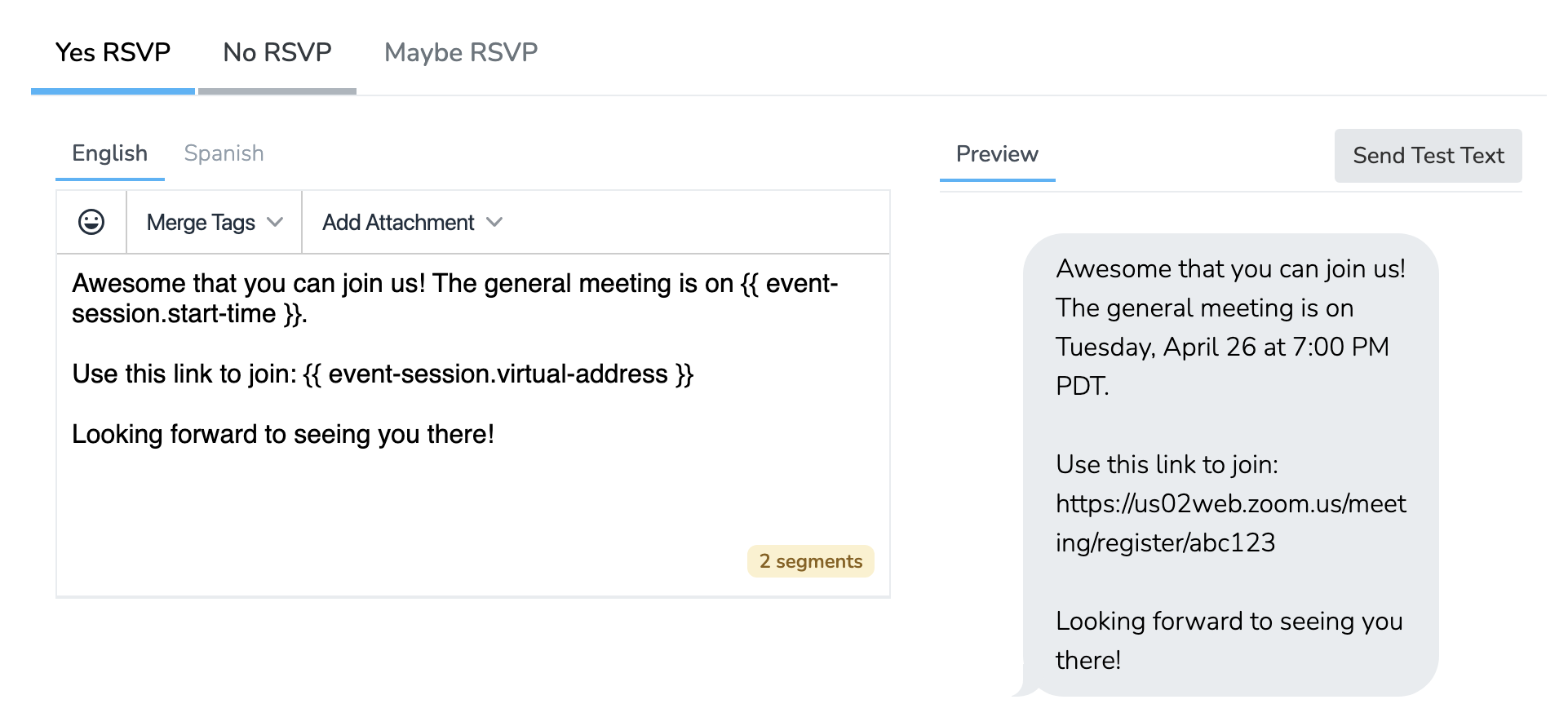
Event Text Templates
Event-specific text templates that are only available for People invited to the event, and only while the event has upcoming sessions. These work exactly like regular Text Templates but are scoped to the event.
Merge Tags
Use merge tags to personalize your automated messages. These variables are replaced with actual values when the message is sent.
Person Tags
| Tag | Description |
|---|---|
{{ user.first-name }} | Person's first name |
{{ user.last-name }} | Person's last name |
{{ user.full-name }} | Person's full name |
Organization Tags
| Tag | Description |
|---|---|
{{ organization.name }} | Your organization's name |
Event Tags
| Tag | Description |
|---|---|
{{ event.title }} | Event title |
{{ event.type }} | Event type (in-person or virtual) |
Event Session Tags
| Tag | Description |
|---|---|
{{ event-session.title }} | Session title |
{{ event-session.start-time }} | Full start time (e.g., "Tuesday, March 15 at 6:00 PM EST") |
{{ event-session.start-time-only-time }} | Just the time (e.g., "6:00 PM EST") |
{{ event-session.end-time }} | Full end time |
{{ event-session.location-name }} | Location name (in-person events) |
{{ event-session.location-address }} | Street address (in-person events) |
{{ event-session.virtual-address }} | Meeting URL (virtual events) |
{{ event-session.note }} | Session notes |
{{ event-session.self-checkin-url }} | Short link to the self check-in page for the session, prefilled for the recipient |
{{ event-session.post-event-survey-url }} | Short link to the post-event feedback survey, prefilled for the recipient |
Important: You cannot use merge tags inside the event session note field. The note must be plain text. Only the{{ event-session.note }}tag itself gets replaced - not variables within the note content.
Post-Event Survey
When the Event Follow-up Email or Event Follow-up Text includes the {{ event-session.post-event-survey-url }} merge tag, recipients get a short feedback form scoped to that specific session. The form asks for:
- A 1 to 5 rating
- Whether they were able to attend
- An optional open-ended comment
Each link is unique per recipient and only works once. The survey opens automatically once the session ends, shows a friendly "not yet open" message before that, and stays open for 30 days after the session ends. If the recipient already has an attendance record, the "Were you able to attend?" question is prefilled to Yes.
Viewing Survey Responses
From the event's RSVPs tab, open the actions menu and choose View Survey Responses to see all submitted feedback for the event. You can:
- Filter by session (or view all sessions combined)
- See total response count and average rating
- Read each response with submitter, rating, attended status, and comment
- Export to CSV
Default Message Examples
When you create an event, default messages are pre-filled based on event type.
Day of Text (In-Person):
Your event with {{ organization.name }} starts today at {{ event-session.start-time-only-time }}. We'll see you at {{ event-session.location-name }} - {{ event-session.location-address }} then!Day of Text (Virtual):
Your event with {{ organization.name }} starts today at {{ event-session.start-time-only-time }}. Use this link to join: {{ event-session.virtual-address }}You can customize these messages and add translations for any supported languages.
Updated 12 days ago