
RSVPs
People can be RSVP'd to any event session with a Yes, No, or Maybe status. There are three ways that an RSVP can be recorded:
Event Page self-RSVP: A Person can mark themselves as a Yes RSVP by submitting the RSVP form from an Event Page. This is controlled by which sessions are selected on the event page, not by the "Show RSVP Bar" setting.
Dashboard RSVP Bar: A Team Member can RSVP a Person from the dashboard on the Person's profile page or from their conversation in the text inbox. This bar is controlled by the per-session "Show RSVP Bar" setting.
Mobile App RSVP Bar: A Team Member can RSVP a Person from the mobile app from a Person's profile screen, from the text conversation screen, or the call screen. This bar is also controlled by the per-session "Show RSVP Bar" setting.
"Show RSVP Bar" vs. Event Page RSVPs: The "Show RSVP Bar" toggle on each session only controls whether Team Members see the Yes/No/Maybe RSVP bar in the dashboard and mobile app. It does not affect the public event page. People can still self-RSVP through the event page regardless of this setting. To control which sessions appear on the event page, edit the page and select or deselect specific sessions.
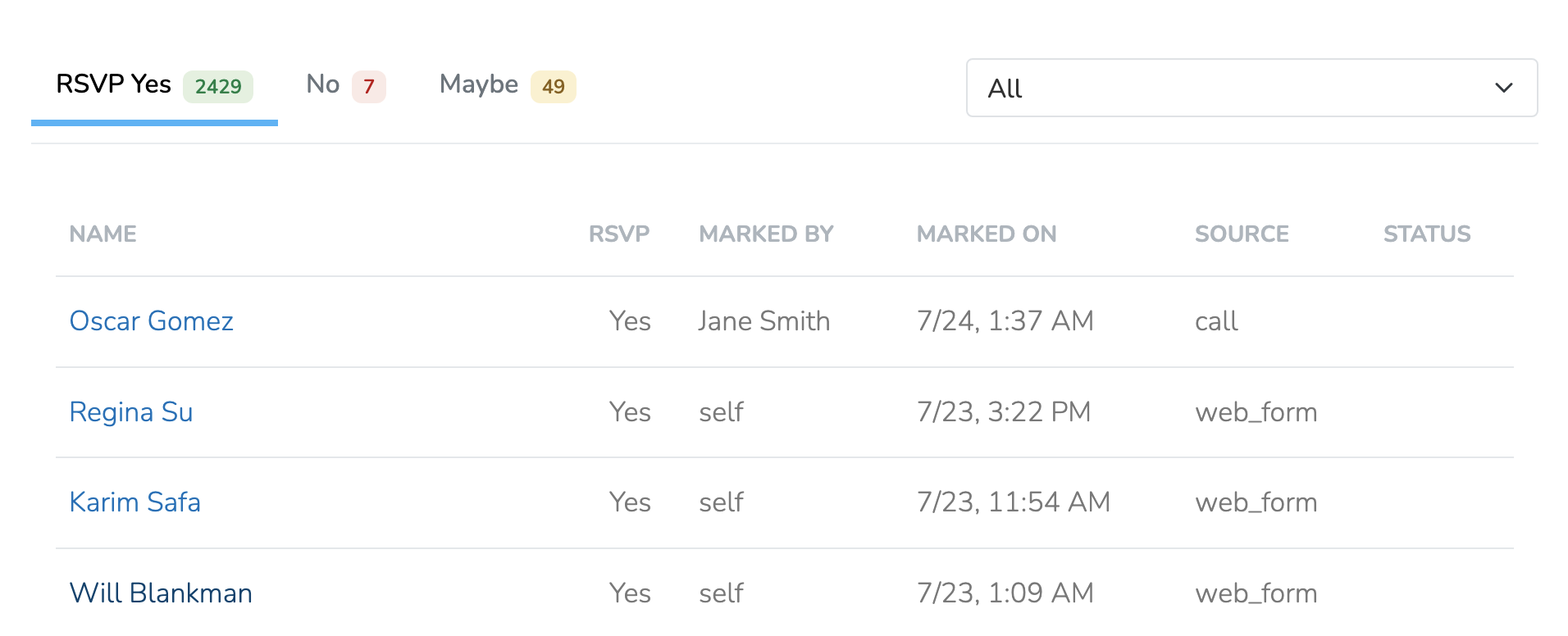
From the dashboard Event page, you can see which of the above sources the RSVP came from, who marked it, and at what time it was marked. The RSVP tab will give you an overview of all RSVPs marked for all event sessions.
Ticketed Events
When ticketing is enabled on an event page, the RSVP process works differently from a standard free event:
- Supporters purchase tickets through the event page rather than submitting a free RSVP form. Payment is required to secure a seat.
- Party sizes: Ticket buyers who purchase multiple tickets appear with a party size badge in the RSVP list and on check-in lists, so hosts know how many seats a single buyer is holding.
- Seat counts: The platform counts seats from live ticket orders, not from RSVP rows. A buyer who purchases 4 tickets occupies 4 seats even though they appear as a single RSVP.
- Waitlist is disabled: The waitlist feature cannot be enabled on ticketed events, because the seat-count math for promotions is based on RSVP rows and would undercount multi-ticket orders.
- Cancellations and refunds: If a ticket buyer's order is fully refunded, their RSVP is automatically moved to "No" and they cannot restore it to "Yes" (via a cancel/uncancel link or confirmation link) without purchasing again. Supporters who received free (comped) RSVPs and staff-added attendees are unaffected by this restriction.
Turning ticketing off: Turning off the ticketing toggle does not retroactively release seats held by existing live orders. Refund any outstanding ticket orders before deleting a session or disabling ticketing.
Zoom-Connected Events
For virtual events with Zoom connected, RSVPs automatically trigger Zoom registration:
- When someone RSVPs, they're registered with Zoom in the background
- A personalized join link is generated just for them
- The confirmation email includes their personalized link
- Their attendance is automatically tracked when they join using that link
Personalized links: Each person gets their own unique Zoom join link. This enables automatic attendance tracking and ensures everyone has a working link even if they lose the original email.
RSVP Confirmations
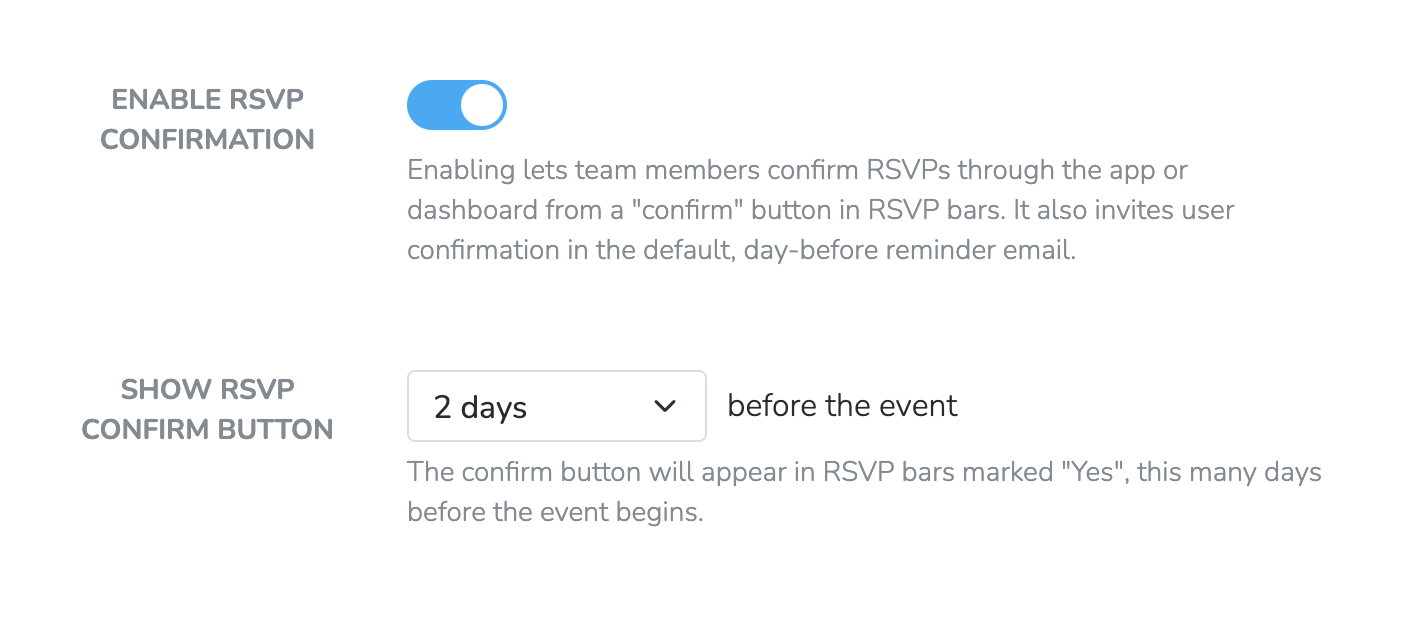
From the event settings in the in the dashboard, you can enable and configure RSVP confirmations. Event confirmations are disabled by default. When enabled, by default, a "Confirm" button will appear on all RSVP bars marked "Yes" in the app and dashboard. This makes it possible to re-confirm people who previously RSVP'd.
When enabled, there will be a "Confirmed" tab in the RSVPs section of the Event dashboard displaying all people who have confirmed. People can be marked as confirmed from 1) an RSVP bar, or 2) they can manually confirm themselves by clicking the confirmation button in the automated email.
Automated email
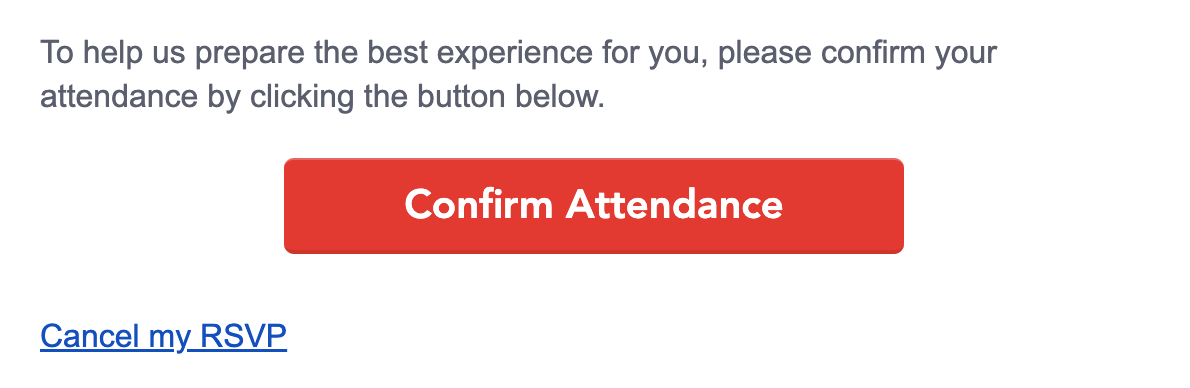
When RSVP confirmations are enabled, the automated Day Before Event Email will include a button as shown below, which will allow people who have RSVP'd yes to confirm their attendance.
Confirmation buttons in RSVP bars
If confirmations are enabled and the event session is set to begin within 2 days, people who have already RSVP'd Yes will have a "Confirm" button in their RSVP bar. The 2 day limit can be edited from the dashboard.

Expected Turnout
For upcoming sessions, the RSVPs tab shows an Expected chip with an estimated attendance range (for example, "Expected: 12–18"). This is an estimate of how many of your current Yes RSVPs will actually show up, based on RSVP confirmations and past attendance at your organization's events. It updates automatically as new RSVPs and confirmations come in.
The estimate appears when all of the following are true:
- The session starts within the next 72 hours
- The session has at least 10 Yes RSVPs
- Your organization has enough attendance history recorded
Tip: The estimate is powered by your attendance records. Consistently taking attendance at your events is what makes the estimate available and keeps it accurate.
Updated about 1 month ago