
Conversations
The "Conversations" tab lets you see all Conversations with supporters you have access to. You can also add new People to the organization's list:
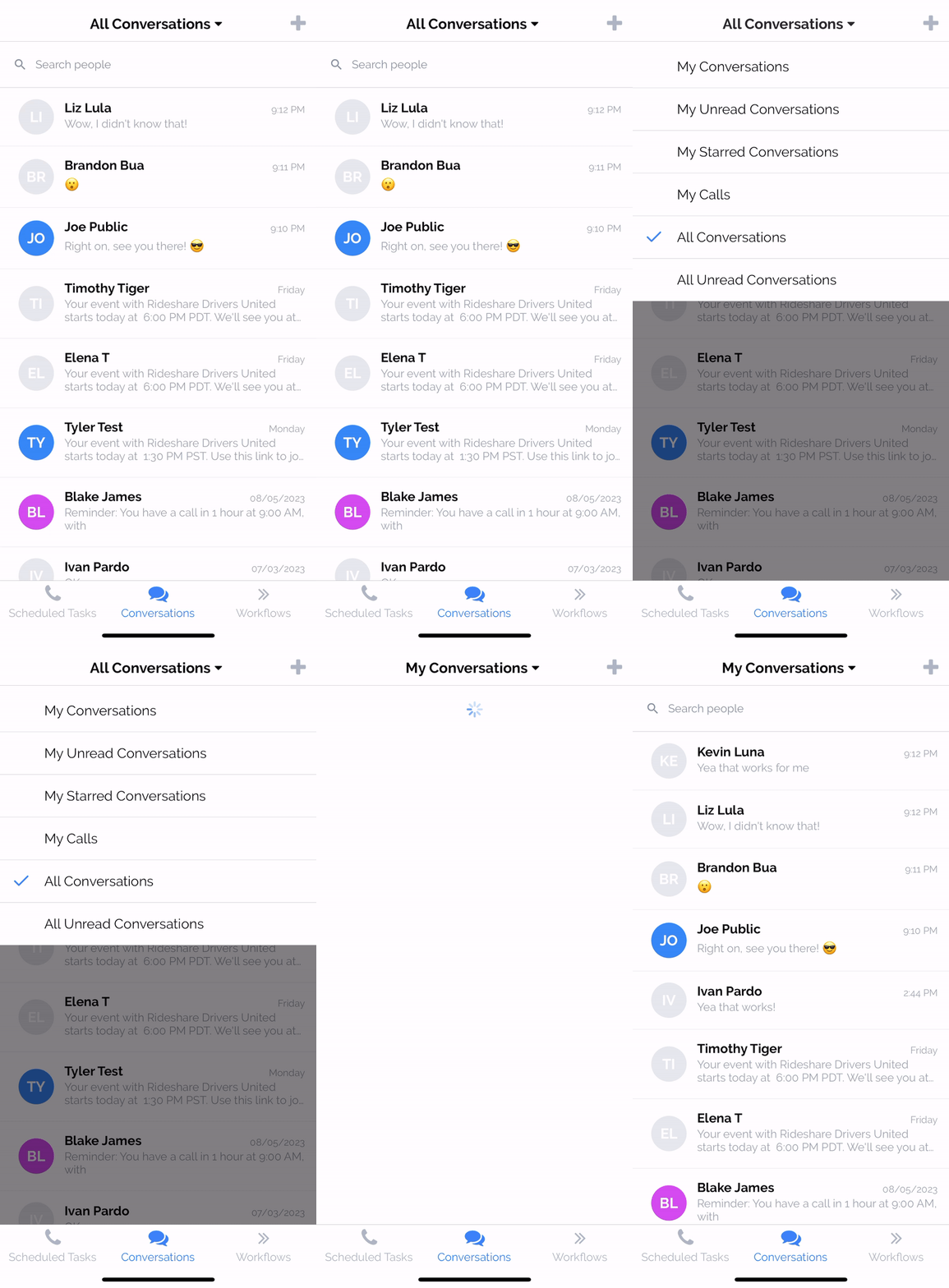
Conversations by category
You can tap the title label at the top of the "Conversations" tab to sort the conversations by certain fixed categories. Based on your access level, you may not see all the categories listed below - only Team Members with access to "View, Text, and Call All People" permission will see the last 2:
My Conversations: All conversations for People to whom you are the Assigned Agent.
My Unread Conversations: All unread conversations for People to whom you are the Assigned Agent.
My Starred Conversations: All conversations that you've starred.
My Calls: All conversations with People who you've had a call with recently.
All Conversations: All conversations within your logged in Scope (requires "View, Text, and Call All People" permission)
All Unread Conversations: All unread conversations within your logged in Scope (requires "View, Text, and Call All People" permission)
Add Person
Team Members can add a new Person to the organization's list by clicking the + icon in the top right of the "Conversations" tab. By default, this opens a built-in form where you can add a Person by their phone number and name. Your organization administrator can configure a custom form for this screen in Settings > Chapter Structure > [Your Root Organization] under the App "Add Person" Form setting. When a custom form is configured, this screen will load that form instead, allowing you to collect additional information. The agent's referral code and credit are applied automatically.

A Conversation
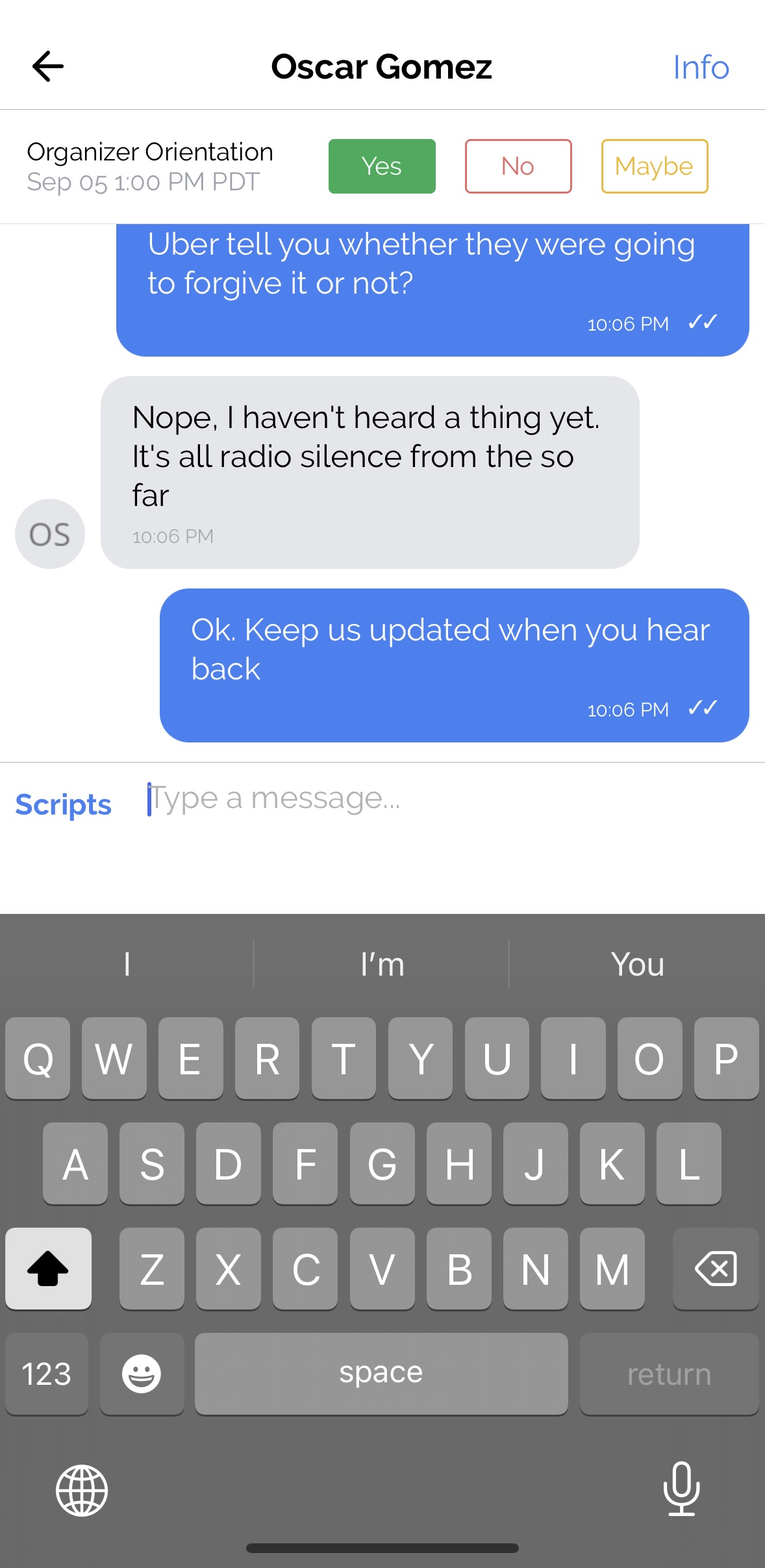
You can exchange text messages with People you have access to via the conversation screen. Each conversation is associated with a specific Chapter, and messages are sent from that Chapter's phone number. If a Person belongs to multiple Chapters, you may see a chapter indicator showing which Chapter context you're communicating in—and you can switch between Chapter conversations if you have access to multiple.
This screen will also let you access all Text Templates via the "Scripts" button, and will have an RSVP bar for all events that Person is invited to. The "Info" button in the top right corner will take you to this Person's profile.
Updated 6 months ago