
Bulk Update
Bulk Update changes a property for many People at once. It needs the 'Bulk Update People' permission, which shows 'Bulk Update' in the 'More' menu on the People page. You can bulk update assessments, custom user properties, the assigned agent, chapters, tags, automation enrollment, event session attendance and RSVPs, and communication opt-outs. You can also bulk delete people.
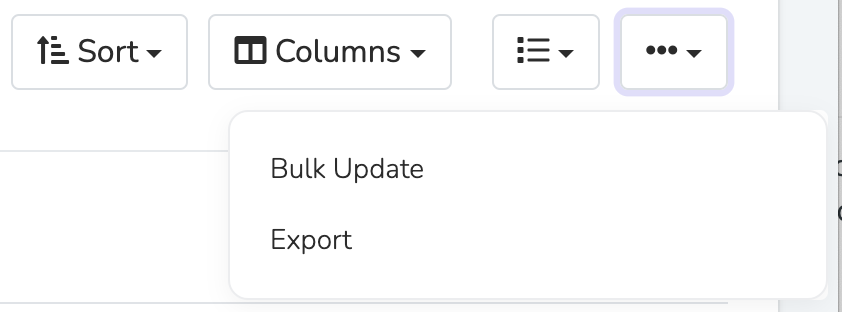
How to do a bulk update
- Set a filter from the People tab targeting the profiles you want to bulk update.
- Open the 'More' menu on the People page and click 'Bulk Update'.
- Select the property you'd like to bulk edit, and choose the new value.
- Continue with the bulk update if you're certain. Bulk updates cannot be undone, so please proceed with caution.
Bulk Update writes the value you enter as it is, with no merge tags, math, or copy from another property.
Bulk Delete
To bulk delete, filter for the people you want to delete. In Bulk Update, select "Bulk Delete" and type "permanently delete" to confirm.
Bulk delete is scope aware. At the Organization level, it skips you and every team member and permanently deletes everyone else. At the Chapter level, a person who only belongs to your chapter is permanently deleted. A person who also belongs to other chapters is only removed from your chapter. Bulk delete never permanently deletes you or a team member, but a team member in other chapters still loses your chapter. The confirmation screen shows how many contacts each case covers.
Note: 'Delete Person' on a profile uses the same chapter logic, but it does not skip team members.
Permanent deletions cannot be undone. A permanent delete removes the person, their event attendance, activity history, automation enrollments, and every donation record that did not come through Stripe. Form submissions, Stripe donation charges, RSVPs, and text conversations stay as records. Consider exporting data first if you may need it later.
Bulk Update Chapter Options
When you bulk update the Chapter field, you can make the selected chapter primary, add it as a secondary chapter, or remove it. These options need the Standard plan or higher. On Essentials, the selected chapter becomes the primary chapter. Making a chapter primary removes the old primary chapter unless you check 'Keep current primary chapter as secondary'. People must always have at least one chapter, so you cannot remove someone's only chapter.
Automation Enrollment and Unenrollment
Automation Enrollment enrolls the matched people into an automation. It adds only people who have no enrollment in it yet and whose primary chapter is in its scope. Remove Automation Enrollment deletes their enrollments in it, so they can enter it again. Archived automations do not appear in the automation lists. A preview shows how many people are affected before you confirm. Both options need the Add Automation Enrollments and Bulk Update People permissions on your Role.
Bulk RSVP and Automations
When you bulk update Event Session RSVPs, automations can start for new RSVPs and for changes to an existing RSVP. A large bulk RSVP can start automations for people with or without an earlier RSVP, and can send the event's confirmation email. No option skips automations, in Bulk Update or in the API.
Before bulk RSVPing, check the event's Automations tab for its confirmations and reminders. Check the Automations page for automations with RSVP triggers.
To load past event attendance, create the event session first and import the attendees as people. Then filter by 'Included in Data Import' and bulk update 'Event Session Attendance' or 'Event Session RSVP'.
Updated 1 day ago