
Events
Solidarity Tech's integrated event management system helps you plan and promote events, gather RSVPs, automate event reminders, and record attendance data. Here we'll walk you through how to organize successful events on the platform.
Looking for an overview? See our Events product page.
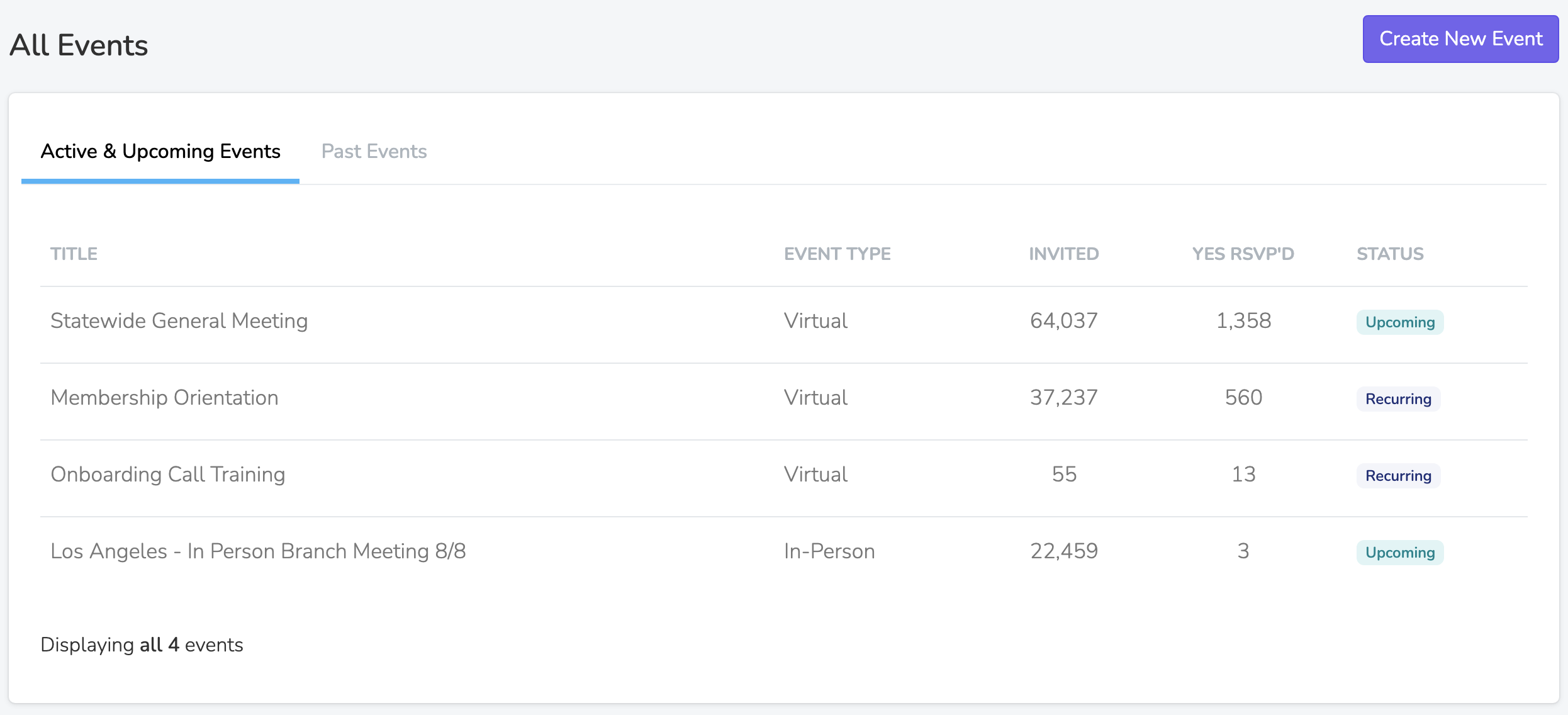
Create an Event
To create an event, you'll need to give the event a title, select an event type, and set the event start and end times. The event type cannot be changed later.
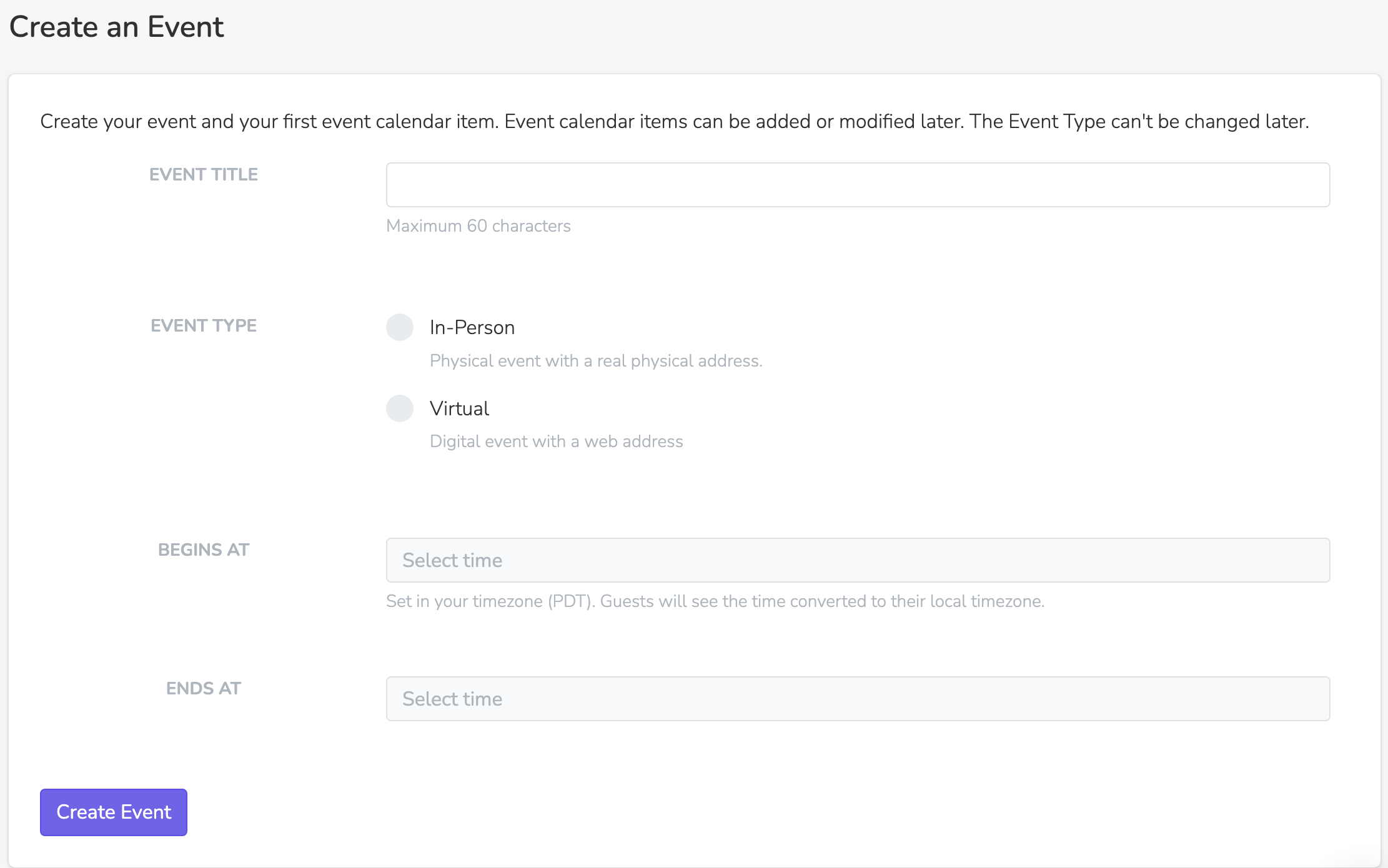
Event Type
There are three types of events:
In-Person: Uses a physical address on a map, and an optional location name (e.g., "LA City Hall").
Virtual: Uses a URL where the virtual meeting will take place. You can either paste in any meeting URL, or connect Zoom for automatic meeting creation, personalized join links, and attendance tracking. See Zoom Integration.
Hybrid: Uses both a physical address and a virtual meeting URL. Creating a hybrid event creates a paired in person session and virtual session for the same event.
The new event form and the session form read the time you enter in your browser's timezone. Only the recurring schedule form has a Timezone field. Public event pages show in-person sessions in the event location's timezone and virtual sessions in the visitor's timezone.
Past events: You can create an event with a start date in the past. No invites or reminders go out for a past date. To bring in several past events at once, click Import past events on the Create an Event page and upload a CSV with Title, Start, and End columns.
Event Sessions
Each event can have one or more sessions, the specific times when the event occurs. Use sessions for an event that happens on different days or at different locations.
On the event's Event Calendar tab, click Add Session under the Schedule heading. Each session has its own title, start and end time, session type, and location. Hybrid creates a linked pair of sessions, one in person and one virtual. After a session is created, its session type cannot be changed.
When you change a future session's title, times, location, or Zoom meeting, and the event's Email Confirmation is on and set up, a window asks whether to email attendees. Send Update sends the updated calendar invite to Yes and Maybe RSVPs who have an email address and email permission. Skip Email sends nothing.
Show RSVP Buttons
If enabled, an RSVP bar with Yes/No/Maybe buttons is shown on a person's profile for every invited person, both in the dashboard and the mobile app. This is the bar that Team Members use to record RSVPs on behalf of people during outreach.
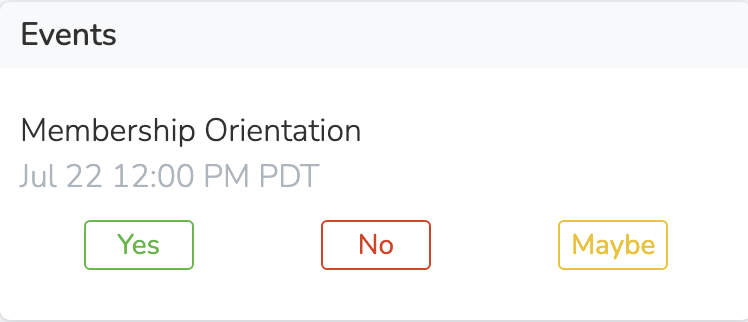
An RSVP marked from the bar triggers any configured confirmation emails and gives the option to send follow-up texts.
This setting only affects the RSVP bar in the dashboard and mobile app. It does not affect the public event page. People can still RSVP themselves through the event page regardless of this setting.
Recurring Events
All events are one-time by default. To create sessions on a regular schedule, click Add Session and select Make Event Recurring.
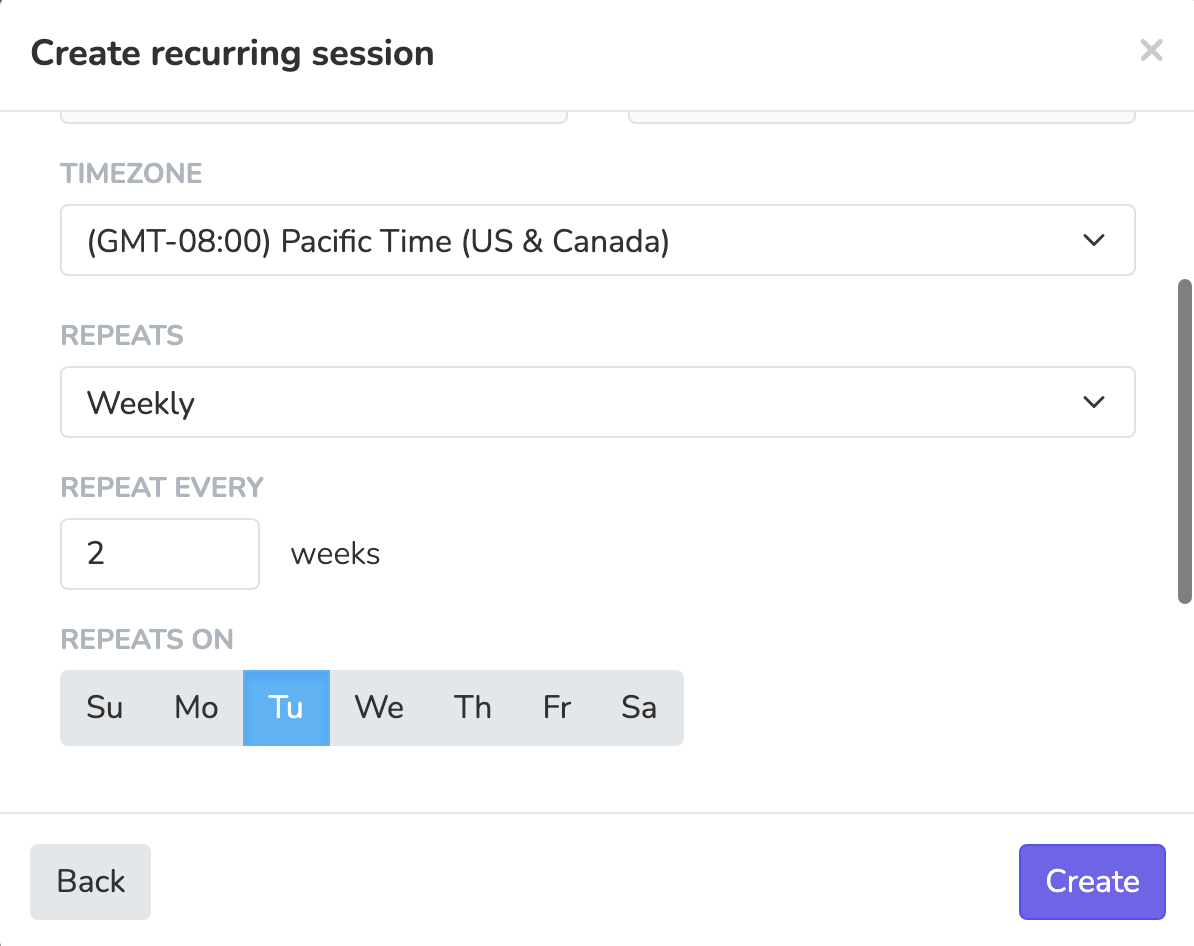
The above setting would create an event every other Tuesday, starting from the configured date.
A schedule can repeat daily, weekly, or monthly. It runs with no end date unless you pick a date in Until. An event can have more than one schedule, for example a weekly Monday session and a weekly Wednesday session. Add one with + Add Recurring Schedule.
Sessions are created on a rolling basis, as set in Create Sessions N days before session start. Saving the schedule creates the sessions that are due at once. Use {{ event-session.start-date }} in the session title template to put the date in each title.
Team Members in Auto-RSVP Team Members get a Yes RSVP to each new session (the in person session of a hybrid pair). They also get the RSVP confirmation email, with its calendar invite, when that email is on.
Invited
The Invited tab lets you use a filter to determine which People will have RSVP bars shown on their profile. By default, all People within the event's Scope are invited.
Anyone can still RSVP to an event via a public event page, whether they're included in the Invited filter or not. The Invited filter specifically controls:
- Who sees RSVP bars in the dashboard/app
- Who can be targeted in event outreach tasks (phonebanks/textbanks)
Event Page
Event pages allow anyone to RSVP to event sessions directly from your website. These pages can be created from Pages in the sidebar, or with Create Event Page on the event's Event Calendar tab, below the outreach tasks. The button shows only to Team Members with Manage Pages.
Event pages can also sell tickets, with payouts to your connected Stripe account. See Selling Tickets for setup.
Host an Event (Supporter Submissions)
You can let supporters submit their own events (house meetings, watch parties, phone bank parties, etc.) with a Host an Event page linked to your event. Team Members approve submissions in the Submissions tab of that page. An approved submission becomes a new event session, and the host gets a Yes RSVP.
The event must already have an Event Page and at least one future session before it can be selected for a Host an Event page.
Outreach Tasks
You can create phonebanks attached to your event, and textbanks on the Standard, Professional, and Enterprise plans. When an outreach task is linked to an event, it automatically inherits the Invited filter, so only invited People can be targeted.
For more details, see Phonebank & Textbank Tasks.
Co-Hosting Events
Partner with other organizations, or with chapters in your own organization, to run events together and share RSVP and attendance data. See Co-Hosting Events.
Event Settings
On the event's Event Calendar tab, click Edit on the Event Settings row at the bottom. From there, you can configure:
Scope
Controls which People can be included in the Invited filter. Only People within the selected Scope (Organization or Chapter) can be invited.
Supported Languages
Add languages to write confirmation emails and reminder texts in each language. People will receive messages in their preferred language.
Event Tags
Add tags to categorize and filter events. Tags are shared across your organization. Creating new event tags requires the "Add New Tags" permission.
Campaign Tags
Campaign Tags link the event to a campaign so you can report on all activity for that campaign. Type a new tag or pick an existing one. The API also returns Campaign Tags. The API is on the Professional plan.
Note: Accessibility Info and Show Venue Map are event page settings. See Event Pages.
RSVP Confirmations
Lets Team Members confirm Yes RSVPs, and adds a confirmation button to the day-before email. See RSVP Confirmations.
Enable Waitlist
Lets supporters join a waitlist when a session with a Max Capacity is full. Waitlisted supporters can be promoted to "Yes" automatically in the order they joined as seats open up. A Waitlisted tab appears on the RSVPs page. Sessions without a Max Capacity are never waitlisted.
Host Tools
Generates a public link for each session, so event hosts can view RSVPs, mark attendance, and contact attendees without logging in. See Host Tools.
Co-Host Invite Code
A unique code that lets other organizations request to co-host your event. See Co-Hosting Events.
Calendar Subscriptions
Chapters and Organizations can generate an iCal feed URL that syncs events to external calendar apps (Google Calendar, Apple Calendar, Outlook, etc.). Go to Settings, then Chapter Structure, and open your chapter or organization. In the Calendar Subscription section, click Generate Calendar Link. Team Members with Manage Chapter Structure can open it.
The feed includes events that have a published event page with Show in Web Event Calendars on. The feed covers the chapter or organization, its parent organizations, and co-hosted events. An organization feed also covers its chapters and sub-organizations. To invalidate an existing link and generate a new one, click Regenerate. Anyone using the old URL will need to resubscribe.
You can also offer the feed on your public website. In the page builder, enable Show subscribe link on an Events section that uses the Calendar View layout. If the Events section is curated by tags, the subscribe link carries only those tag filters. The feed can still hold events that the calendar does not show.
Private / Unlisted Events
You can keep an event unlisted or limit who can RSVP in these ways:
- To unlist an event page, turn off Show in Web Event Calendars. It is in Event Page Settings on the event page's Details tab. The event then leaves the Events sections of your website and the calendar feeds. Anyone with the page link can still open it and RSVP.
- To limit who can RSVP on the event page, set Who can access this page to Verified members or Verified members matching a filter. The Invited filter does not limit the event page. It controls only the RSVP bars and the people that outreach tasks can reach.
- Don't create a public event page for the event. Without a public page, the event won't appear on your website's event listings.
- A Basic Form does not create RSVPs by itself. To RSVP people from a Basic Form, add an automation with the Form Submission trigger and the RSVP to event action. Automations are on the Standard, Professional, and Enterprise plans.
Leaving the event page out of your website navigation does not hide it. Events sections and calendar feeds can list any event page with Show in Web Event Calendars on. New event pages have it on. Turn it off to unlist the page.
Cloning Events
To copy an event, click Edit on the Event Settings row, then click the Clone Event link at the bottom of the settings page. Set a new title and the first session's start and end time. This works for past events too.
The clone copies the event's settings, automations, all sessions, event page, and text templates. It does not copy RSVPs, outreach tasks, co-hosts, recurring schedules, or Zoom meetings.
Co-hosted mirror events cannot be cloned. Clone the original event instead.
Updated 2 days ago