
Text Blasts
Text Blasts allow you to send broadcast text messages to all People on your list for whom you have SMS permission, in their preferred language. Texts can include Merge tags for personalized content, and can be sent immediately or scheduled for a future time.
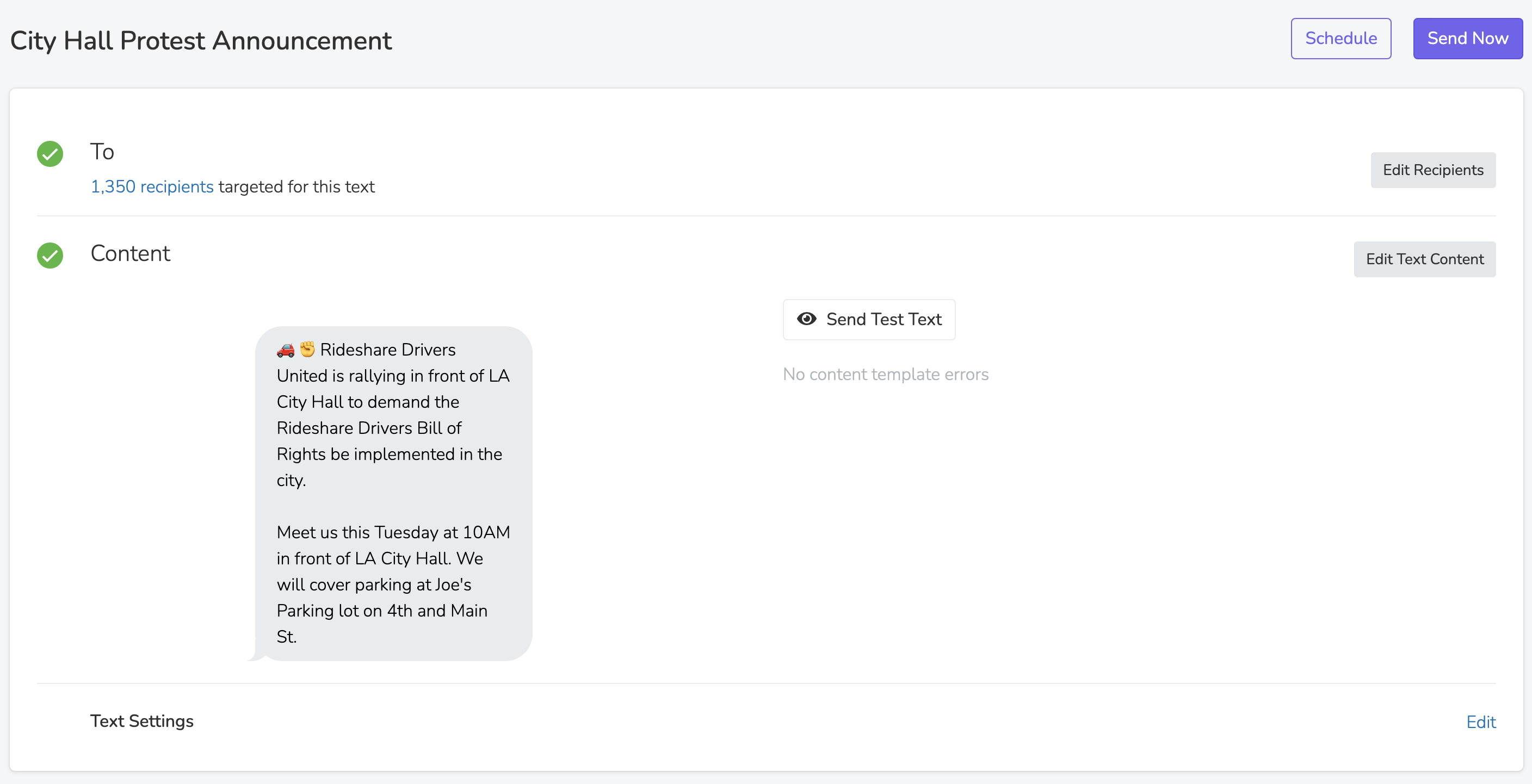
To
Edit the recipients section to create a filter targeting all people who will receive the text message. Only People for whom you have SMS permission will be eligible to, so there's no need to add additional targeting parameters for that.
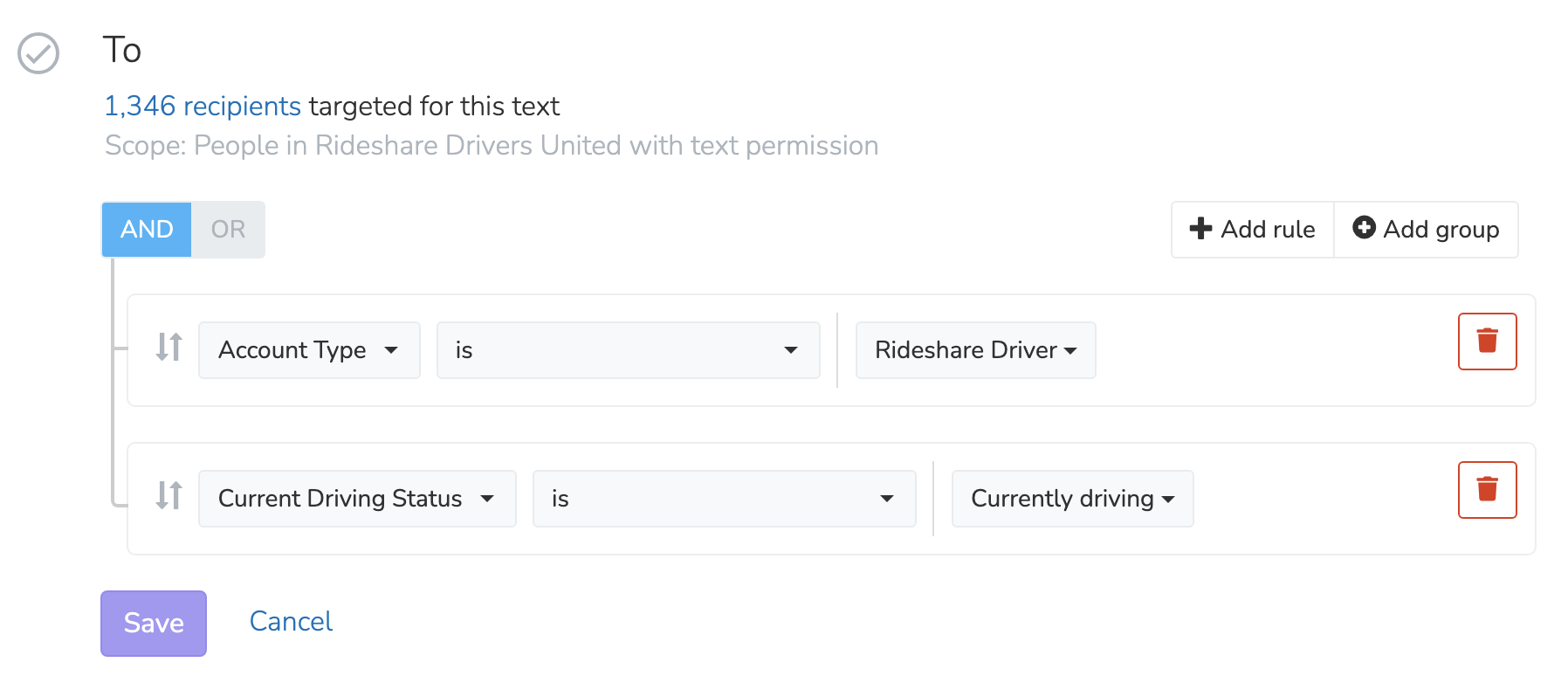
Once you've set your filter, you can view a preview of all People by clicking on the targeted count link:

Content
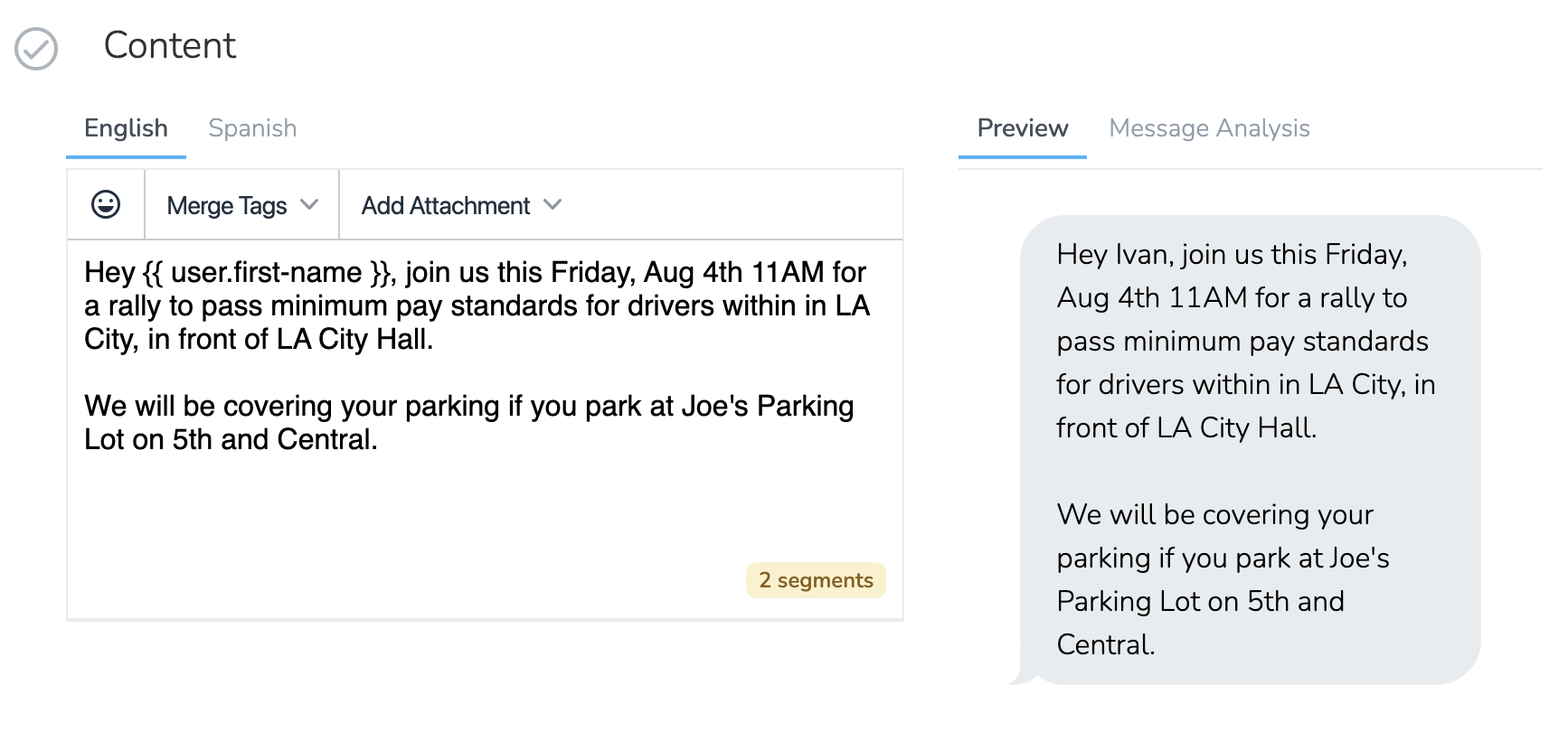
Edit the text content to craft the message template that will be sent to all targeted People. Here you can draft your text in all supported languages, and use merge tags to create personalized messages. Use the message preview in the right panel to see an example of what the final sent text message will look like, and check the "Analysis" tab for pointers on how to create effective text messages that will be read.
Hover over the segments tag in the bottom right of the editor to see how much each text message is going to cost to send.
Understanding Segments and Cost
A single SMS message can contain up to 160 characters using standard characters (GSM-7 encoding). If your message exceeds 160 characters, it is split into multiple segments of 153 characters each (7 characters per segment are used for reassembly headers). Each segment is billed separately.
If your message contains emoji, non-Latin characters, or certain special characters, the encoding switches to UCS-2, which reduces the limit to 70 characters per segment (67 for multi-segment messages). This means a short message with a single emoji could cost twice as much as the same message without it.
The segment counter in the editor updates in real time as you type, so you can optimize your message length before sending.
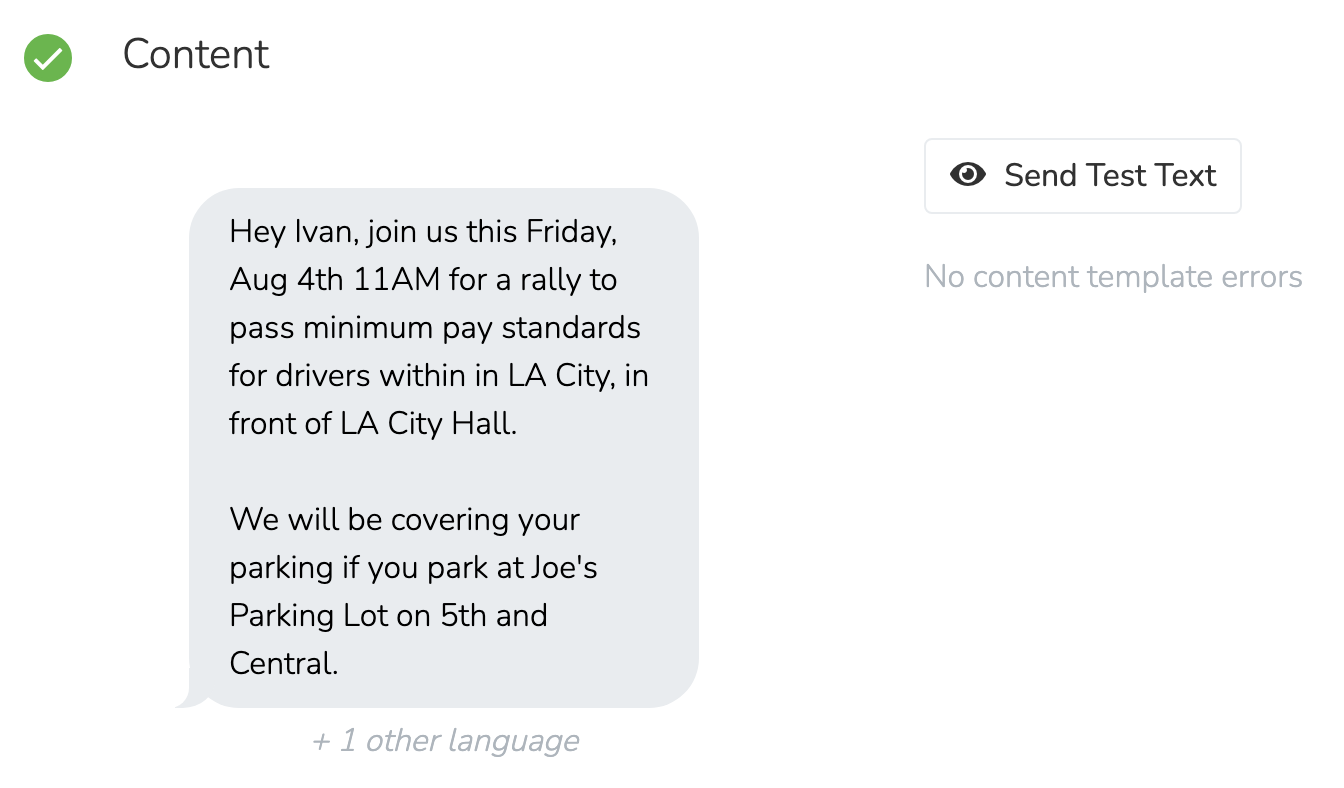
Once the message content has been saved, you'll be able to send a test text to any phone number to ensure that it looks exactly how you want it.
A/B Testing
A/B testing lets you send different message variations to a portion of your recipients to determine which performs best, then automatically or manually send the winning variation to the rest.
Note: A/B testing for text blasts is available on plans that include this feature. Link tracking must be enabled on the blast, and every variation must contain at least one link or page merge tag, since click rate is the metric used to select the winner.
Adding Variations
In the Content section of your text blast, click Add Variation to create a new message variant. You can:
- Add a blank variation — write your own alternative message from scratch.
- Generate an AI draft — let the system create a variation modeled on your existing message content. The AI preserves all merge tags and links exactly as written.
You can add up to 3 additional variations (4 total, including your main message). Each variation has its own message body and attachments and can be edited independently.
Test Group Size
In Settings, use the Test Group Size slider to choose what percentage of your total recipients receive the test variations. The range is 10%–30%. Recipients are distributed evenly across all variations.
Winner Selection
Choose how the winning variation is selected:
| Mode | How it works |
|---|---|
| Automatic (Statistically confident) | The system monitors click rates and selects a winner once it reaches statistical confidence, within a minimum and maximum time window you set. Winner sending respects your organization's texting hours. |
| Automatic (Fixed time) | The system picks the best-performing variation by click rate after a set number of hours (2, 4, 8, 12, or 24). |
| Manual | You review the results and select the winning variation yourself before the remainder of the blast is sent. |
Note: Automatic winner continuation respects your organization's texting hours. If the winner is selected outside of texting hours, sending to the remaining recipients will begin at the start of the next texting window.
Sending an A/B Test
When you send a text blast with variations, the test phase sends to the configured percentage of recipients. After the test phase completes, the winning variation is sent to all remaining recipients — either automatically based on your winner selection settings, or after you manually select a winner from the results page.
Settings
Each Text Blast has a series of settings that you can customize:
Supported Languages & AI Translations
Supported languages: Add additional languages that you want your Text Blast to support. If a Person has their preferred language set to a language that your text blast supports, they will have their message delivered in that language. Otherwise, all targeted people will receive the message in English.
After adding a new language and saving the settings, we will automatically translate the content of your text from English, into the new languages you've added support for. You will be able to edit the content of the translated text. If you wish to re-translate from the English text, you can remove support for a language and save, then re-add and re-save that language.
Other Settings
Scope: The scope determines the available universe.
Track links: By default, all links will be shortened to use our URL shortener at the domain sldr.it. This keeps the link shorter and lets you track when a link is clicked. Link tracking is required when using A/B testing.
Clone text blast: You can always clone a Text Blast if you need to repeatedly use a similar text template.
Texting Hours
Text Blasts respect your organization's texting hours, configured at Settings > Chapter Structure > Root Organization. Messages to recipients whose local time is past the end of the texting hours window are skipped (not queued or retried). After sending, a notification will show how many messages were skipped due to texting hours.
Each recipient's timezone is determined by their profile timezone, their chapter's default timezone, or their zip code. This means a text blast sent at 7:00 PM Eastern time will still deliver to a recipient in California (where it's 4:00 PM) but will skip a recipient in New York if the texting hours window has closed.
To override this behavior, check "Continue delivering messages after texting hours end" in the send confirmation modal. This sends to all recipients regardless of their local time.
Sending
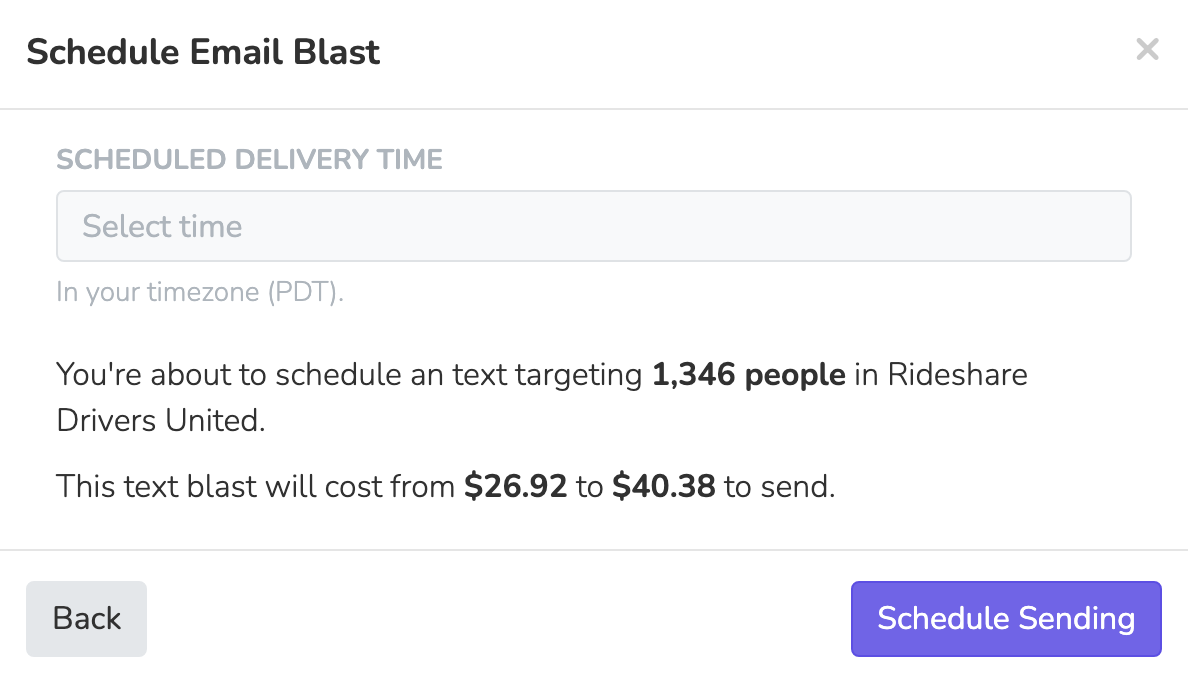
When you're ready to send your Text Blast, you can either schedule the sending to begin at a pre-set time, or immediately begin sending the Text Blast. When go to send the Text Blast, you will be given an estimate as to how much it will cost to send all messages. The exact cost will not be known until the messages are actually delivered, because merge tags can result in variable text lengths for each message (eg. if you're using someone's first name in the message, a longer name may force a text message to add an extra text segment).
Results
Overview
When a Text Blast is sent, you will immediately be taken to the results page where you can watch the text delivery happen in real-time. You can view the delivery status, alongside any delivery errors.
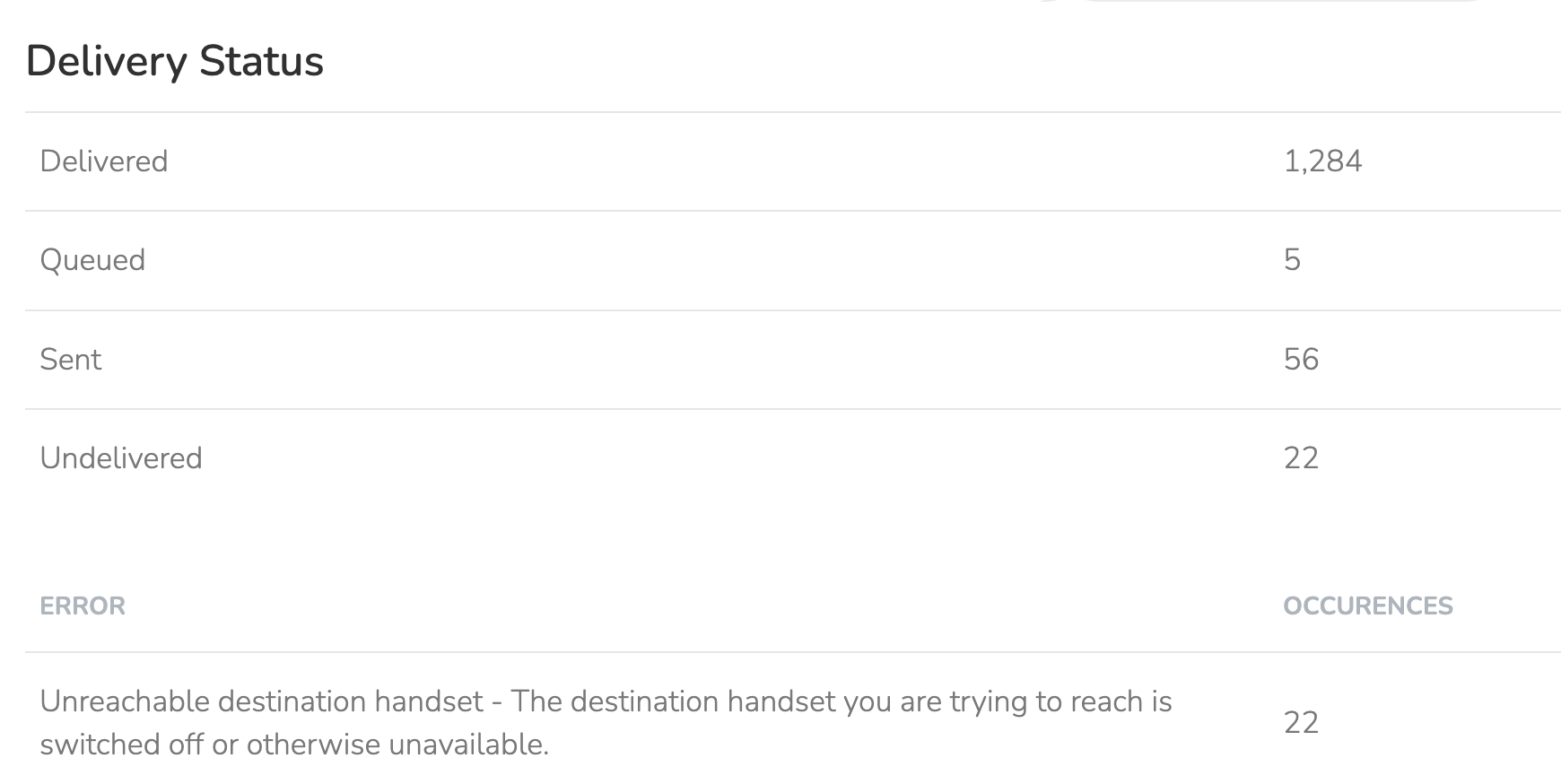
All delivery statuses are reported directly by our texting service partner, Twilio.
| Status | Meaning |
|---|---|
| Delivered | The carrier confirmed delivery to the recipient's device |
| Sent | The message was accepted by the carrier, but the carrier did not report a final delivery confirmation. In practice, these messages are almost always delivered. |
| Queued | The message is waiting to be sent |
| Undelivered | The carrier rejected the message (e.g., invalid number, carrier filtering, or recipient opted out at the carrier level) |
| Failed | The message could not be sent (e.g., invalid phone number format) |
A/B Testing Results
If your blast used A/B testing, the results page displays a breakdown by variation showing:
- Sent — number of messages sent for each variation
- Delivered — messages without a carrier error
- Clicked — distinct recipients who clicked a link
- Opted out — recipients who replied STOP after receiving that variation
- Click rate — the metric used to determine the winner
If you chose Manual winner selection, a Select as Winner button appears next to each variation. Clicking it immediately queues the winning variation to send to all remaining recipients.
If automatic winner selection is active, the results page shows the current test status — for example, "Testing in progress" or "Awaiting manual selection" — along with how many recipients received the test and how many remain.
Activity
The results activity tab breaks down the status for all People who were sent the text message. You can view a list of all recipients based on the following statuses:
Sent to: All People who were sent the Text Blast regardless of delivery status.
Delivery issue: All People who were sent the message and had their carrier report an issue with the message delivery.
Clicked: All People who clicked on a link you included in your message.
Took action: All People who clicked a link to a Solidarity Tech Page and submitted the form.
Opted out: All People who replied STOP after receiving this blast.
Sent Blasts List
The Sent tab on the Text Blasts index page lists all blasts that have finished delivering. Each row shows the blast name, status badge, number of messages sent, the date it was sent, and a Type column indicating whether the blast was sent as SMS or MMS. A blast is classified as MMS when it includes one or more media attachments (images or other files); blasts with text only are classified as SMS.
Updated about 1 month ago