
All People
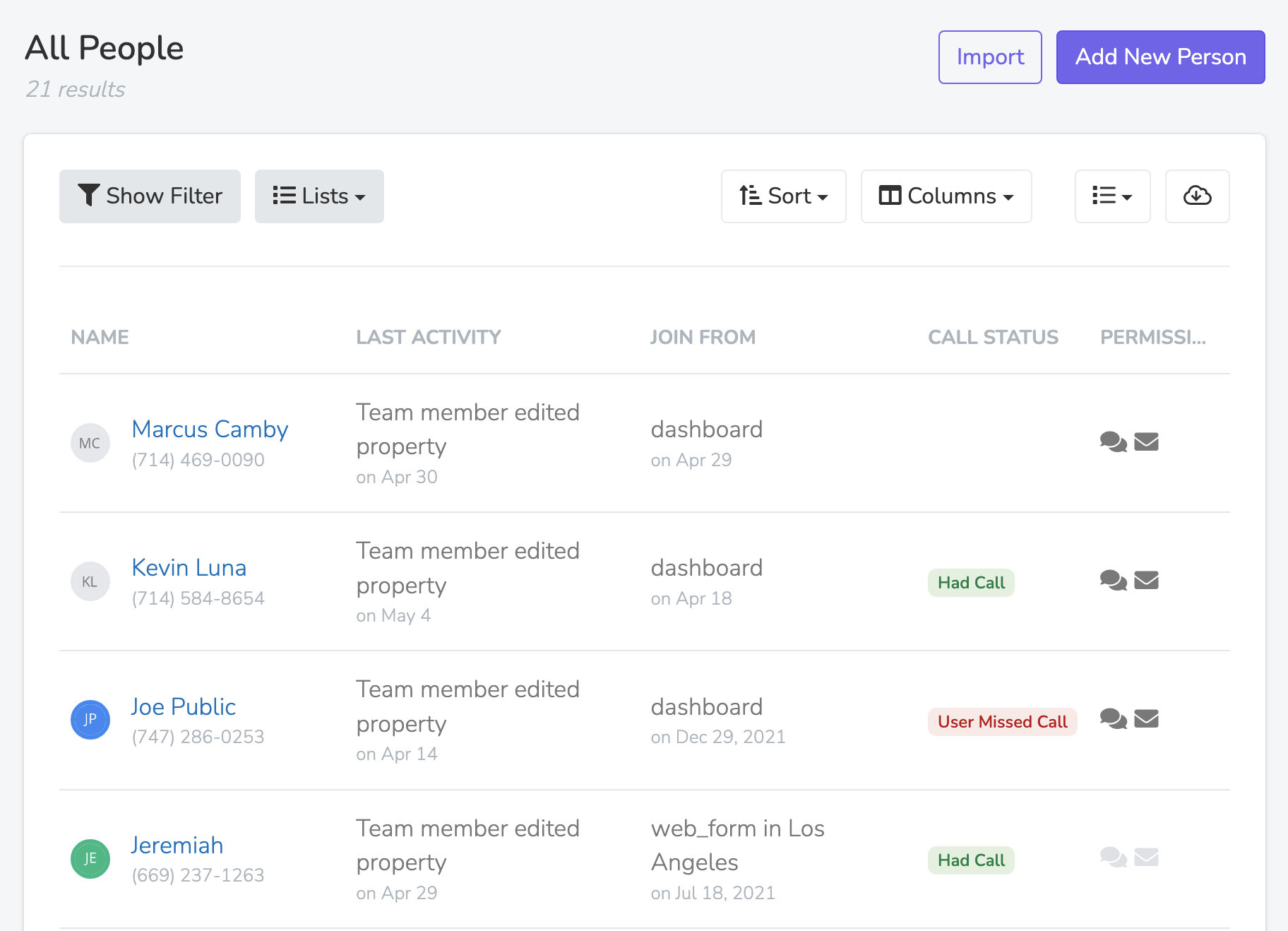
People Results List View
The People page shows everyone in the chapter or organization you are logged in to. If a 'Default People List' applies to that scope, the page opens that list instead. To see everyone, pick 'All People' in the 'Lists' dropdown. Set a filter or select a saved List to limit the People shown. Team members with access can export the People data. Open the 'More' menu (the ... button) at the right of the toolbar and click 'Export'.
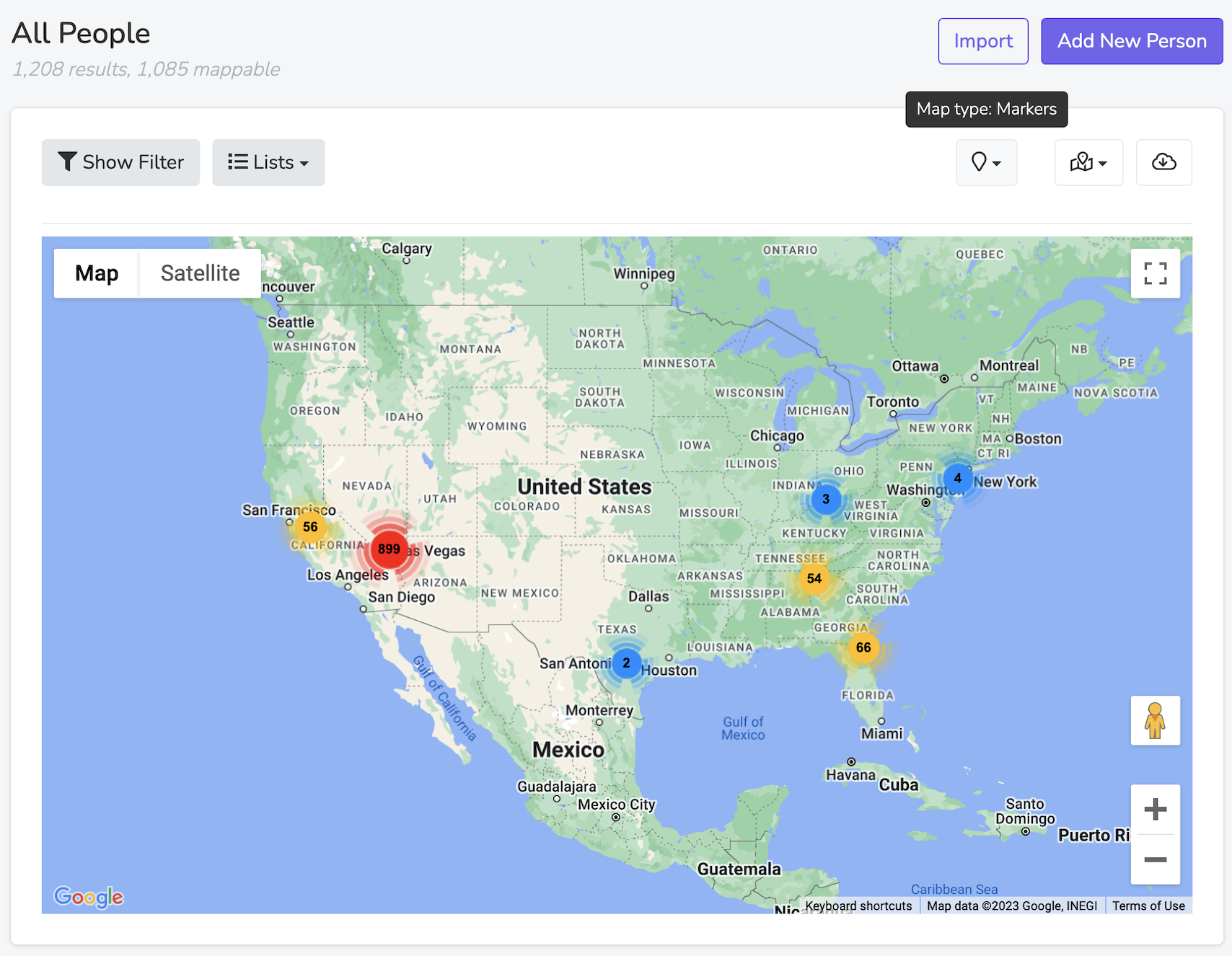
Map View
Team members with access can switch from the list view to a map view. Pick 'Markers' or 'Heatmap' in the map type dropdown.
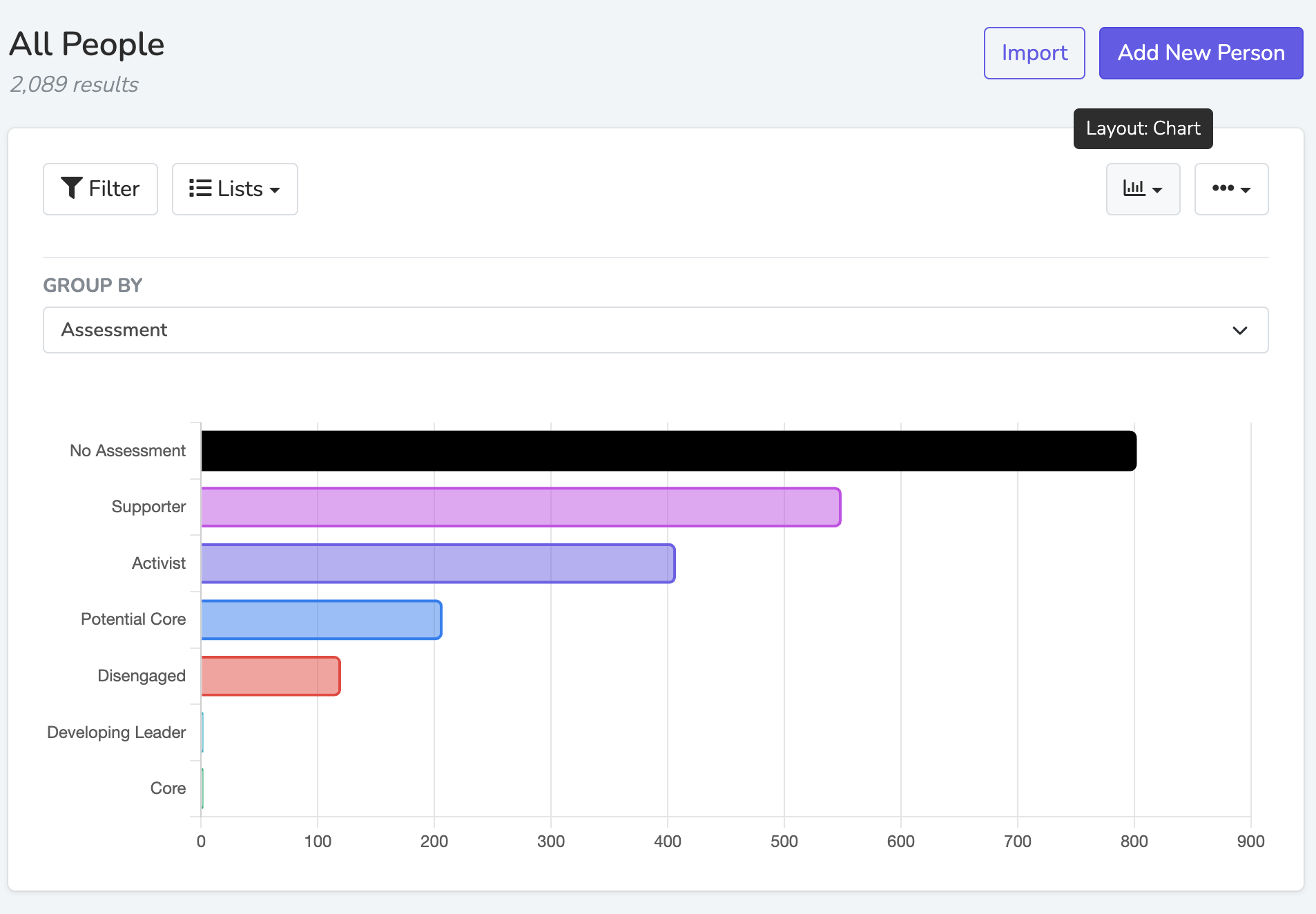
Charts
The 'Charts' layout groups the people in your current results. Organizers also call it a wall chart. Pick a 'Group By' attribute, such as 'Assessment', 'Chapter', or a custom property. To break down each group by a second attribute, pick a 'Graph By' attribute. In 'Group By', 'Branch' shows only on plans with branches, such as Professional and Enterprise.
To share a chart, copy the page URL. Only team members who are logged in can open it. Each viewer sees counts for their own logged in scope and permissions.
Sorting
Use the 'Sort' dropdown to choose the order of the results.
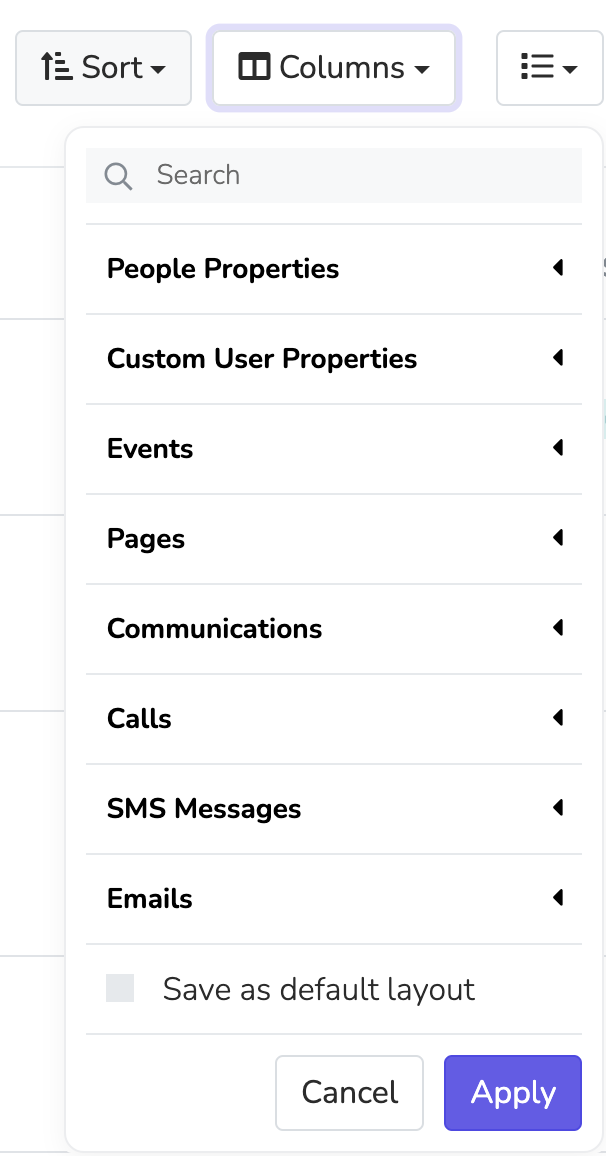
Customize Columns
Use the 'Columns' dropdown to pick the attributes shown as columns. To save a column layout as your default layout for 'All People', check "Save as default layout" and click Apply.
Updated 18 days ago