
Zoom
Connect Zoom for virtual events and scheduled calls
Solidarity Tech integrates with Zoom in two ways:
- Organizational Zoom Accounts - For virtual events with automatic registration and attendance
- Personal Zoom Accounts - For team members accepting scheduled 1:1 calls
Zoom for Events
Connect Zoom to virtual events to automatically create meetings, give each attendee their own join link, and sync attendance after the meeting.
Connecting a Zoom Account
From Settings → Integrations → Zoom, click Connect Zoom account and authorize a paid Zoom account. The account gets a default name, which you can change with 'Edit'. Its 'Scope' decides which events can use it.
Using Zoom with Events
When creating or editing a virtual event, click Connect Zoom next to the URL field. Select your Zoom account and the meeting is created automatically.
Once connected:
- Each person who RSVPs Yes gets a personal join link in the confirmation email and reminders.
- Use
{{ event-session.virtual-address }}in the event's own confirmation, reminder, and follow up emails and texts. - Attendance syncs automatically after the meeting ends
The copy icon next to the URL has the tooltip 'Copy generic join link for support'. It copies the generic join link. You can share that link by hand if someone needs it.
Rescheduling Zoom Events
When you update a session's start time, end time, or title in Solidarity Tech, the connected Zoom meeting is updated automatically. You do not need to edit the meeting in Zoom, and personal join links stay the same. Attendees' calendars do not change on their own, so click 'Yes, Send Email' when the 'Send Calendar Update Email?' prompt appears after you save.
Changing Zoom accounts: If people have already RSVPed, changing the Zoom account creates a new meeting, and their existing links still open the old meeting.
Personal Zoom Accounts (Scheduled Calls)
Team Members can connect their personal Zoom to accept scheduled calls via Schedule a Call pages.
Connecting
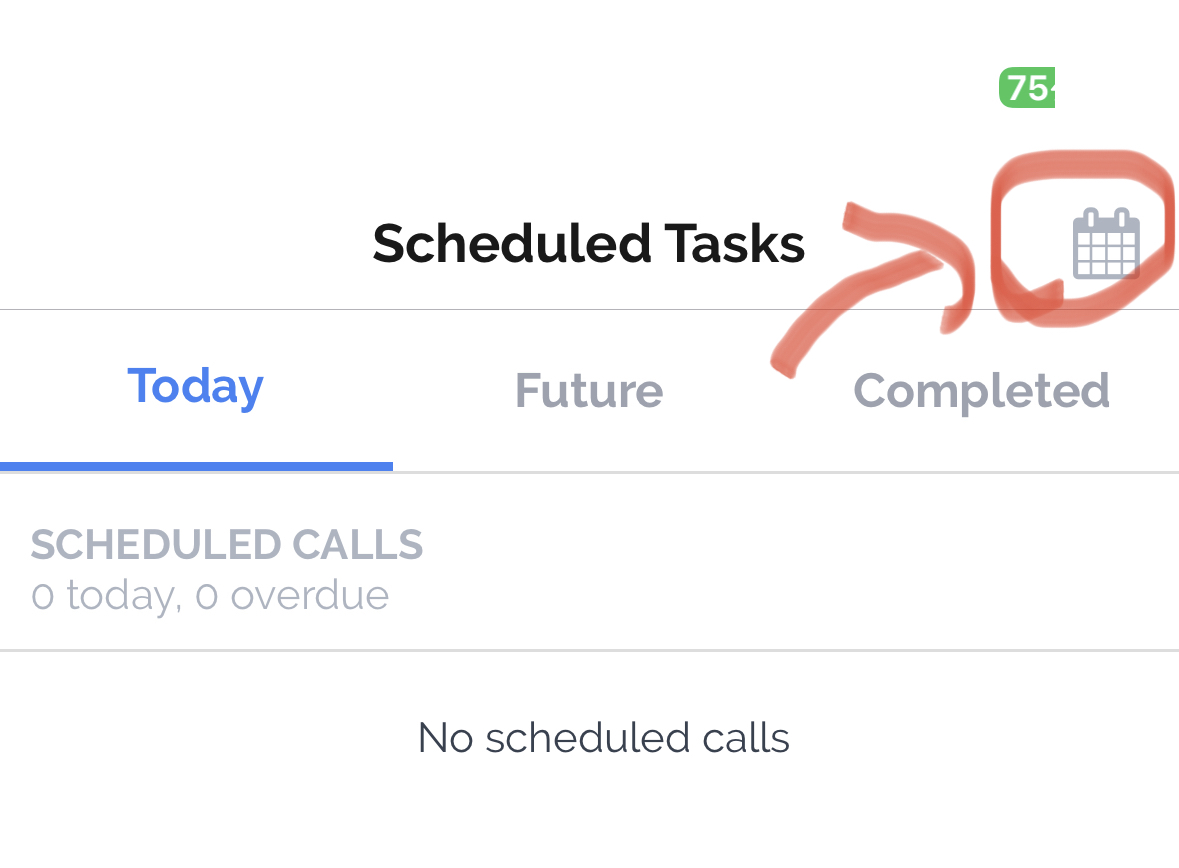
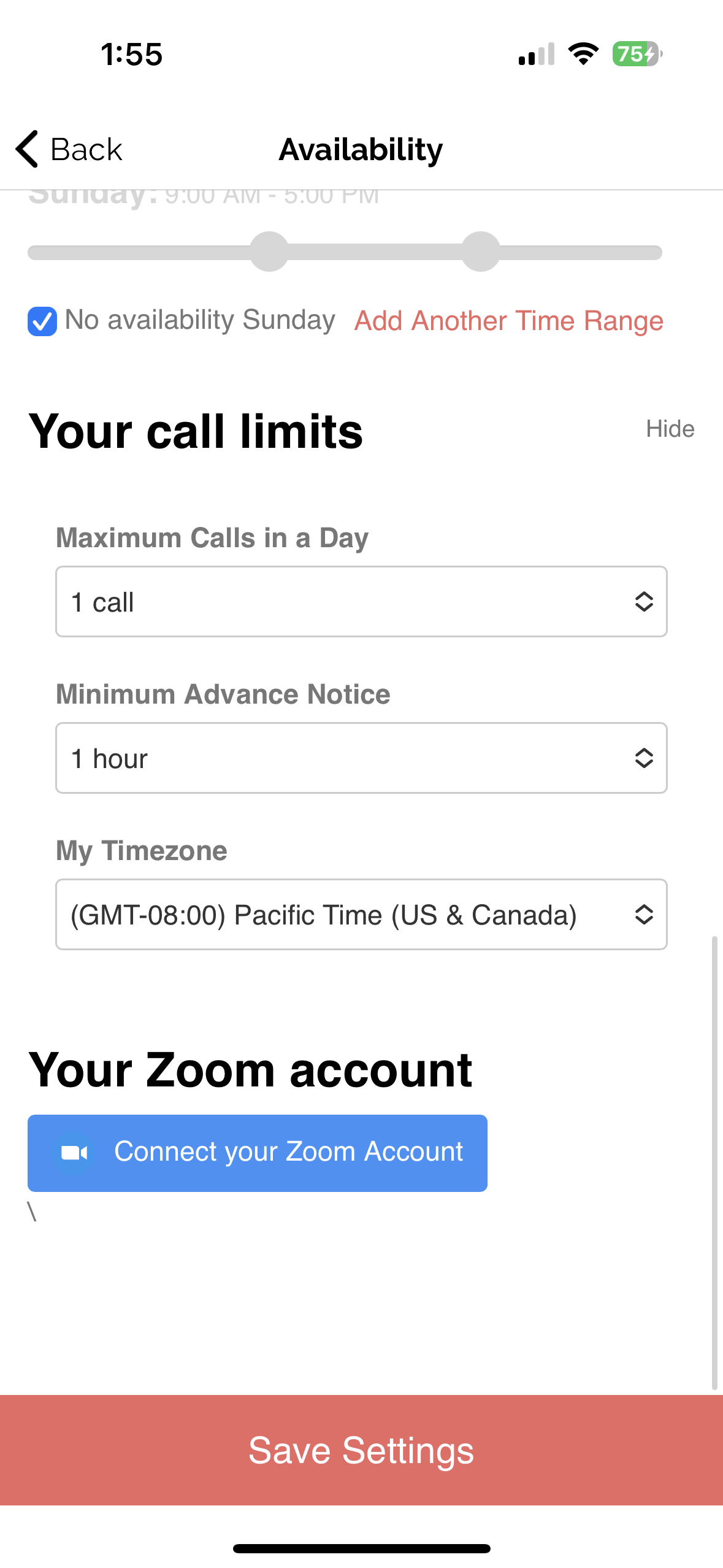
In the Solidarity Tech mobile app, open 'Scheduled Tasks'. Tap the calendar icon to open 'Availability'. Tap 'Connect your Zoom Account'.
Disconnecting
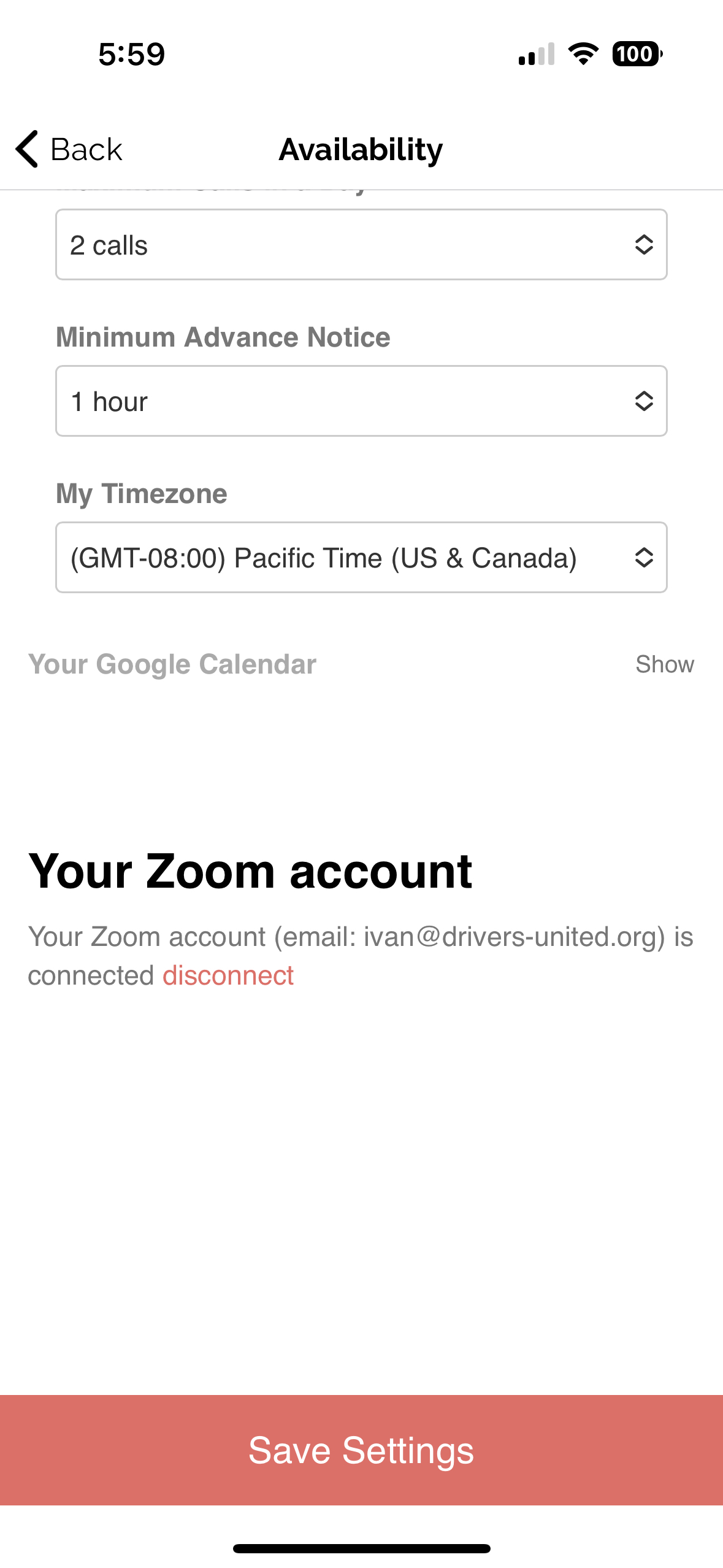
To disconnect, tap 'disconnect from Zoom' on the 'Availability' screen.
Updated 16 days ago