
SSO Integrations
Single Sign-On (SSO) Integrations
Solidarity Tech provides Single Sign-On (SSO) functionality that allows your users to log into external services using their Solidarity Tech account. SSO integrations are part of the Professional plan. This centralized authentication system ensures that all users accessing your integrated services have Person records in Solidarity Tech, complete with email addresses and other important attributes.
Benefits of SSO Integration
- Verified Identity: All users must have a Person record in Solidarity Tech and log in with a one-time code sent to that record
- Spam Prevention: Tying access to an existing Person record helps prevent spam and inflammatory messages
- Attribute-Based Access: Grant special permissions based on Solidarity Tech attributes (e.g., dues-payer status or team member roles)
- Centralized Management: Manage user access across multiple services from one dashboard
- Security: Users authenticate through Solidarity Tech's one-time code login
Supported protocols
Solidarity Tech supports three integration types:
- Discourse: DiscourseConnect (Discourse's built-in SSO protocol)
- SAML 2.0: Solidarity Tech acts as a SAML 2.0 identity provider for any SAML 2.0 service provider
- Custom: A signed HTTP redirect (HMAC-SHA256) to an endpoint you control
Solidarity Tech does not provide an OpenID Connect (OIDC) or OAuth 2.0 identity provider for member login. If your application only supports OIDC, use an intermediary identity provider that accepts SAML 2.0 upstream (for example, Authentik or Keycloak) and connects to Solidarity Tech through the SAML 2.0 integration.
How SSO Works
When users try to access your integrated service:
- They are redirected to your Solidarity Tech login page
- They enter their email address
- If a Person record with that email exists in your organization, they receive a one-time code
- After successful verification, they are redirected back to your service in the "logged in" state
- Your service receives data from the Person record. The fields depend on the integration type
Getting Started
- In your Solidarity Tech dashboard, go to Settings, then click SSO/SAML under Integrations. You need the Manage All Third-Party Integrations permission for the root organization
- Click New integration and select your desired service type
- Follow the configuration steps for your chosen integration
- Test the integration to ensure it's working properly
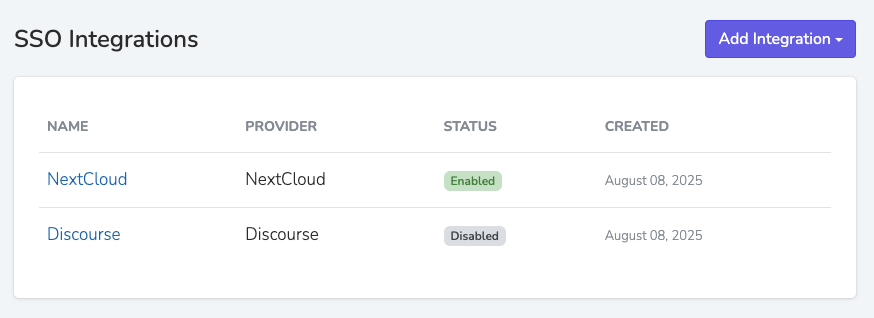
Discourse SSO Integration
Integrate your Discourse forum with Solidarity Tech to ensure all forum participants are verified members with known identities. This integration is perfect for community forums where you want to prevent spam and tie forum access to membership status.
Setup Steps
-
Create Discourse Integration
- In your Solidarity Tech dashboard, go to Settings, then click SSO/SAML under Integrations
- Click New integration and select Discourse
- Enter a name for this integration (e.g., "Community Forum")
- Click Create Integration. On the integration page that opens, enter your forum URL in Discourse URL (e.g.,
https://forum.yourorganization.com) - Copy the automatically generated Discourse Connect Secret. You need it for step 2
- Click Save Configuration
-
Configure Discourse Server
- Log into your Discourse server as an administrator
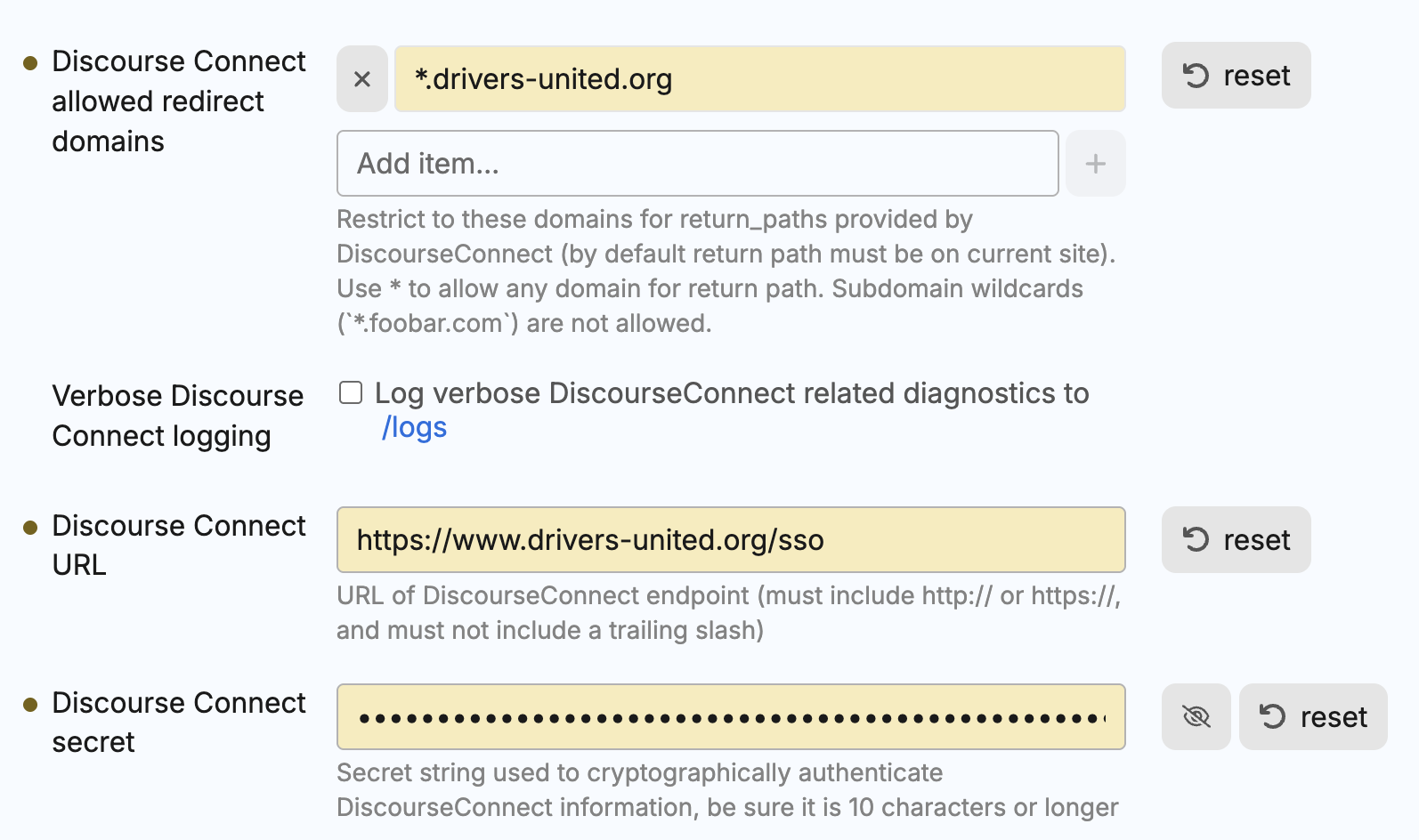
- In the Discourse admin panel, find the three DiscourseConnect settings below
- Configure these settings:
- enable discourse connect: ✅ Enable this setting
- discourse connect url: Paste the Discourse Connect URL from the integration page (
https://your-solidarity-tech-domain.com/sso/[integration-id]) - discourse connect secret: Paste the Discourse Connect Secret from your Solidarity Tech dashboard
- Test the Integration
- Log out of your Discourse forum
- Try to log in - you should be redirected to Solidarity Tech
- Complete the one-time code verification
- Verify you're redirected back to Discourse and logged in
What Users Experience
When users visit your Discourse forum and log in, they are redirected to Solidarity Tech to enter their email and a one-time code. After verification, they're automatically logged into Discourse with their profile populated from their Solidarity Tech information.
User Data Provided
Discourse receives:
- Username: Solidarity Tech gives each Person record a random username when it creates the record. It is not the person's name or email
- Email: The user's email address
- Name: Full name from the Person record
- External ID: The Solidarity Tech Person ID
- Groups: Users with active dues are placed in the
dues_payergroup, for granting special badges or access to private categories
SAML 2.0 SSO Integration
Solidarity Tech acts as a SAML 2.0 identity provider (IdP), allowing members to log into any SAML 2.0 service provider (SP) using their Solidarity Tech account. This integration works with NextCloud, BookStack, Authentik, and any other SAML 2.0-compatible platform.
Solidarity Tech signs the SAML Response (the message, not the Assertion inside it) with the certificate you generate in the dashboard (RSA-SHA256, SHA-256 digest). Without a certificate, the response goes out unsigned, so generate the certificate before you test the login. If your service provider has a "require signed assertions" option, leave it off and require signed messages instead. The NameID is the user's email address, in the emailAddress format.
Setup Steps
-
Create SAML 2.0 Integration
- In your Solidarity Tech dashboard, go to Settings, then click SSO/SAML under Integrations
- Click New integration and select SAML 2.0
- Enter a name for this integration (e.g., "Wiki")
- Click Create Integration. On the integration page that opens, enter the Service Provider URL. This is the base URL of your service provider, scheme and host only (e.g.,
https://wiki.yourorganization.org). Solidarity Tech only posts SAML assertions to an Assertion Consumer Service (ACS) URL on this origin (same scheme, host, and port). - Optionally enter the ACS URL. This is where Solidarity Tech posts the SAML response when the login starts from Solidarity Tech (IdP-initiated) rather than from the service provider. It must be on the same origin as the Service Provider URL. Leave it blank for NextCloud, which uses
/apps/user_saml/saml/acsby default. When the login starts from the service provider, the ACS URL in its AuthnRequest is used instead. - Click Save Configuration
- Click Generate New Certificate and confirm. The certificate saves at once and the page reloads, so URLs that you did not save are lost. When a certificate exists, the button reads Regenerate Certificate. After a regenerate, paste the new certificate into your service provider.
- Copy the generated certificate text - you'll need this when configuring your service provider
-
Configure Your Service Provider
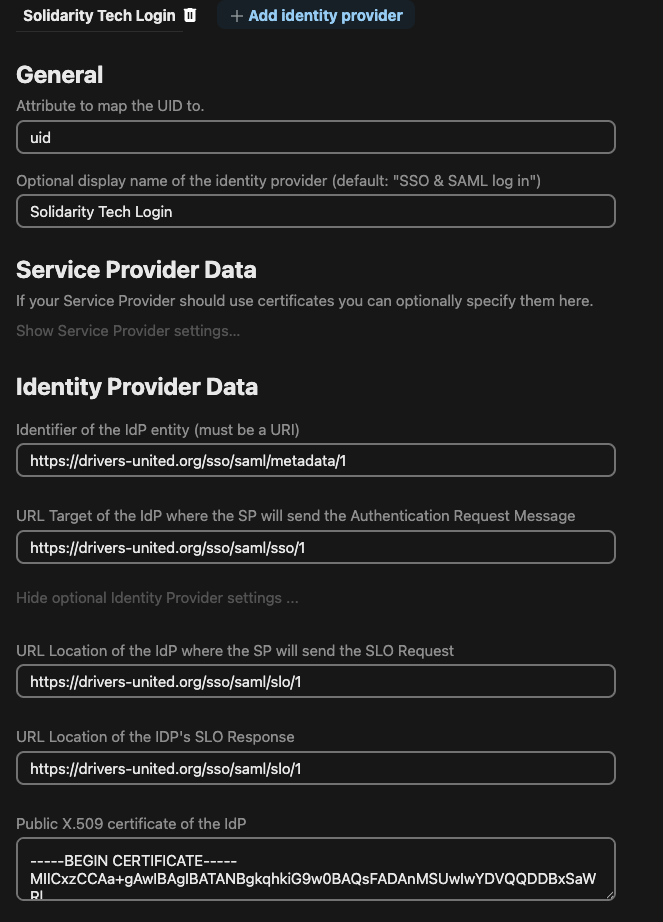
Use the following values from your Solidarity Tech dashboard when configuring SAML on your service provider:
-
Identity Provider Entity ID:
https://your-solidarity-tech-domain.com/sso/saml/metadata/[integration-id] -
Single Sign-On Service URL:
https://your-solidarity-tech-domain.com/sso/saml/sso/[integration-id](accepts HTTP-Redirect and HTTP-POST bindings) -
Public X.509 Certificate: Copy all of the text under X.509 Certificate (copy this to your service provider):, with the BEGIN and END lines
Manual configuration only: The Entity ID URL returns an XML file that describes a service provider, not Solidarity Tech as the identity provider. Do not import it. Enter the Entity ID, Single Sign-On Service URL, and certificate into your service provider by hand.Your service provider does not have to send an
AssertionConsumerServiceURLin its AuthnRequest. Without one, Solidarity Tech posts the response to the ACS URL you configured (or the NextCloud default). An ACS URL in the request must be on the same origin as the Service Provider URL you configured, or Solidarity Tech rejects the request. Both the HTTP-Redirect and HTTP-POST bindings are supported, and a member who is not yet logged in is returned to the SAML flow after they log in.IdP-initiated login: Start the SAML login from the service provider's login page, as the dashboard also advises. A login that starts from Solidarity Tech has no AuthnRequest. The response then goes to the ACS URL (or the NextCloud default), with the Service Provider URL as theAudience. A service provider that expects its own entity ID as theAudiencerejects that login.Configure the following attribute mapping on your service provider:
-
User ID:
uid -
Display name:
displayName -
Email address:
email -
Groups:
groups
NextCloud-specific setup: In NextCloud, enable the SSO & SAML authentication app on the Apps page. Open the SSO & SAML authentication section of the administration settings. Enter the values above. -
- Test the Integration
- Log out of your service provider
- Visit its login page and choose the SAML login option
- Enter your email and the one-time code in Solidarity Tech, then confirm you're redirected back and logged in
What Users Experience
Users visit your service provider's login page, select the SAML login option, get redirected to Solidarity Tech to enter their email and a one-time code, then are automatically logged in with their profile populated.
Single Logout: The SLO endpoint at https://your-solidarity-tech-domain.com/sso/saml/slo/[integration-id] acts only on a request that carries a SAMLRequest. It then signs the user out of Solidarity Tech and redirects them to your Solidarity Tech website home page. A user who is not logged in goes to the login page first. The endpoint never sends a SAML LogoutResponse, so leave single logout off on the service provider.
User Data Provided
Your service provider receives user data through SAML attributes. Person fields with no value can be left out of the assertion.
Standard SAML Attributes
- uid: The Solidarity Tech Person ID
- displayName (also sent as
displayname): User's full name - email (also sent as
mail): User's email address - groups: One value for each team role the user has, with the role name. Users with active dues also get
dues_payers. The attribute is left out when the user has neither
Membership and Role Attributes
- st_dues_payer:
trueorfalse, indicating active dues - st_organization_name: Name of the user's organization
- st_member_since: When the Person record was created (ISO 8601)
- st_roles: Multi-valued. Always includes
user. Includesdues_payerwhen the user has active dues. Includes the name of each team member role assigned to the user (for example,Admin User). Each value is a separateAttributeValueelement, so make sure your service provider reads all values, not only the first.
Extended Person Data (prefixed with st_)
st_)Fields from the Person record are sent as SAML attributes with the st_ prefix:
Personal Information:
st_id,st_email: The Person ID and the email addressst_hash_id- Public identifier for the Person recordst_phone_number- Phone numberst_first_name,st_last_name,st_alternate_name- Name componentsst_date_of_birth,st_age- Date of birth and computed agest_preferred_language,st_second_language,st_secondary_languages- Language settingsst_timezone- Timezone settingst_referral_code- Referral codest_other_emails,st_other_phone_numbers- Additional contact details on the record
Organization & Chapter:
st_chapter_id,st_chapter_ids- Chapter IDsst_branch_id- Branch IDst_created_at,st_updated_at- Record timestamps
Contact Preferences:
st_sms_permission- Can receive text messagesst_email_permission- Can receive emailsst_call_permission- Can receive phone calls
Structured Fields:
st_address- Street address, city, state, zip code, country, and coordinatesst_assessment- Assessment status (key, label, color)st_custom_user_properties- All organization-specific custom propertiesst_tags- Tags on the record
Structured fields and lists arrive as one attribute value each.
Using SAML Attributes in Your Service Provider
Basic Setup: Configure attribute mapping in your service provider's SAML settings:
- Identifier:
uid - Display name:
displayName - Email address:
email - Groups:
groups
Group-Based Access: Users with active dues (st_dues_payer = true) get the value dues_payers in groups. Use it to limit access to dues-paying members. groups also holds the user's team role names.
Role-Based Access: To give team members more access, map groups in your service provider. groups carries each team role name as a separate value. For example, grant administrator rights when groups contains Admin User.
Custom SSO Integration
The Custom integration is a signed HTTP redirect to an endpoint you control. It is not SAML, OAuth, or OIDC. Use it for your own applications, where you can write the code that verifies the signature. For third-party applications that support SAML, use the SAML 2.0 integration instead.
Setup Steps
-
Create Custom Integration
- In your Solidarity Tech dashboard, go to Settings, then click SSO/SAML under Integrations
- Click New integration and select Custom
- Enter a name for this integration (e.g., "Member Portal")
- Click Create Integration. On the integration page that opens, enter your SSO Endpoint, the URL on your application that receives the signed redirect
- Copy the automatically generated Secret Key - you'll use this to verify requests
- Click Save Configuration
-
Implement in Your Application
- When users need to authenticate, send them to the SSO Initiation URL:
https://your-solidarity-tech-domain.com/sso/[integration-id] - Solidarity Tech logs the user in (if needed) and redirects them to your SSO Endpoint with the user data as query parameters
- Verify the
signatureparameter using the Secret Key and reject requests with an oldtimestamp - Create or update the user session in your application
- When users need to authenticate, send them to the SSO Initiation URL:
What Users Experience
Users are sent from your application to Solidarity Tech, enter their email and a one-time code if they are not already logged in, then are redirected back to your application in a logged-in state.
User Data Provided
Your SSO Endpoint receives these query parameters:
- email: The user's email address
- username: Solidarity Tech gives each Person record a random username when it creates the record. It is not the person's name or email
- name: Full name from the Person record
- external_id: The Solidarity Tech Person ID
- timestamp: Unix timestamp (seconds) when the redirect was generated
- signature: HMAC-SHA256 hex digest of the string
"email:external_id:timestamp", computed with the Secret Key
Dues-payer status, roles, and other Person record data are not included in the Custom redirect. If you need those attributes, use the SAML 2.0 integration or look the person up through the API using external_id.
Updated 2 days ago