
Communication Permissions
Communication permissions control whether your organization can contact a Person via SMS, email, or phone. Solidarity Tech supports two levels of permissions: global (organization-wide) and chapter-specific.
How Permissions Work
Every Person has both global permissions and chapter-level permissions for each communication type:
| Permission Type | What It Controls |
|---|---|
| SMS Blast | Whether they receive broadcast text blasts |
| SMS P2P | Whether team members can send them direct texts (peer-to-peer) |
| Whether they receive email blasts | |
| Call | Whether team members can call them |
Permission Logic
A Person can only be contacted if both their global permission AND chapter permission are enabled:
Can Contact = Global Permission AND Chapter PermissionFor example, if someone has:
- Global SMS Blast: ✅ ON
- LA Chapter SMS Blast: ❌ OFF
- NYC Chapter SMS Blast: ✅ ON
They will receive text blasts from NYC but not from LA.
Default Behavior
When a Person joins a new chapter (either as primary or secondary), their chapter-level permissions are automatically initialized to match their current global permissions. This means:
- If global SMS is ON → new chapter SMS starts ON
- If global Email is OFF → new chapter Email starts OFF
Managing Permissions
Viewing Permissions
Navigate to a Person's profile and click the Permissions tab to see their communication permissions.
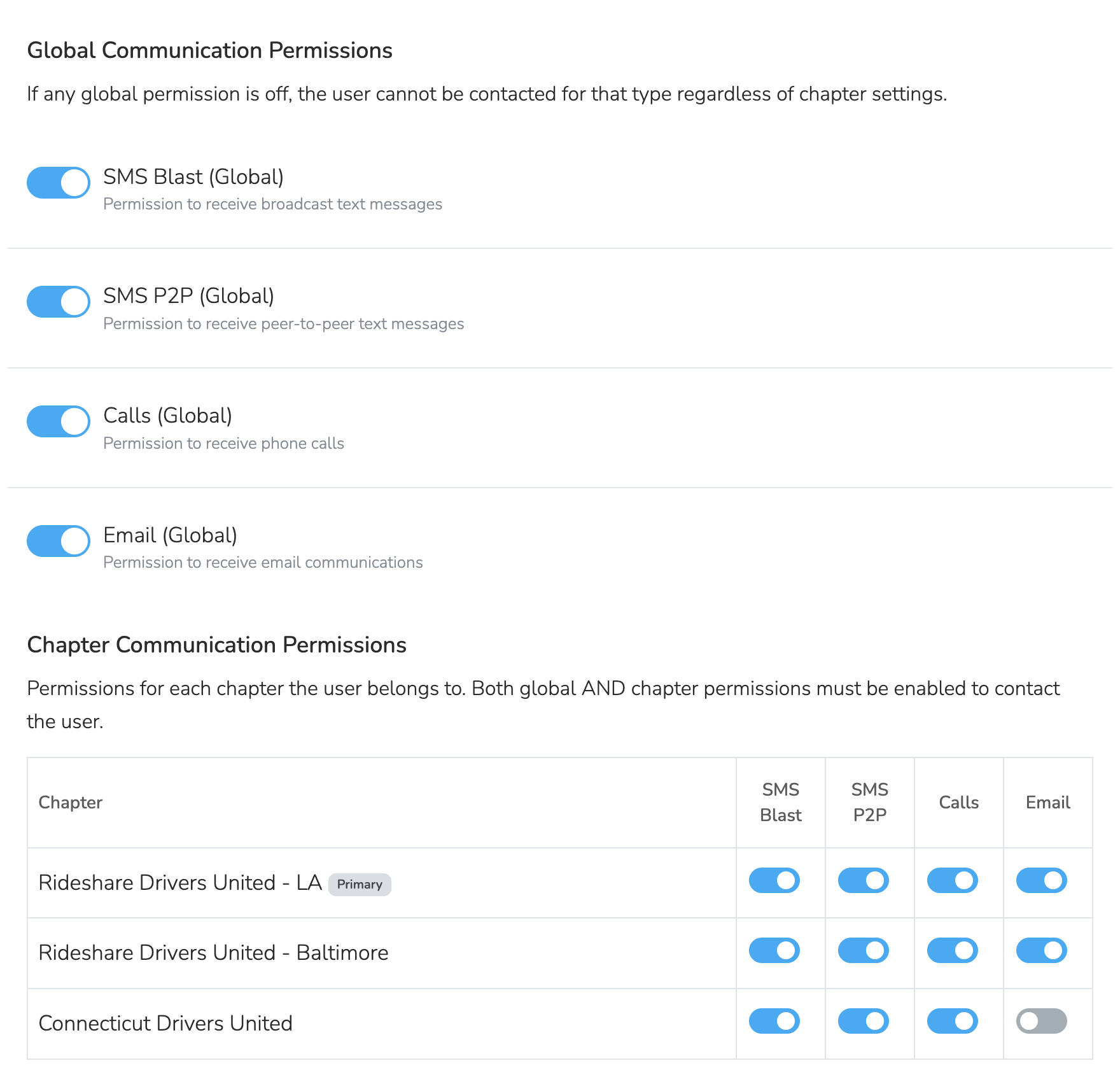
The Permissions tab shows:
- Global Permissions (at top) - The master switches that override everything
- Chapter Permissions - Individual toggles for each chapter the Person belongs to
Editing Permissions
Team Members with appropriate permissions can toggle chapter-level permissions ON or OFF directly from the Permissions tab. Changes are tracked in the Person's activity timeline.
Note: Editing global permissions in the dashboard requires the "Update Advanced" permission. People can only opt themselves out globally via the email unsubscribe page (if enabled in organization settings). If a global permission is OFF, chapter permissions are ignored.
SMS Opt-Out and Opt-In Keywords
Twilio recognizes the following opt-out keywords, mandated by the FCC and enforced at the carrier level. All keywords are case insensitive. The keyword must be the entire message to be recognized at the carrier level. For example, "stop" will trigger a carrier-level opt-out, but "stop it" or "please stop" will not at the carrier level.
In addition to these carrier keywords, Solidarity Tech automatically detects common opt-out phrases like "please stop texting me", "remove me from your list", and many others. See SMS Opt-Out Compliance for the full list of recognized keywords and phrases, and for information on requiring opt-out language in outbound messages.
Opt-Out Keywords
Any of the following will unsubscribe a Person from SMS for that Chapter Phone Number:
| Keyword |
|---|
| STOP |
| UNSUBSCRIBE |
| END |
| QUIT |
| CANCEL |
| STOPALL |
| OPTOUT |
| REVOKE |
Note: Both "OPTOUT" (one word) and "OPT OUT" (two words) are recognized.
When a Person texts any of these keywords to one of your Chapter Phone Numbers:
- Their SMS Blast and SMS P2P permissions are revoked for that specific chapter
- For carrier-level keywords (STOP, UNSUBSCRIBE, END, QUIT, CANCEL, STOPALL), Twilio sends a confirmation message: "You have successfully been unsubscribed. You will not receive any more messages from this number. Reply START to resubscribe."
- An activity is logged on their profile
Opt-In Keywords
Any of the following will re-subscribe a Person:
| Keyword |
|---|
| START |
| UNSTOP |
When a Person texts any of these keywords:
- Those permissions are restored for that chapter
- They receive a confirmation message: "You have successfully been re-subscribed to messages from this number. Reply HELP for help. Reply STOP to unsubscribe. Msg&Data Rates May Apply."
- An activity is logged on their profile
Help Keywords
A Person can also text HELP or INFO to receive the message: "Reply STOP to unsubscribe. Msg&Data Rates May Apply."
Multi-Chapter Behavior: If a Person is in multiple chapters that share the same phone number, opt-out and opt-in keywords affect all chapters using that number.
Email Unsubscribes
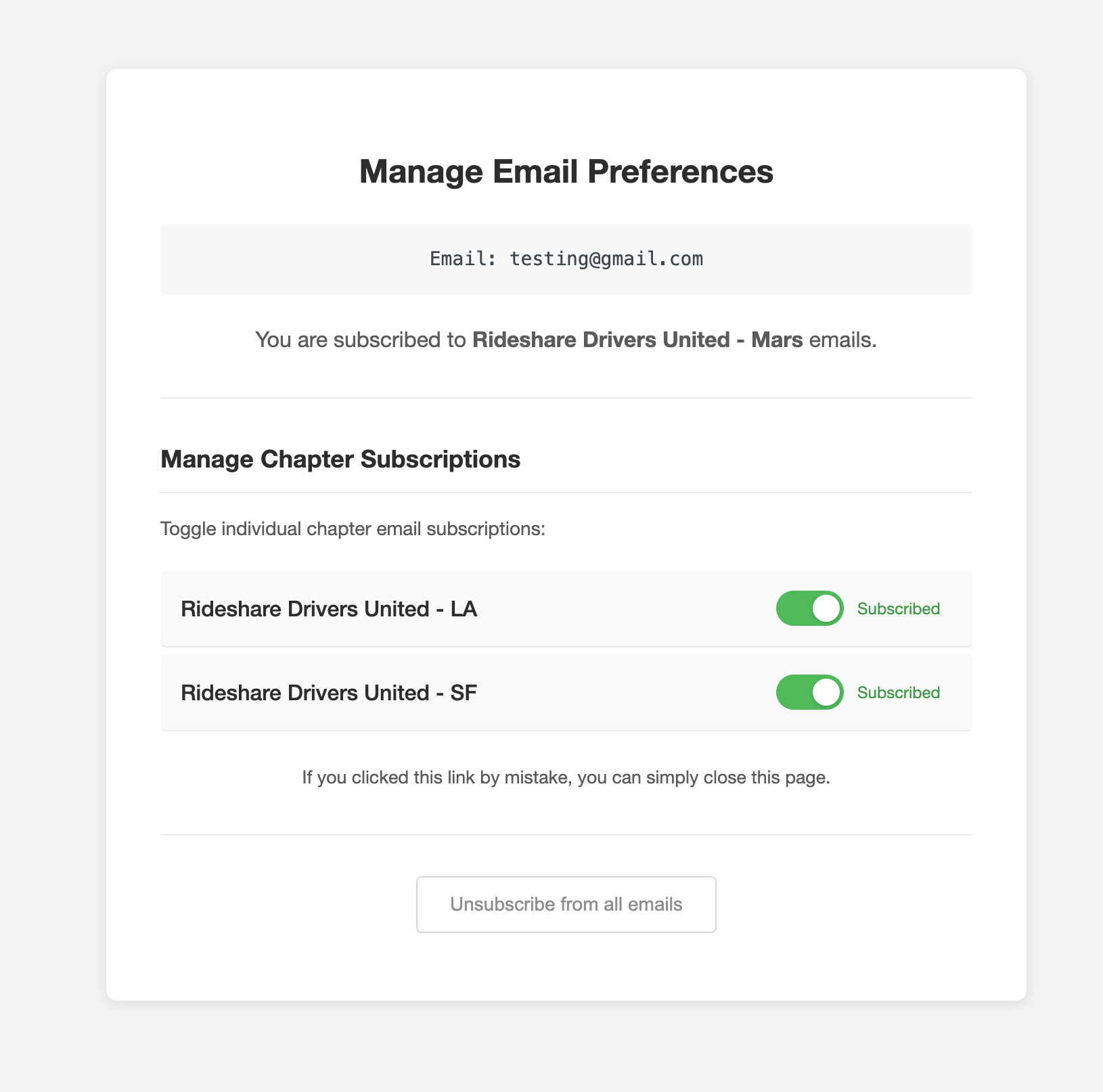
Every email blast includes an unsubscribe link. When a Person clicks it, they have options:
- Unsubscribe from this chapter - Revokes email permission for just that chapter
- Unsubscribe from all emails (if enabled) - Revokes global email permission (master switch)
The options shown on the unsubscribe page depend on your organization settings. See Email Unsubscribe Options to configure what choices People see.
Resubscribing
From the same unsubscribe page, People can choose to resubscribe:
- To a specific chapter
- To all emails (global)
All unsubscribe and resubscribe actions are tracked in the Person's activity timeline.
Importing Opt-Outs
When importing contacts from a CSV, you can preserve opt-out preferences from your previous system.
Chapter Opt-Out
Map a column to "Chapter Opt-Out" to revoke chapter-level permissions. After selecting this option, choose which permissions to revoke:
- ☐ SMS Blast
- ☐ SMS P2P
- ☐ Call
If the column value is true, yes, 1, or y, the selected permissions will be set to OFF for the import's target chapter.
Global Opt-Out
Map a column to "Global Opt-Out" to revoke global (organization-wide) permissions. This works the same way - select which permission types to revoke.
Tip: You can import the same CSV twice with different opt-out columns to handle complex opt-out scenarios (e.g., some people opted out of SMS but not email).
Activity Tracking
All permission changes are logged in the Person's activity timeline:
- "Opted out of emails for [Chapter Name]" - Chapter-specific email opt-out
- "Opted out of all emails (global)" - Global email opt-out
- "Opted back in for emails for [Chapter Name]" - Chapter-specific resubscribe
- "Changed SMS Blast permission for [Chapter] from true to false" - Manual permission change
This audit trail helps you understand how and when permissions changed for compliance and troubleshooting.
Filtering by Permission
You can filter your People list by communication permissions:
- Go to People
- Add a filter for "Has SMS Permission", "Has Email Permission", etc.
- These filters respect the chapter context of your current scope
For chapter-specific filtering, use the Chapter Permission filter rules to find people with specific chapter-level permission states.
Best Practices
- Respect opt-outs - Never manually re-enable permissions for someone who explicitly opted out.
- Use chapter permissions strategically - Let people choose which chapters they want to hear from
- Import carefully - When migrating, map opt-out columns to preserve people's preferences
Updated 5 months ago