
Export Data
Your data is yours. Export it whenever you need it - for reporting, backups, or moving to another system.
Exporting People
From the People section, you can export your entire database or a filtered subset:
- Apply any filters to narrow down who you want to export (or skip this to export everyone)
- Click the ... dropdown menu
- Select Export

- Choose your format and fields
- Click Export
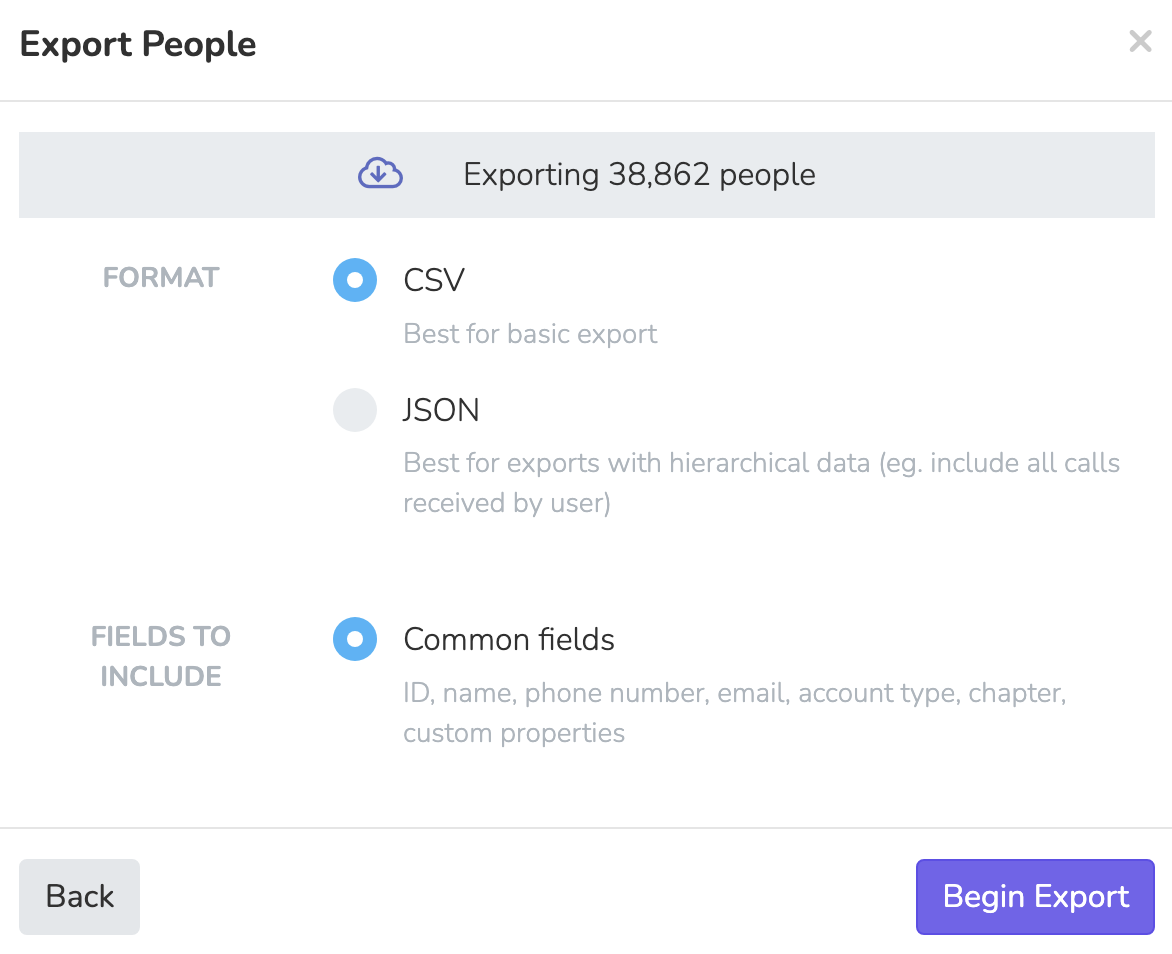
You'll receive an email with a download link when the export is ready. Large exports may take a few minutes to generate.
Export Formats
| Format | Best For |
|---|---|
| CSV | Spreadsheets, most external tools, quick analysis |
| JSON | Developers, API integrations, preserving nested data |
Field Options
When exporting, you can choose which fields to include:
| Option | What's Included |
|---|---|
| Common fields | Core contact fields, address, chapter, language, custom properties, notes, and donations |
| Selected columns | Only the columns currently visible in your People table. Useful when you've customized your view and want a matching export. |
For CSV exports, you can also enable Group by household address. This groups people who share the same household address into a single row and adds a Household Size column to the export.
What's Included
Standard Export (CSV)
The CSV export includes:
- Core Fields: First name, last name, alternate name, email, phone number, address, chapter, preferred language
- Dates: Created at, paid dues since, date of birth
- Age: Current age
- Assessment: Current assessment status
- Tags: All tags as a comma-separated list
- RSVP Stats: Yes RSVP count, confirmed RSVP count, most recent sessions
- Custom Properties: All your custom user properties
Full Export (JSON)
The JSON export includes everything above, plus:
- Notes: All notes on each person's profile
- Donations: Complete donation history with amounts, dates, and receipt numbers
- Activity Data (optional): Text messages, call logs with duration and notes
Export Links Expire
Export files are available for 7 days after generation. After that, you'll need to run a new export. This keeps your data secure and our storage manageable.
Page Submission Exports
You can also export submissions for individual pages:
- Go to your page in the Pages section
- Click the Results tab
- Click Export
This gives you all form submissions for that specific page, including:
- Submission date
- User info (name, email, phone)
- All form field responses
- Event sessions selected (for event pages)
Payout Exports
If you need financial records, go to Finances > Payouts and click Export to get a complete transaction history from your connected Stripe accounts.
Permissions
Exporting requires the members.export permission. If you don't see the export option, check with your organization admin about your role permissions.
Updated 4 months ago