
Field Surveys
A Field Survey is a regular Page Form with one setting enabled. Instead of a contact filling it out themselves on your website, a Team Member fills it out on behalf of a contact. The submission always updates the record of the contact you opened the survey for, and it records the Team Member who filled it out.
The same Field Survey works from a contact's profile in the dashboard and during a phonebank or textbank call. It also works in a work list (Professional plan) and in the Solidarity app. Everything you can build into a form works in a Field Survey.
Use Field Surveys for branching call scripts, for updating contact information during a conversation, and for completing petitions, pledges, RSVPs, or sign-ups for a supporter while you talk with them.
Enabling Field Survey mode
- Go to Pages in your dashboard and create or open a Page (a Form / Survey works well for most use cases).
- In the Form tab, build out your form.
- At the bottom of the Form tab, expand the Form Settings section. Turn on "Show as Field Survey", then click "Save Form Settings".

The public-facing version of the page still works normally for self-submission.
Permissions needed. To open a survey from a profile outside a call, a Team Member needs access to that contact. The Team Member also needs 'View, Text, and Call All People', 'Update Basic Person Details', or 'Make Scheduled Calls'.
Where you can fill out a Field Survey
From a contact's profile: In the sidebar of a Person's profile, the Field Surveys box lists the surveys available for that contact. Click Fill Out to submit one on their behalf.
During a phonebank or textbank: Tap Show Field Surveys on the call screen, or in the contact's details during a text conversation. In the phonebank or textbank's Details tab, "Limit Visible Field Surveys for Team Members" limits the surveys that callers see. By default, all Field Surveys are shown.
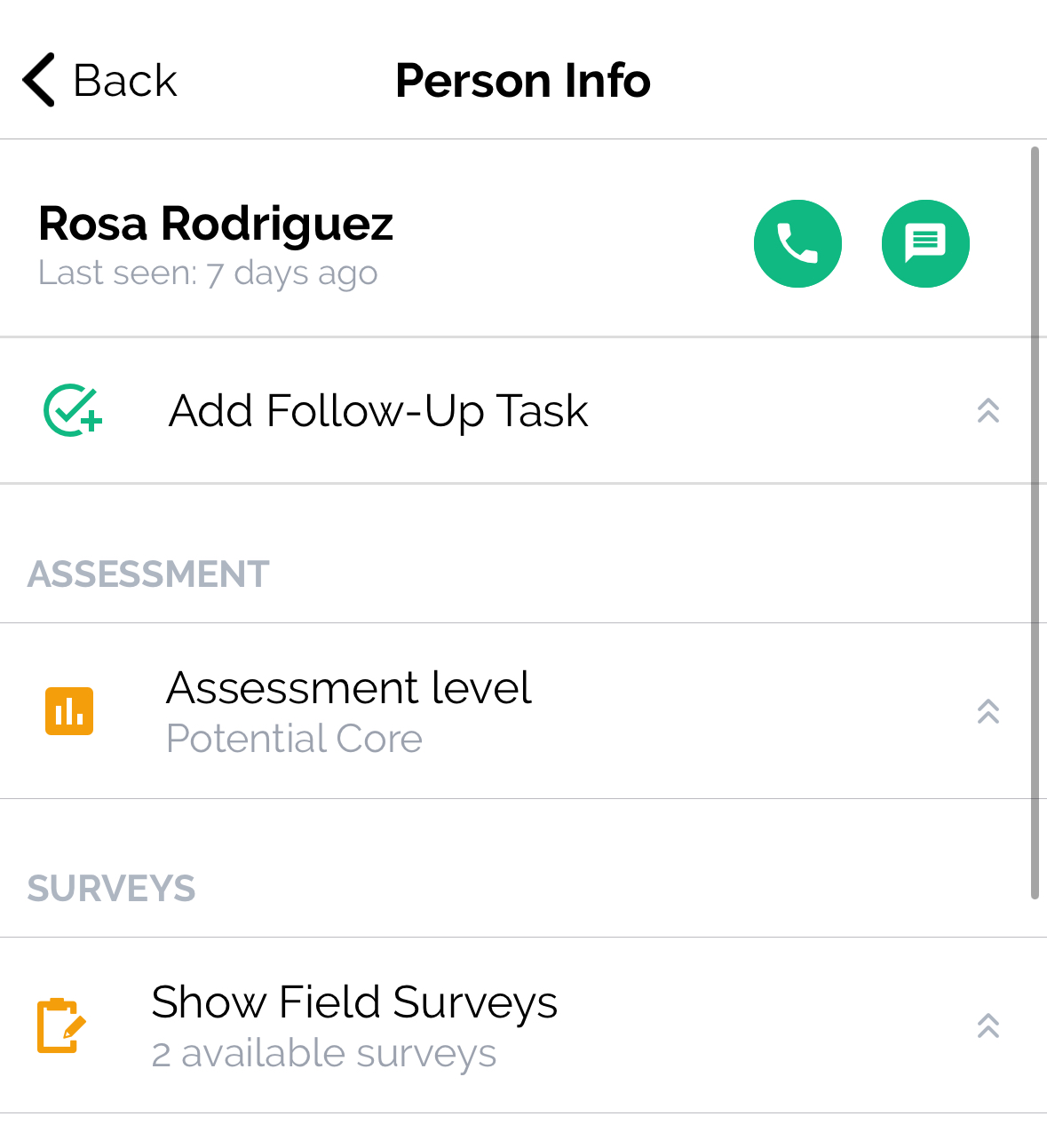
In the Solidarity app: Field Surveys appear during phonebank and textbank calls, and under Show Field Surveys in a contact's details.
Building branching scripts
Set a field's Show to "Visible Conditionally" so it appears only when an earlier answer meets a condition. Use Multipage Subforms to split the script into sections, an HTML content block for talking points, and Liquid template labels to change a label based on earlier answers.
Updating contact information (data cleanup)
When a Field Survey includes User Fields (such as Email, Phone Number, Full Name, Zip Code, or Full Address), submitting it updates those fields on the contact's record. For each field, set Show to "Always Visible" or "Always Required", so the field shows even when the contact already has a value.
Updated 11 days ago